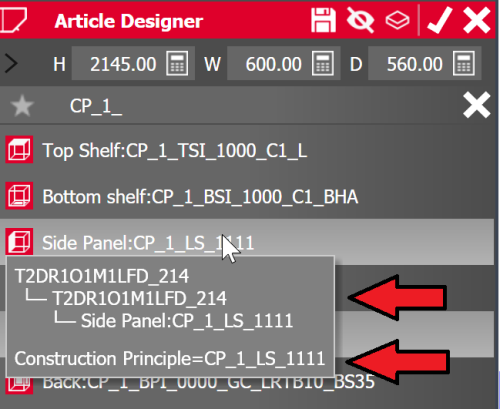
Search-as-you-type in the Article Designer hierarchy
Like the quick access (see Quick access to elements of the Article Designer hierarchy), the new search function can also speed up navigating in the Article Designer Parametrics mode.
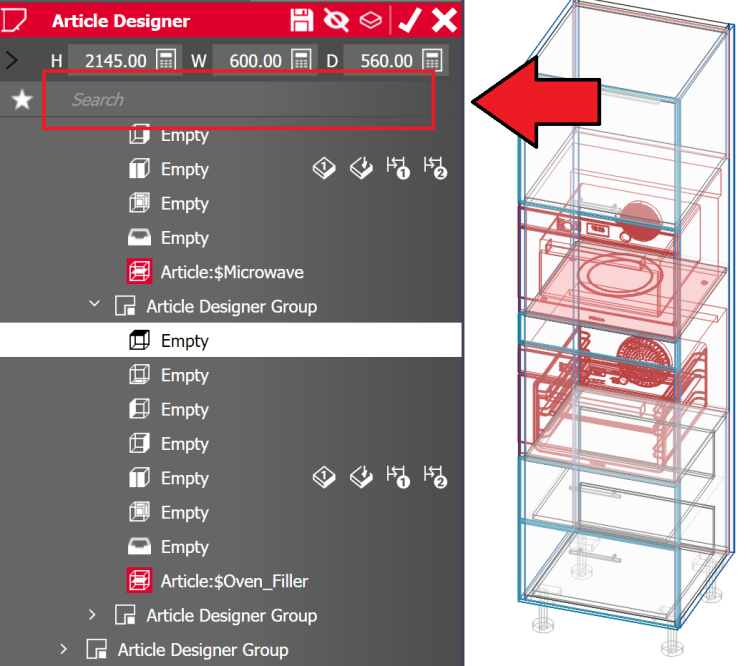
The search works similar to the one in the iX Article Center. It is a so-called incremental search (search-as-you-type). The search starts automatically after you have entered at least 2 characters and lists suggested results in real-time.
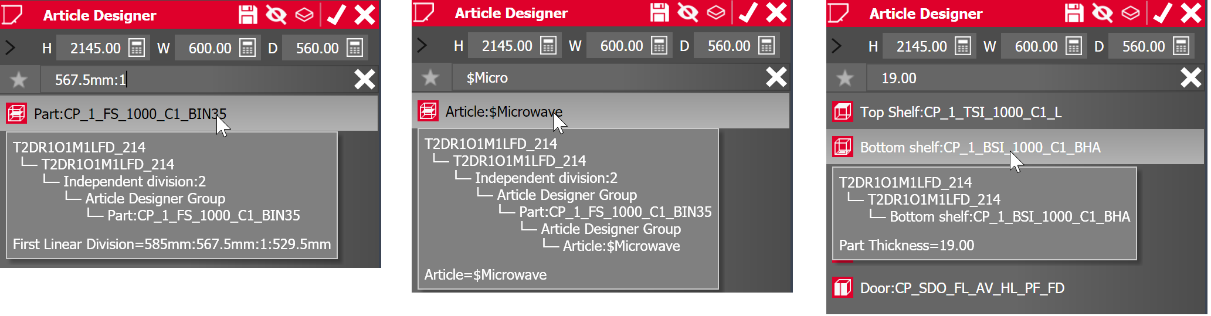
The search function searches the property fields of all elements in which entries can be made. In addition to construction principles, you can also search for variables, linear divisions or even individual measurements.
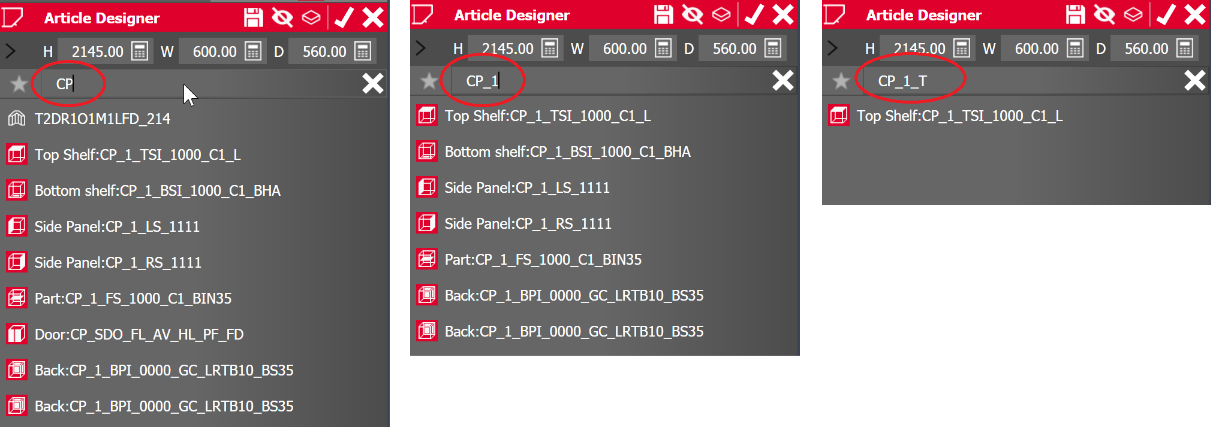
The following actions are possible:
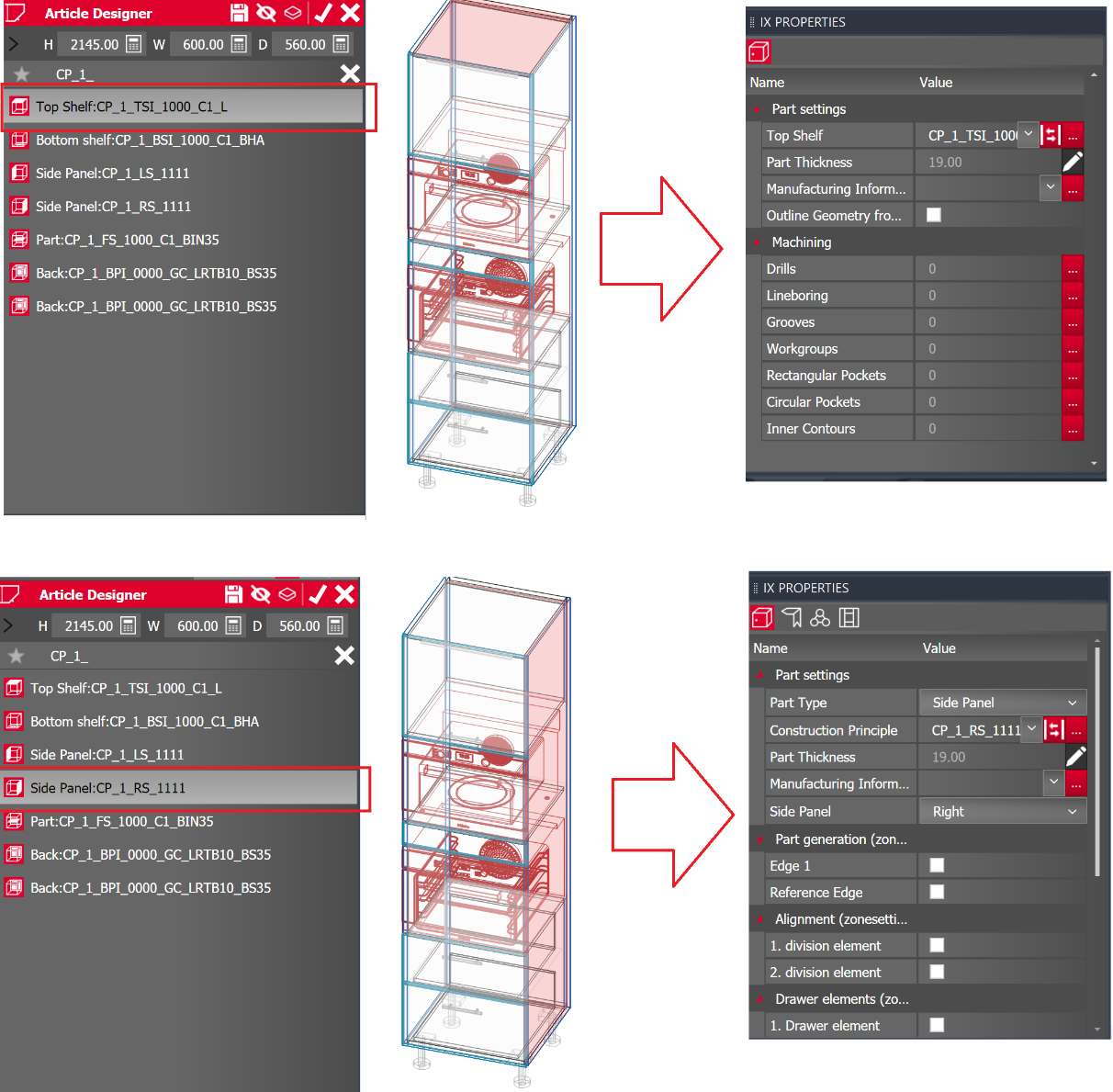
- Select an element: Select an element in the result list with a left click. The selected element is also highlighted in the drawing area.
- Edit a selected element: When an element is selected in the result list, the iXplorer Properties palette loads corresponding properties. Here you can make changes directly.
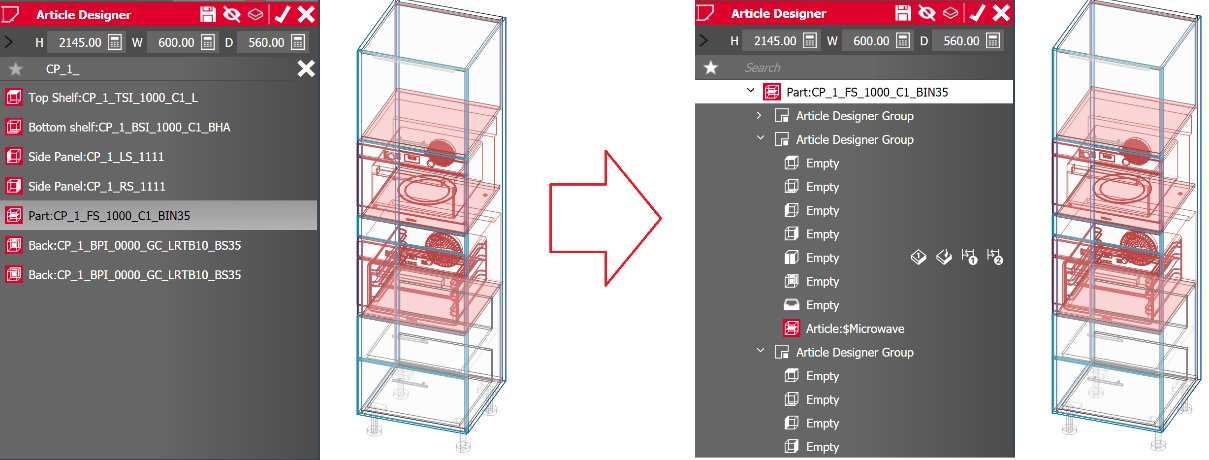
- Jump to an element in the Article Designer hierarchy: Double-clicking on the element in the result list ends the search and jumps to the element node in the Article Designer hierarchy.
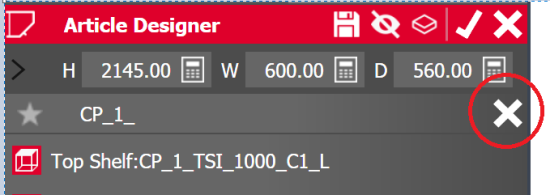
- Quit the search: Clicking on the Close (x) button in the search field ends the search.
- Show path to element/ property: If you hover your mouse over a search result, a tooltip is displayed. The tooltip provides information about where the element was found in the hierarchy and in which "field" the search text is contained.