Enhancements in iX Connect*
Since imos iX 2021 SR1, imos has been offering a connection to third-party systems with iX Connect. In addition to industry systems, this also includes individual systems. New iX Connect functionalities have been added in SR2, which are described below.
Prerequisite:
- authorization key for third-party tool (AuthKey).
- a configuration file per interface
Notes:
- The configuration files are encrypted.
- Individual configuration files can be ordered from imos as a service.
Note: *Not part of the base installation.
Manage the iX Connect interface configuration in principles
On request, imos will provide you with a configuration file for individual iX Connect interfaces. iX Connect principles introduce a standardized way to manage these configuration files.
Example: iX Connect principle for individual Microsoft Dynamics BOM interface
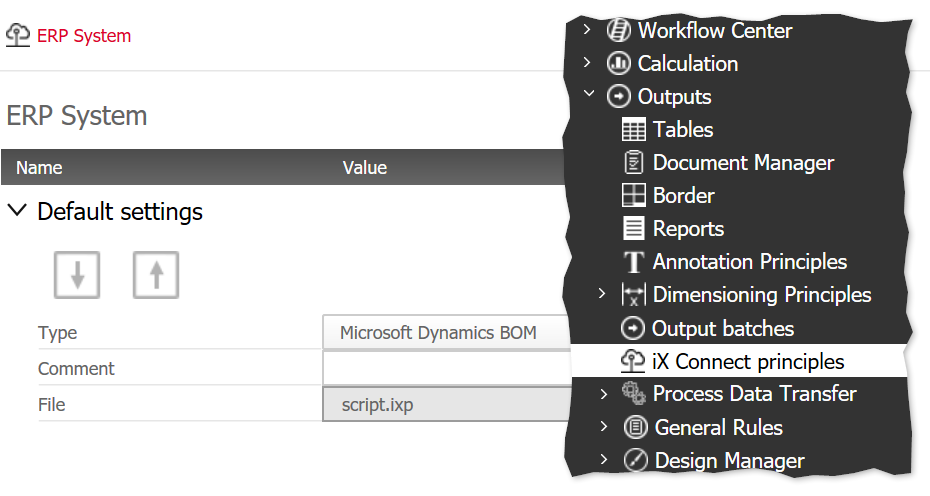
The new Element Manager node iX Connect principles is visible if the creation of an individual iX Connect interface is enabled in the iX license. In parallel, information about the interface type and the maximum number must be stored in the license.
There is a button for importing the file into the principle (and thus into the database) and one for exporting it. The type of configuration file you can import depends on the Type you set in the principle.
Assign iX Connect principles in Output batches
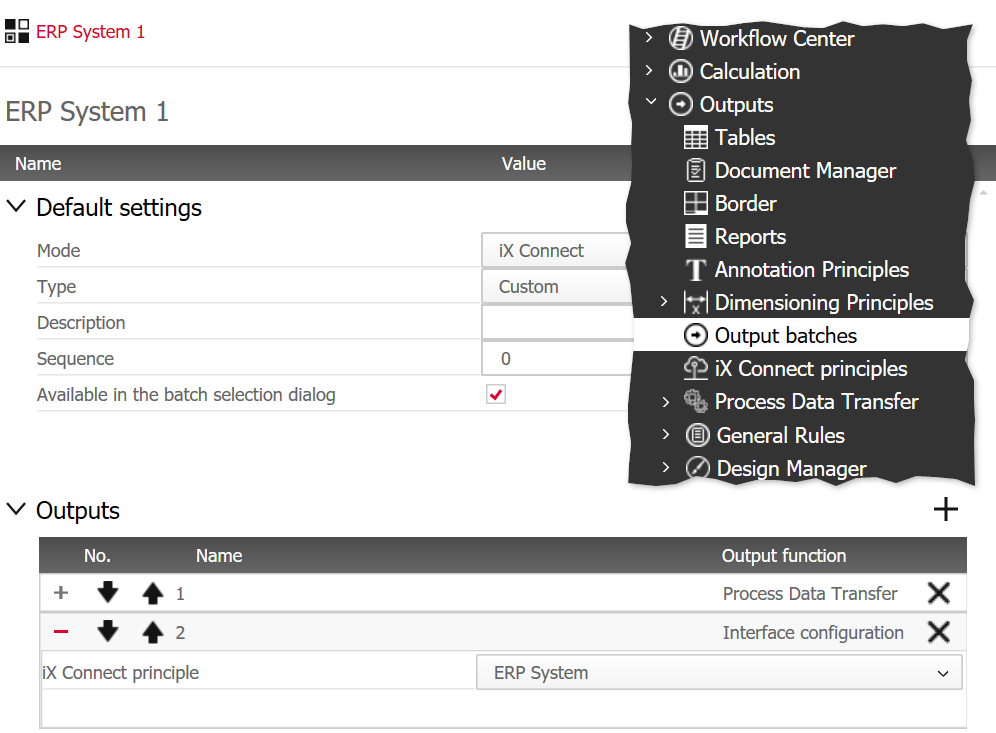
To generate one or more iX Connect outputs at the same time and transfer them to the corresponding web services, you can create an Output batch of the mode iX Connect.
The iX Connect mode is visible if an individual iX Connect interface is enabled on your license.
In the Output section, assign the desired iX Connect principles as Output functions.
You can also automatically trigger the Output batch with the following Integration Server iBots :
- iBot Create production orders
- iBot Automatic batch output
- iBot Internal import
Note: The following iX Connect interfaces are not available in the iX Integration Server until further notice:
- intelliDivide
- productionManager
In the iX Organizer Order Manager, you can start the batch manually as usual.
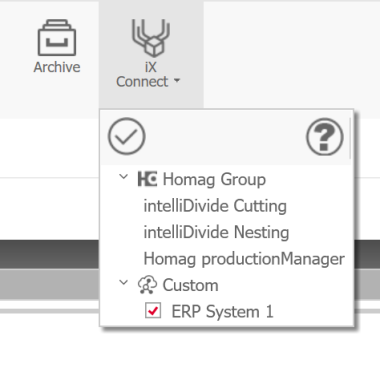
Image: Start iX Connect batch "ERP System 1" manually in the iX Organizer Order Manager