
Quick access to elements of the Article Designer hierarchy
Quick access is a new feature of the Article Designer Parametrics mode. You can use it to add the paths to individual Article Designer zones or elements to a quick access list. You can later select the objects again with just one click instead of having to search for them in the tree hierarchy.
Quick access is particularly recommended for zones and elements that you modify frequently.
Add a shortcut to the quick access
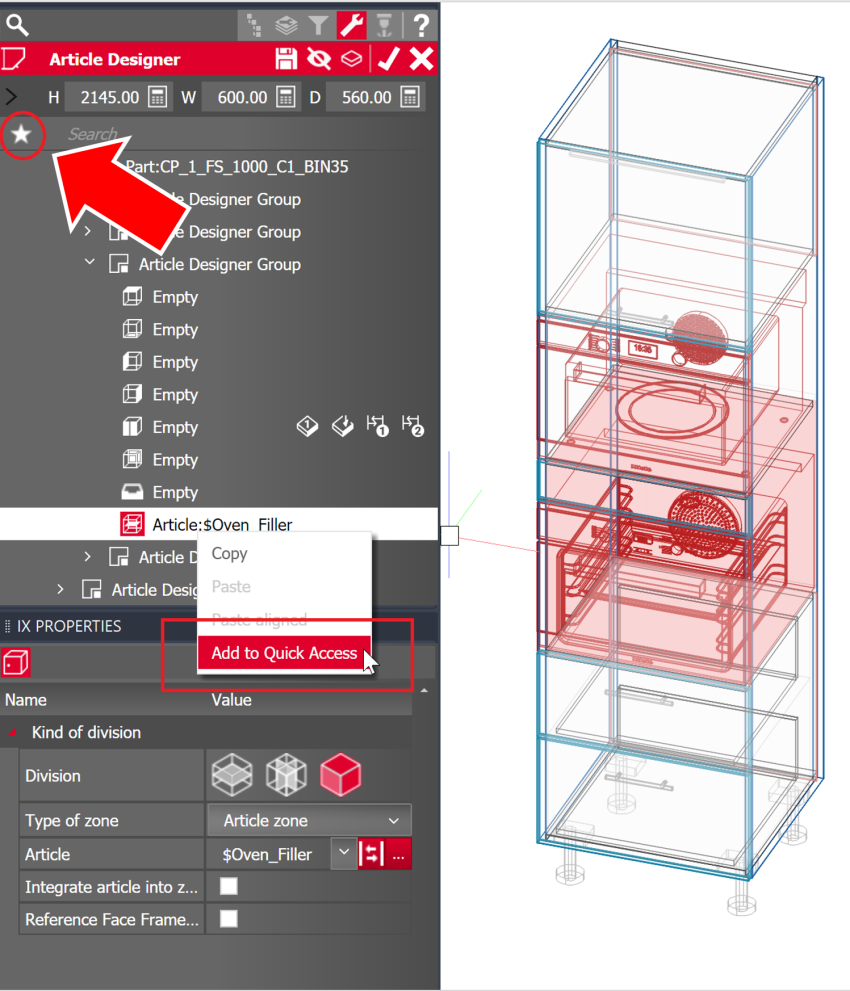
- In the Article Designer tree, navigate to the zone or element you want to add to the quick access.
- Right-click the zone or element and select Add to Quick Access from the context menu.
Tip: By default, the system names the link "Shortcut_<sequential number>". You can use the "Edit" function to assign a suitable name (see Rename a shortcut in the quick access).
Rename a shortcut in the quick access
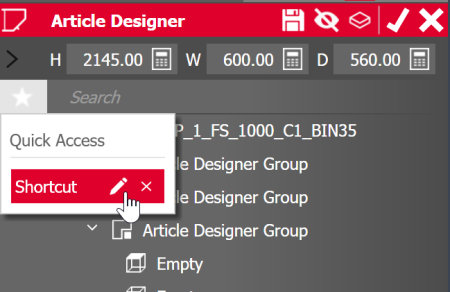
- Next to the tree search box, click on Quick Access.
- In the row with the desired path, click on "Edit".
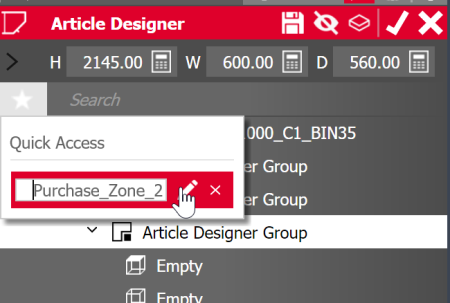
- Enter a different name in that row.
Result: The entry has been renamed. The dialog remains open so that you can change other entries. Clicking outside the dialog closes it.
Select an Article Designer zone or element via quick access
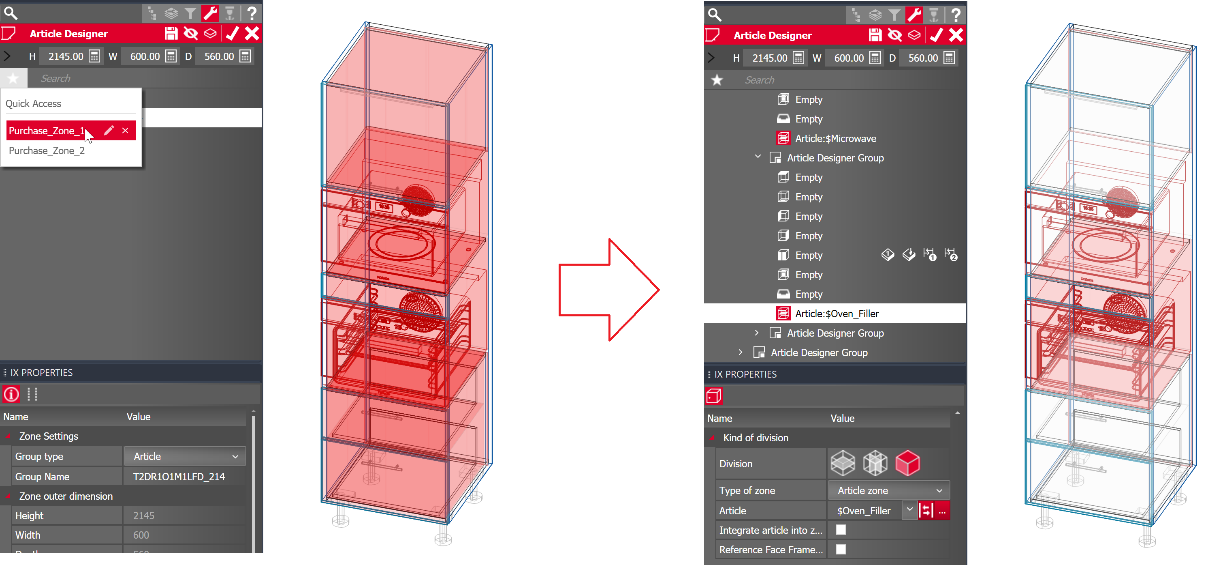
- Next to the tree search box, click on Quick Access.
-
Right-click or left-click the shortcut you want.
Right-click: Leaves the quick access open after selecting.
Left-click: Closes the quick access after selecting.
Remove a shortcut from the quick access
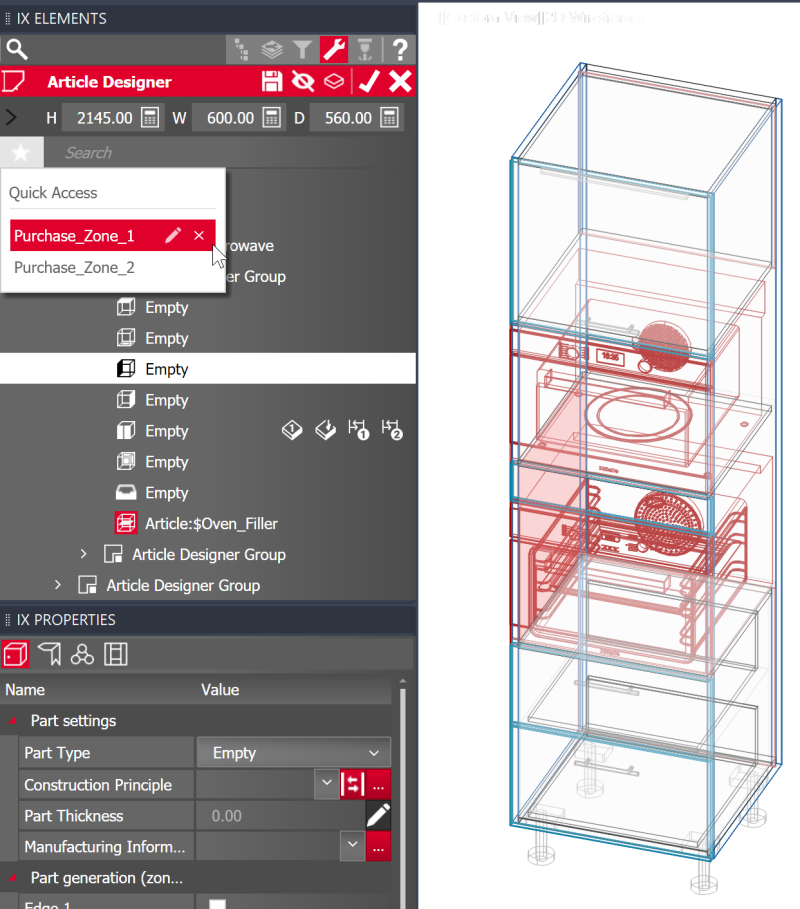
- Next to the tree search box, click on Quick Access.
- Click on the cross (x) in the affected shortcut row.