Redesign of the Multipart Editor
The redesign of the Multipart Editor is one of the biggest novelties in iX 2021 SR2 and it forms the basis for future developments.
The editor now works with a modern technology for the user interface and is adapted to the modern imos iX design in terms of look and feel. The usability has been revised as well.
Note: The redesign of the dialog does not require any changes to your data set-up.
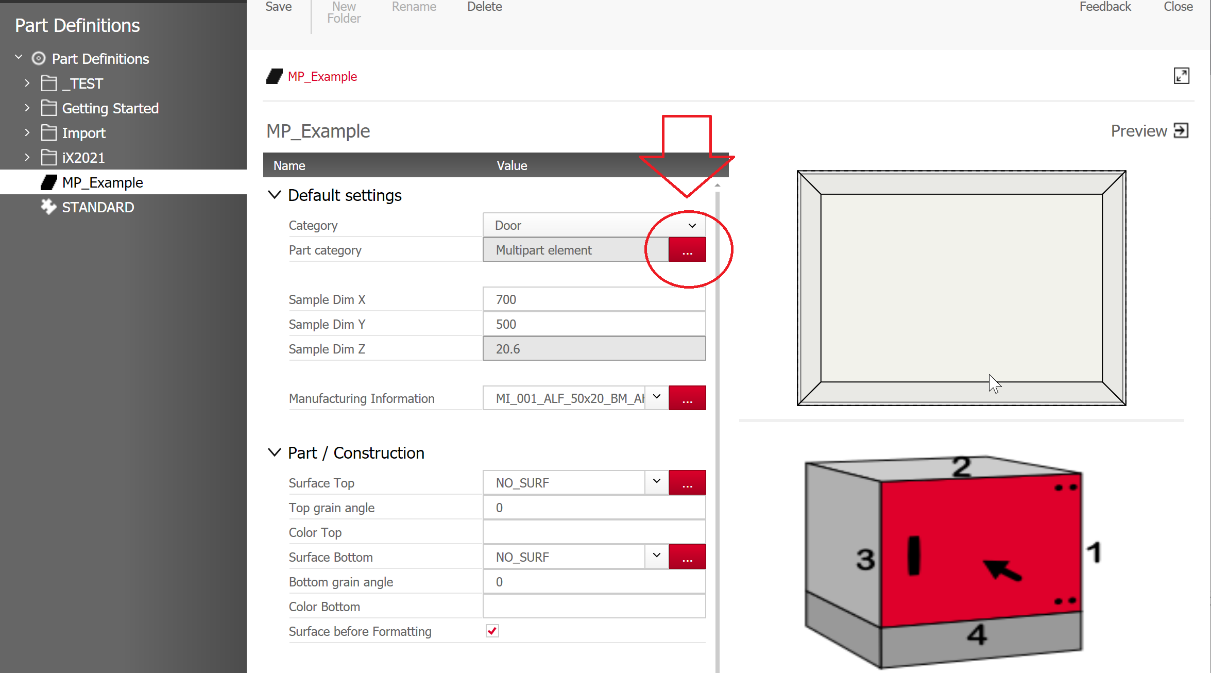
You can still access the Multipart Editor via the Part Definition in the Element Manager.
However, you now also have the option of accessing the editor via the Element Manager in iX Organizer instead of iX CAD.
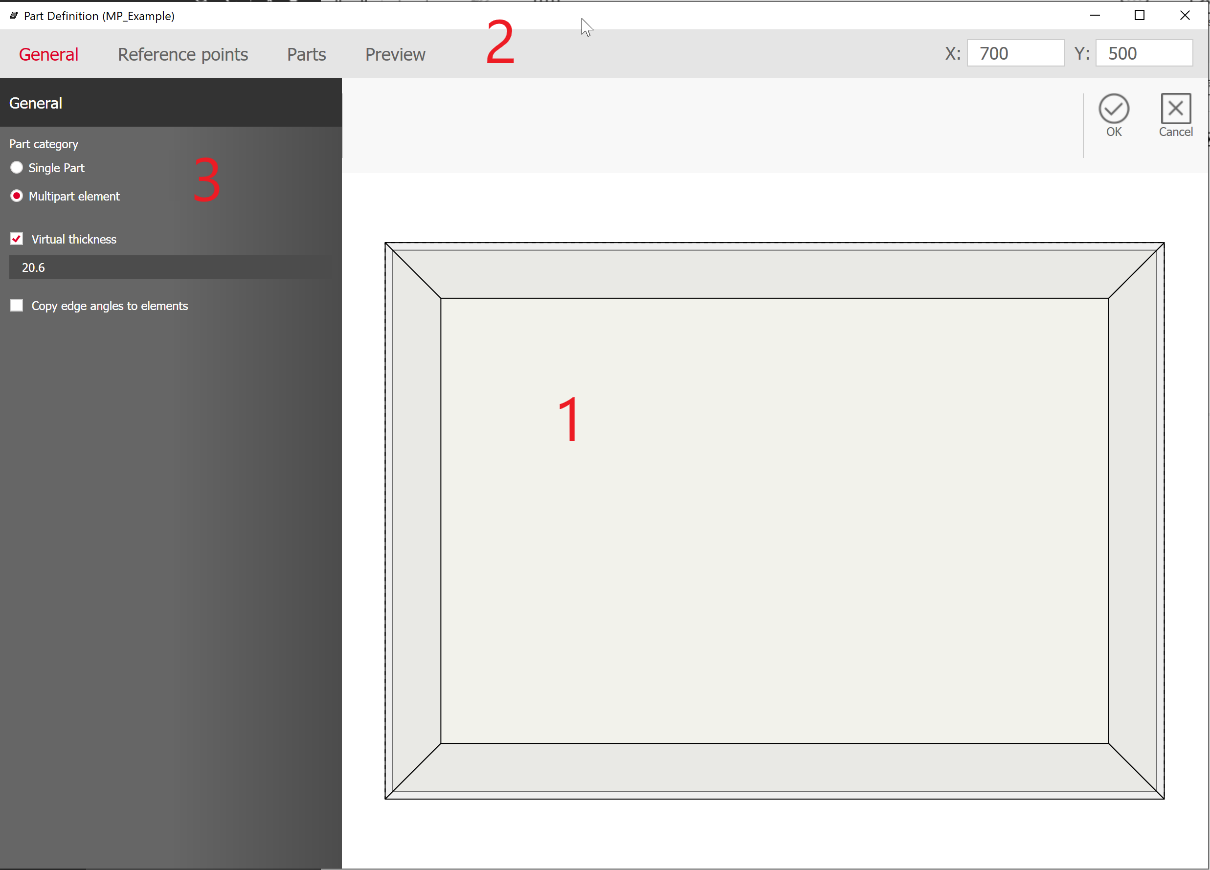
The user interface of the new dialog is divided into three areas:
- Interactive Graphic (1)
- Ribbon (2) with the General, Reference points, Parts and Preview tabs
- Hierarchy tree and/ or Properties (2)
"Hidden" functions in the context menus of fields or buttons have been avoided where possible. Instead, available functions are clearly visible in the user interface.
Interactive preview
On the one hand, the interactive preview is used to preview parts and reference points, on the other hand, actions such as selecting the reference points are possible. Mouse navigation in the preview works as follows:
- Mouse wheel: zoom in/ out
- Press left mouse button and move mouse: move the preview section
- Double-click left mouse button: Zoom Extents to bring the whole part back into focus
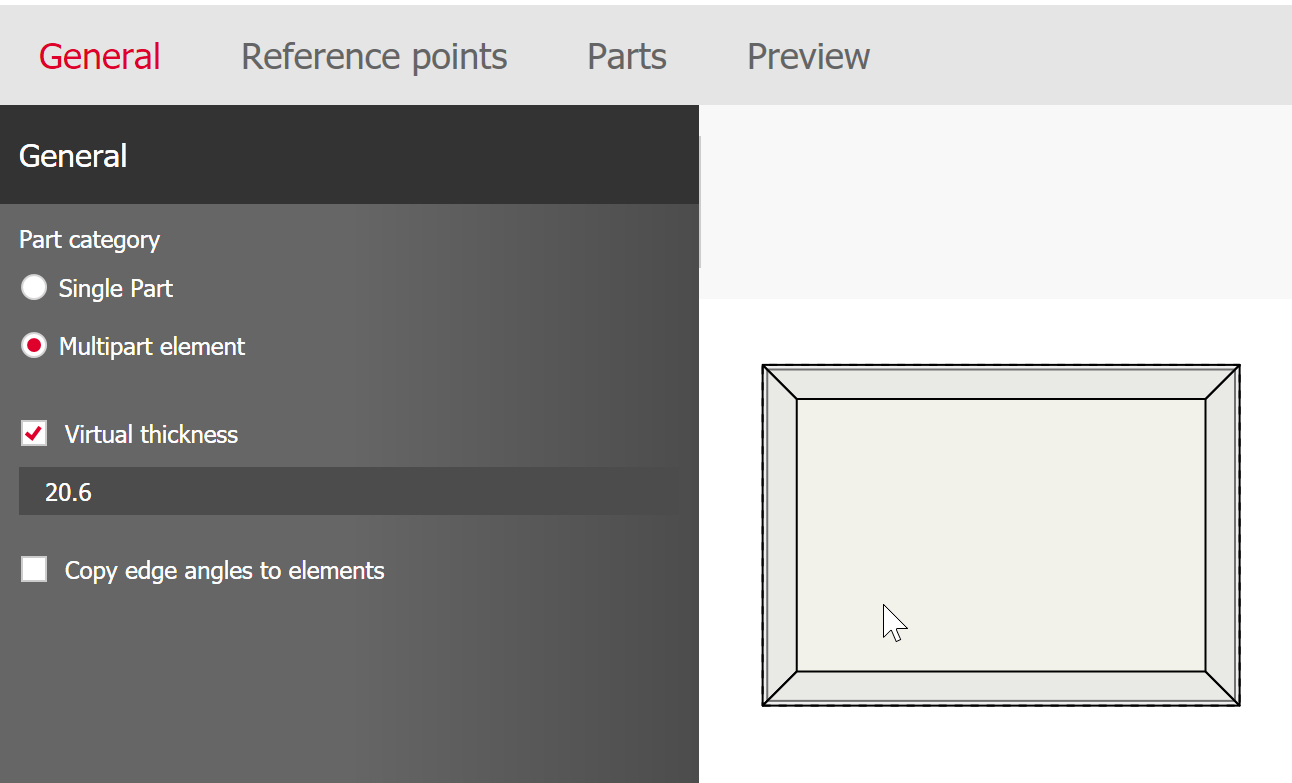
Tab General
In the "General" tab you make basic settings for the part. The interactive preview shows the part the way it is defined at that point.
Tab Reference points
The functions for creating reference/ auxiliary points are summarized in the "Reference points" tab.
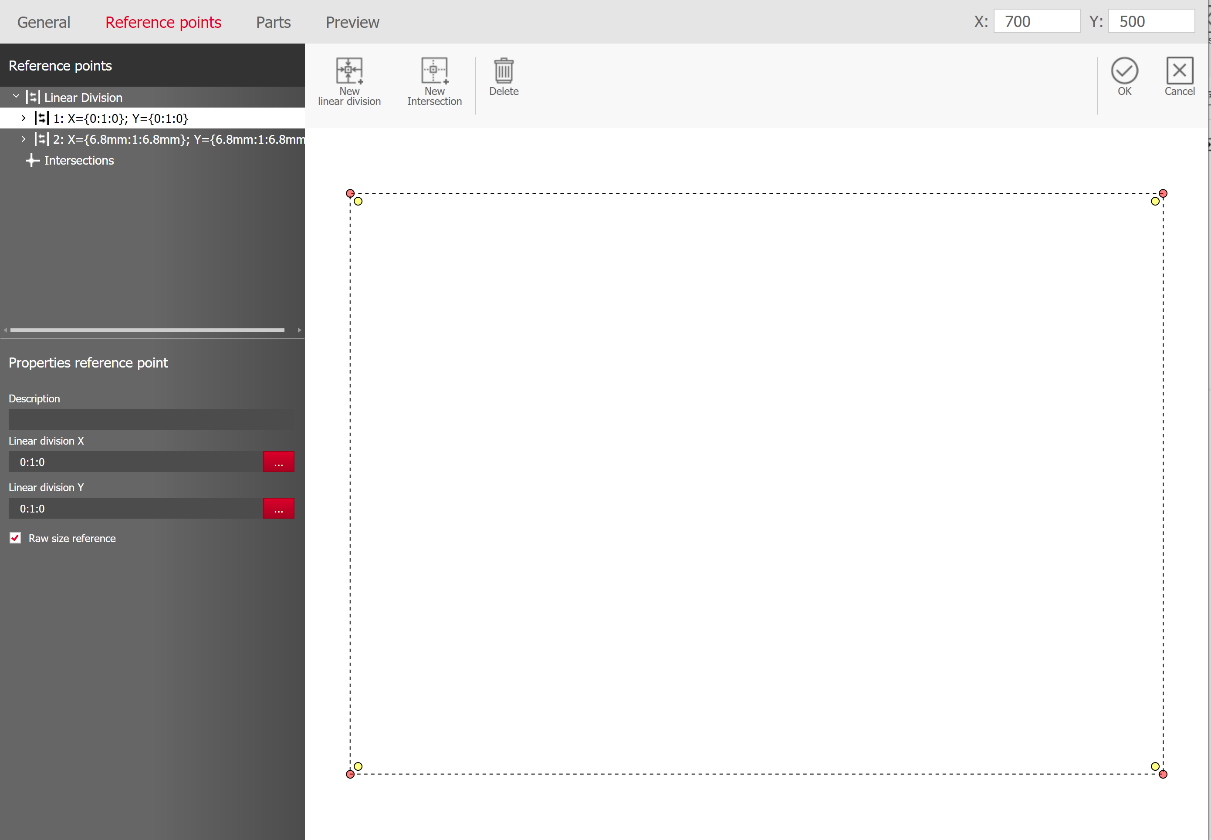
Here you have the possibility to create different types of reference points - either by means of linear division or by means of intersections of lines that are aligned parallel to the part edges.
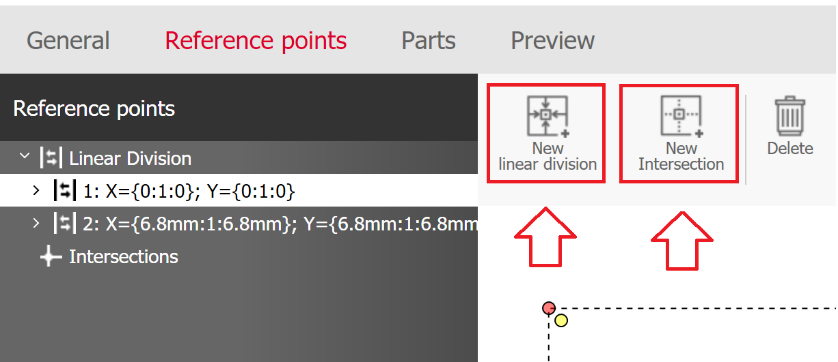
Depending on the reference point type, the interactive preview and the availability of properties change:
-
New Linear Division
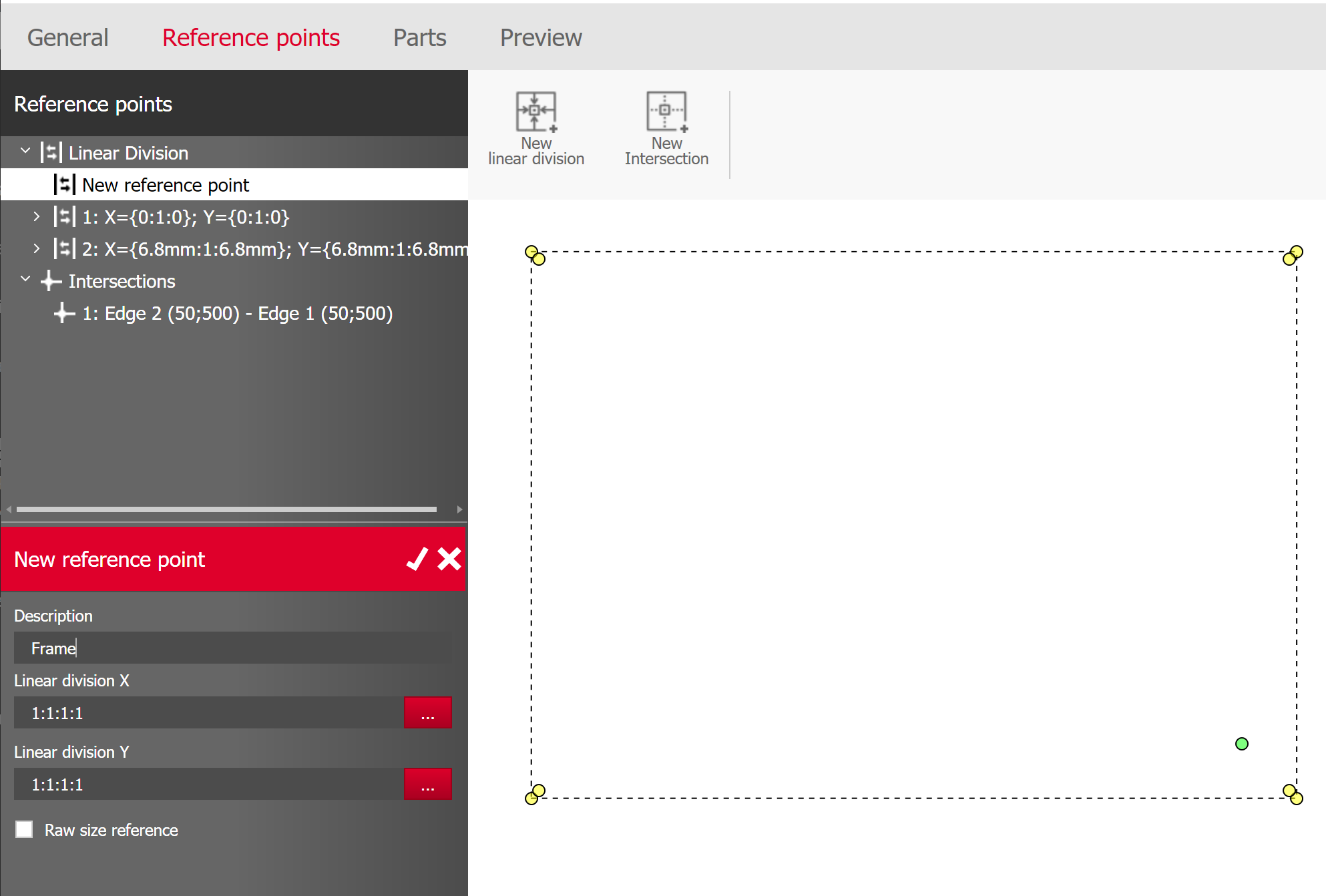
Info: The new sub-dialog for linear divisions can be accessed in the properties of linear divisions (see chapter Redesign of the sub-dialog Linear Division)
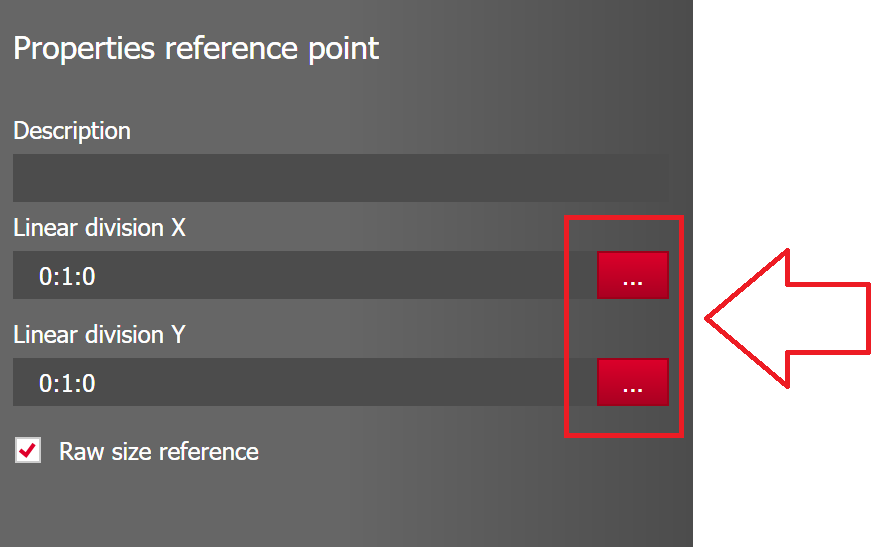
-
New Intersection
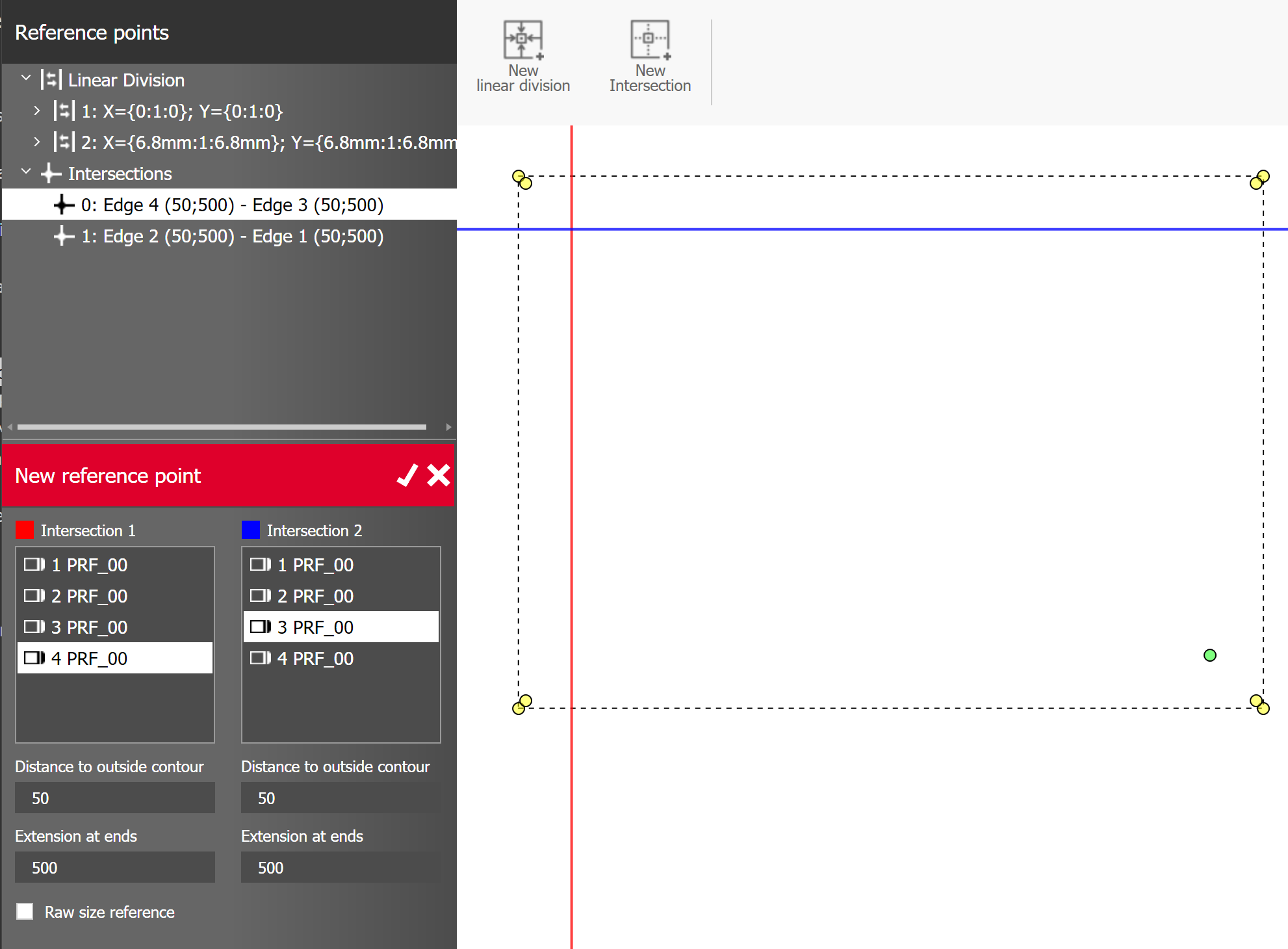
Use the Apply or Discard buttons on the Properties toolbar to accept or discard the creation of a reference point. After applying you will find the new reference point in the hierarchy tree. After applying you will find the new reference point in the hierarchy tree.
Tab Parts
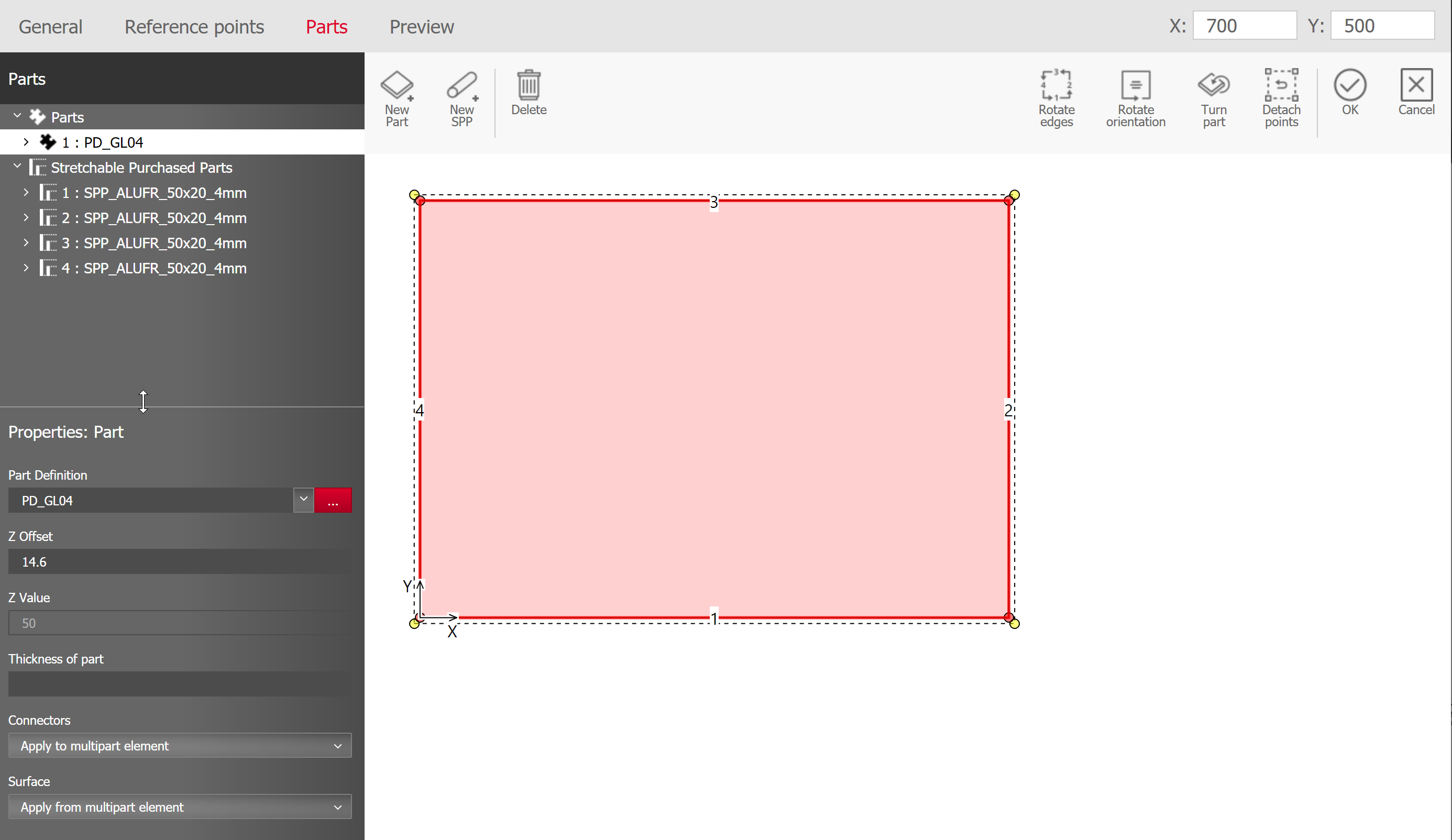
The "Parts" tab contains functions for creating and editing both parts and stretchable purchased parts. This gives you a better overview of which elements make up the multi-part without having to switch between tabs.
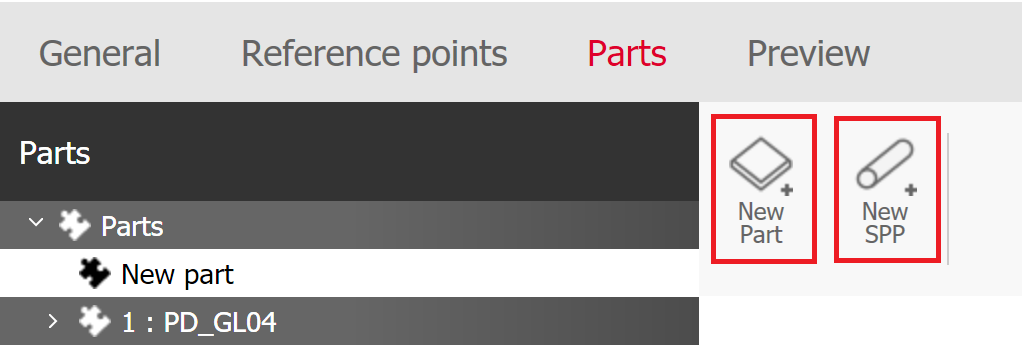
New parts are created and edited similar to the reference points. Depending on whether it is a "part" or a "stretchable purchased part", the properties and the interactive preview change.
- New Part
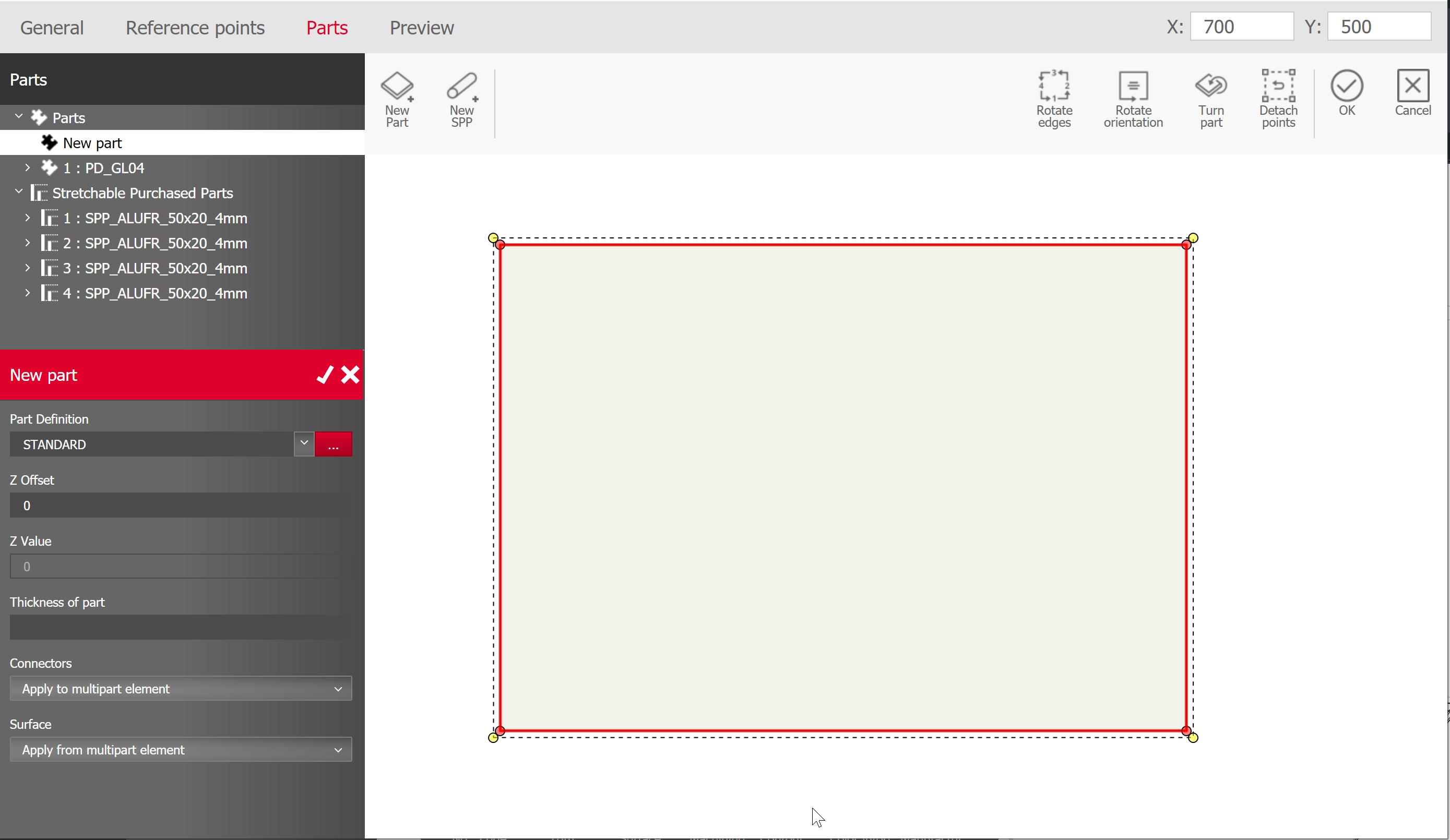
- New stretchable purchased part
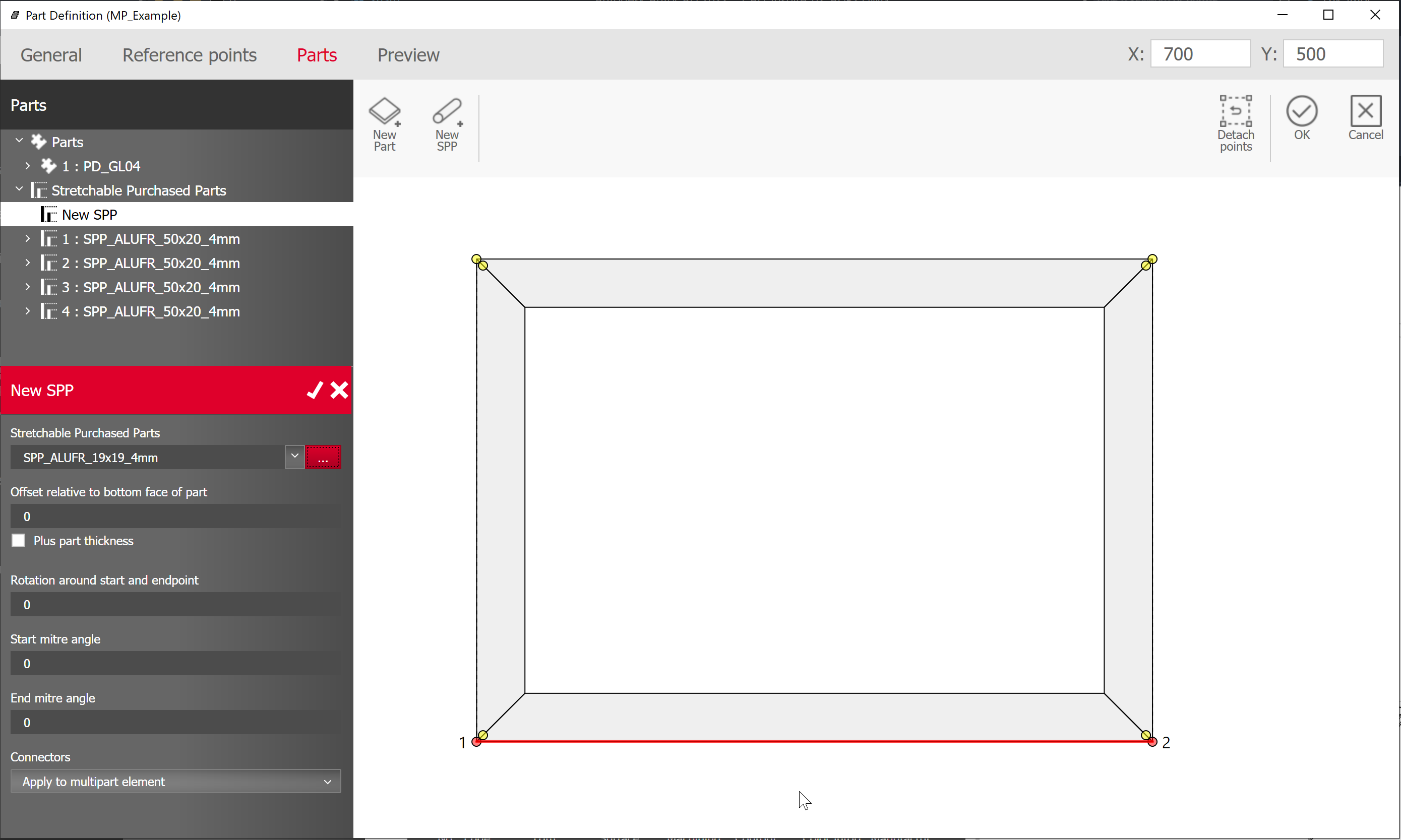
Use the Apply or Discard buttons on the Properties toolbar to accept or discard the creation of a part or stretchable purchased part.
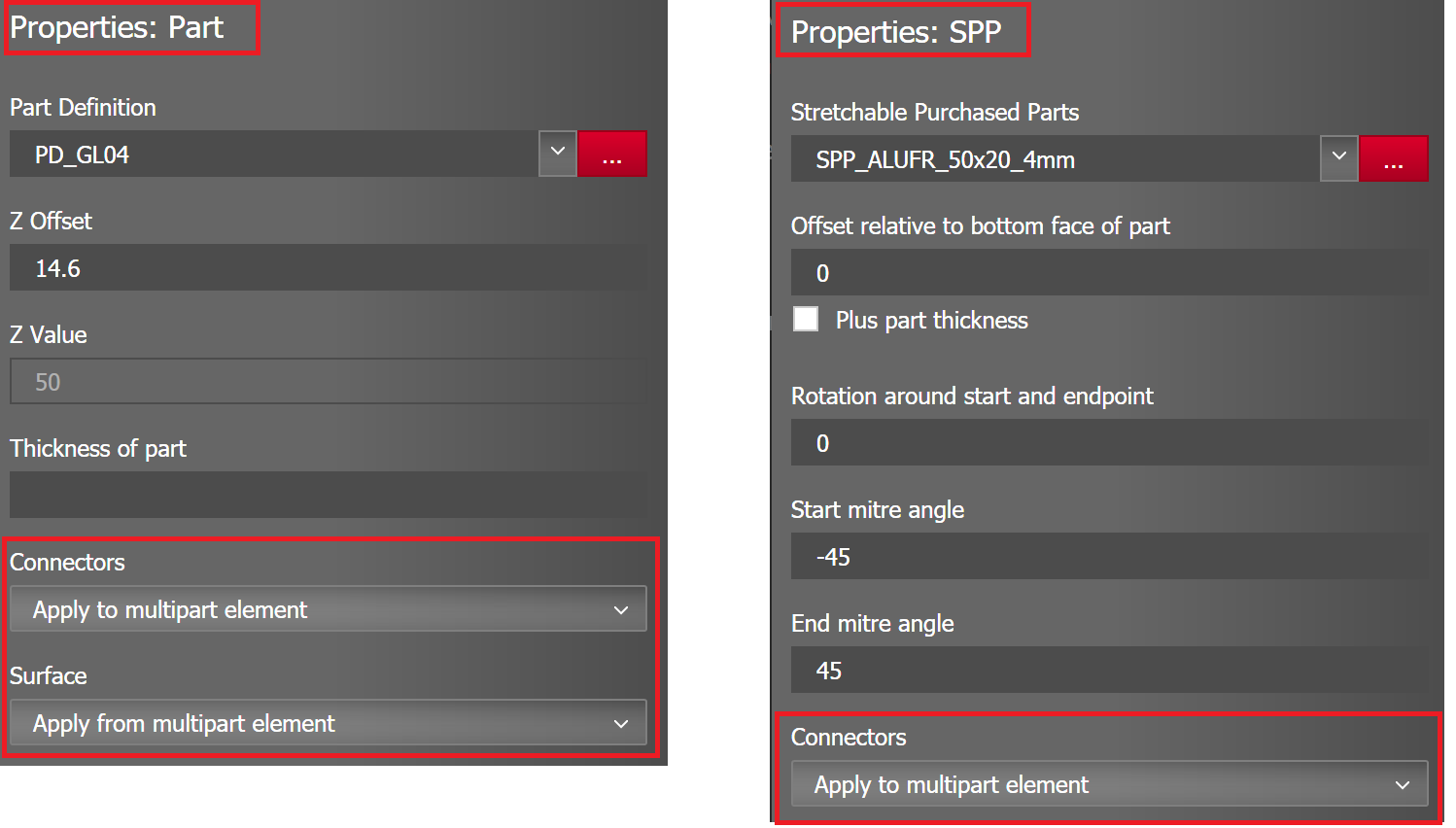
After applying, you will find the new part in the hierarchy tree. You can modify the properties of a selected element in the Properties section. Here you will find relevant fields that relevant for the selected element, such as Surfaces for parts only or Connectors for both parts and stretchable purchased parts.
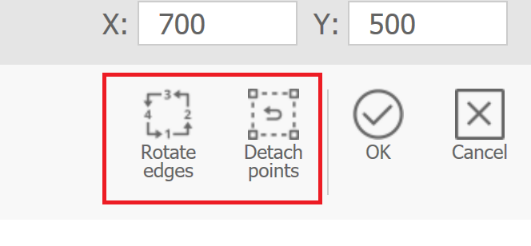
As with the parts, there are now also the functions “Rotate edges” and “Detach points” for stretchable purchased parts.
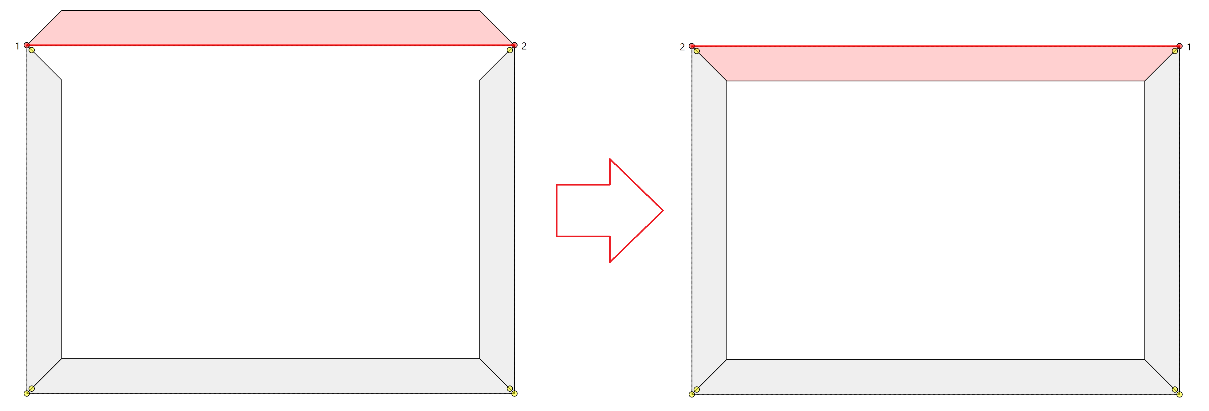
- Rotate edges: Swap the start and end points of the purchased part. Helpful if the points were clicked in the wrong order and the purchased part was therefore generated the wrong way round.
- Detach points: Deselect current reference point selection. Useful if you want to select the reference points from scratch.
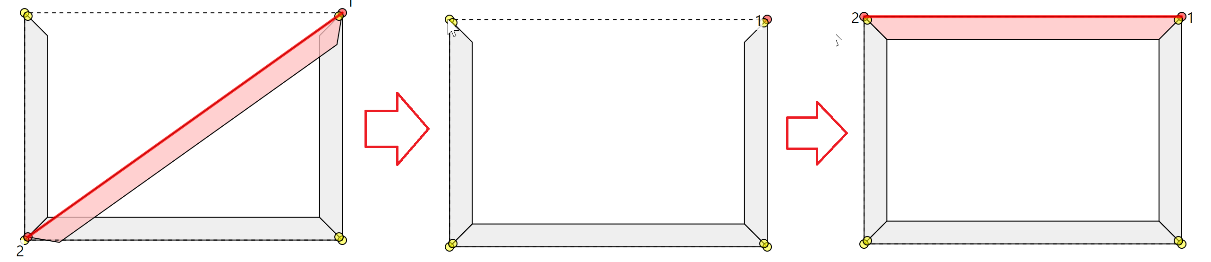
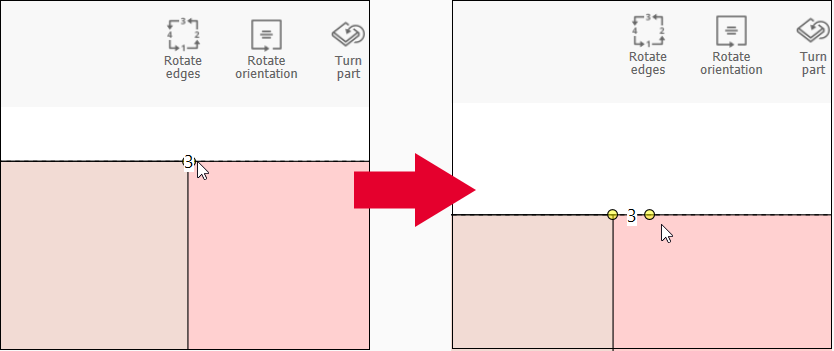
Tip: If points are close together, zooming in with the mouse wheel can help you select the correct point.
Tab Preview
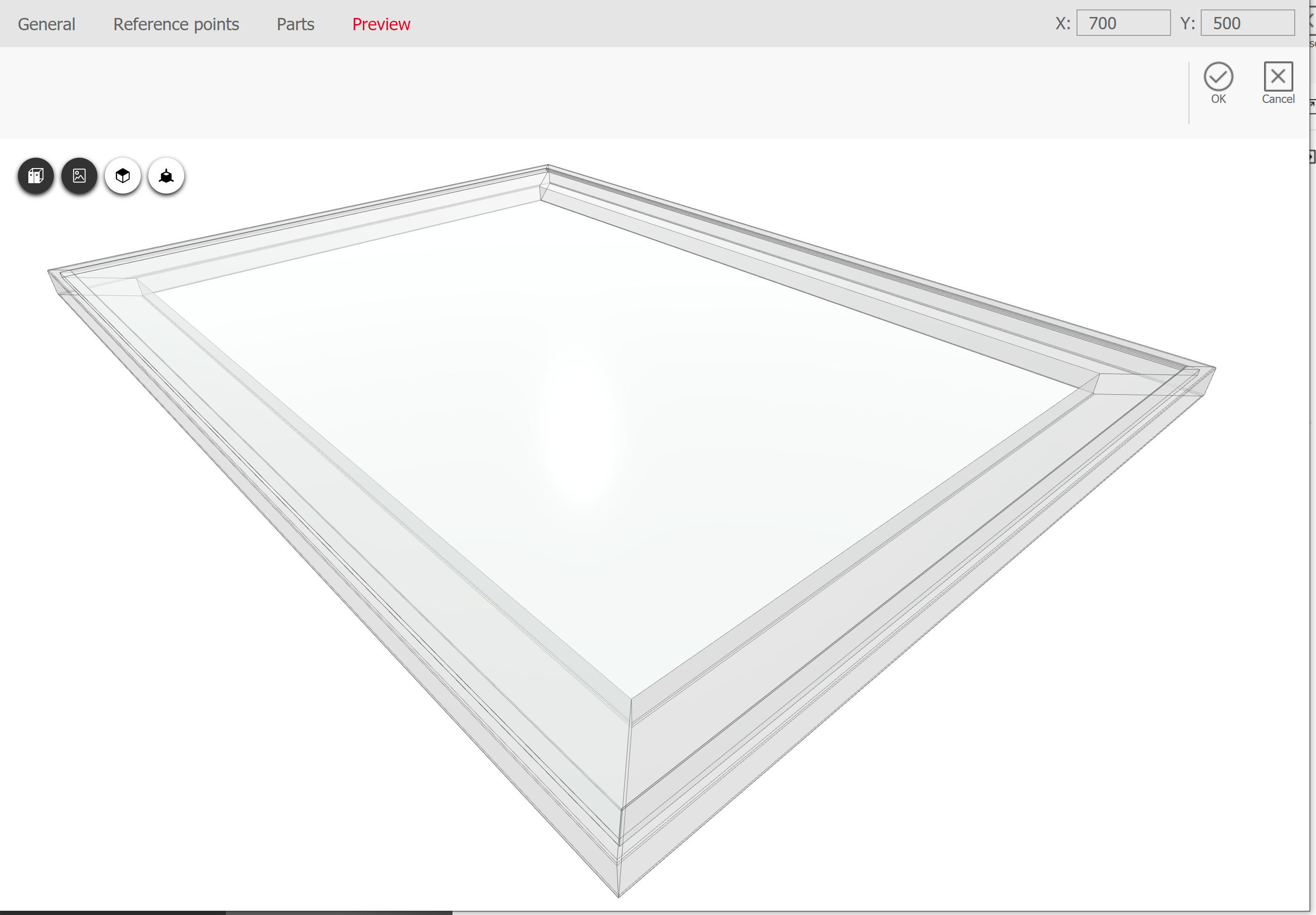
The 3D preview visualizes all parts, machinings and connectors and thus gives you the opportunity to control construction.
Instead of opening the 3D preview in a modal dialog, it has been integrated directly into the editor as a separate tab. In this way, switching between editing and preview mode is not interrupted by opening an extra dialog.