
Interactive animation
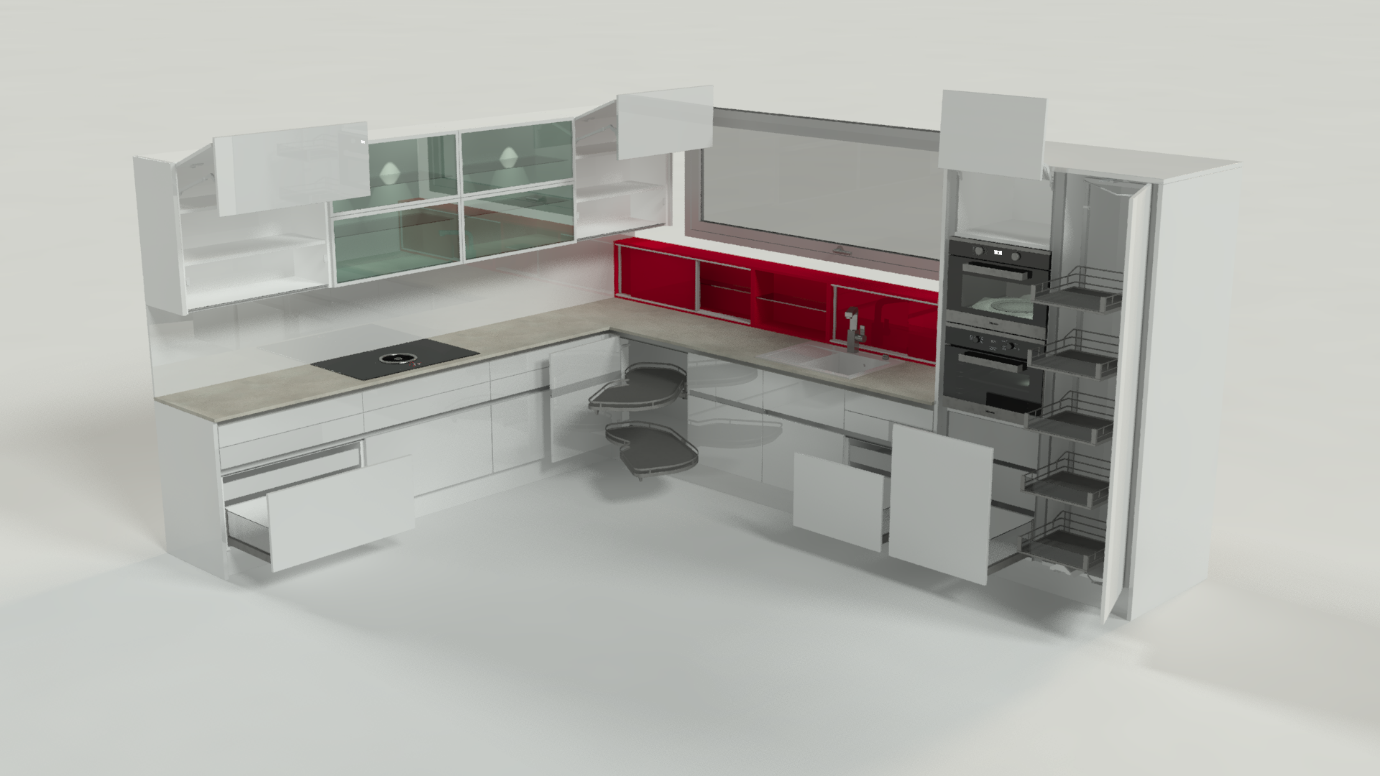
With the interactive animation you control the animation of fronts and drawers manually. That means you decide to what extent one or more fronts and drawers should be open at the same time. With this method you make the render scene look more dynamic.
Apply the interactive animation
- Go to Ribbon menu>Presentation and click on Interactive Animation.
- Select a movable front part in the drawing area with a left-click (door, flap or drawer front).
- Move the mouse until the front has reached the desired position.
- Save the position with another left-click.
Tip: Since this type of generic animation does not follow a specifically defined animation path, it can happen that connectors move incorrectly and protrude, e.g. in flaps. Using the Auto-CAD Isolate feature, you can hide these elements before rendering and show them again when finished.
Reset the interactive animation
Click on the method Animation: Close Article in Ribbon menu > Presentation tab to reset the Interactive animation.