
Document Manager - Multisheet PDF
Merge separate Document Manager output files directly into one multi-sheet PDF file and achieve a higher quality output than the standard reports. To do this, select an appropriate sorting option in the ‘Create multi-sheet PDF’ selection box.
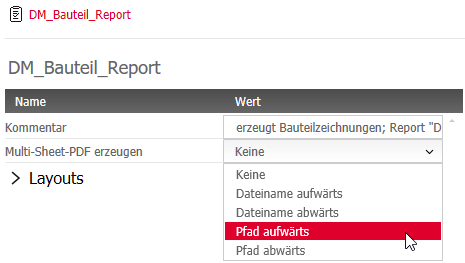
The PDF uses the current page setup of the drawing border (indicated by the asterisk character, e.g. *DM_A3*). You may either modify the currently selected page setup of the drawing border or simply switch to one of out the current page setup by double clicking one of the other page setups in the list. When creating a multi-sheet PDF, the currently selected Page Setup is used for the border (marked by an asterisk in the Page Setup Manager, e.g. *DM_A3*); the Page Settings that you select in the principle’s output format category do not affect the multi-sheet PDF).
Keep planning while the AutoCAD® Plot Spooler runs in the background – check for its progress in the status bar.
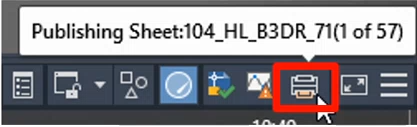
Note: In the “Background processing options” section of the AutoCAD „Plot and Publish” options, the “Publishing” option must be activated.

The imos DCO package ‘Outputs V 1.0’ contains example Document Manager principles and borders that are adjusted to fit multi-sheet PDFs).
The multi-sheet PDF will not appear in Windows Explorer immediately, as a multi-sheet plot requires a relatively long amount of time.
In addition to the documents and DGWs, the Document Manager also creates a DSD file which contains the file paths for the individual DWGs. In order to retroactively change the sorting, open an empty drawing, enter the command _PUBLISH and load the DSD file via ‘Load plan list’. Using the selection box, arrange the sequence of DWGs to your liking. Then click ‘Publish’ to generate a multi-sheet PDF once again.
Sep 2019 | imos iX 2019
#01185