
Project Design Management
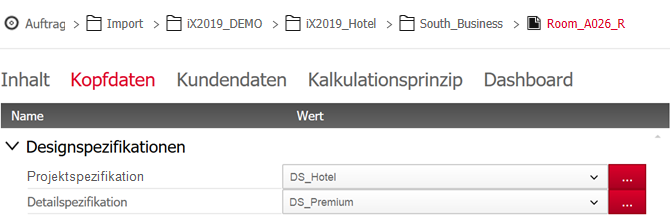
Project Specifications
The Project Specifications provide variable values that are to be implemented in all orders within the project. They overwrite the default value.
Example:
For our hotel, we define the variable values for the case material and the pulls in the Design Specification DS_Hotel, as both are identical in nearly all rooms.
Detailed Specifications
The Detailed Specifications define variables which meet differentiated project requirements. They overwrite the Project Specifications and therefore allow for more design variations.
Example:
The cabinet doors are different for all room types. In addition, the builder wants to have the option of changing the pulls in the business rooms – that means there is an additional Design Specification for each room type, in which the relevant door material is defined:
- DS_Standard,
- DS_Business and
- DS_Premium.
In DS_Business, you can modify the value of the pulls at any time, in order to change them in all business rooms.
Assignment within Order Management
The allocation and distinction between General and Detailed Specifications is made in the Organizer’s Order Management or in the dialog ‘Save order’ in CAD. In the selection window of the Design Specification node, you can define one Project and, if required, one Detailed Specification.
Assignment within the dialog for order-related variables
The Design Specifications affect the order values. You can therefore also assign them in the dialog for order-related variables – you will find the selection boxes in the ribbon menu.
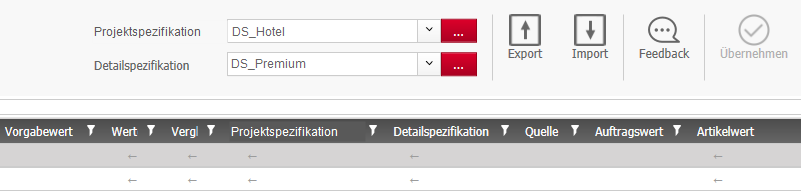
The columns “Project Specification”, “Detailed Specification”, and “Source” have been added to the variable table. The source provides information on the variable level the order value is derived from. Possible sources are (sorted by lowest hierarchy level):
- Default (default value)
- Project (Specification)
- Detail (Specification)
- User (when manually allocating an order value)

Updating orders after changing Design Specifications
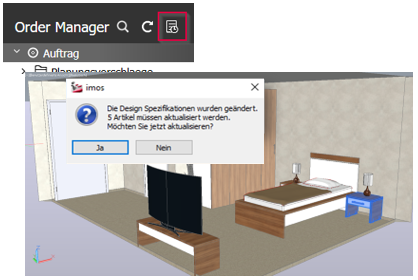
Changing a Design Specification does not automatically update all affected orders – you have to manually confirm the update. Find the affected orders in the Order Manager by clicking on ‘Orders to be updated’ on the black menu bar. Open one of the orders from the list in iX CAD: you will see a notification dialog regarding the change, asking you if you wish to update the order. Click ‘Yes’ if you wish to accept the update – this overwrites corresponding order variables (see Resolving conflicts). If you click ‘No’, the conflict will remain unresolved.
Hinweis: Please note that drafting products such as plan views, views, or sections are not automatically updated – only the Article Designer article will be updated.
Conflicts
A conflict exists when the order value is not taken from the variable level (Default, Specification, Order, Article) that the variable hierarchy dictates.
Conflicts occur in the following cases:
- The user opens an order with changed Design Specifications and selects ‘No’ in the update dialog.
- User A has opened an order. At the same time, User B modifies the main data or specifications that User A is using in the order that is currently open.
- The user changes the Design Specification, without applying it – they click on ‘Close’ instead.
An order with an unresolved conflict is recognizable not just from the notification dialog that pops up when opening the order, but also via a hazard triangle in the order-specific variable dialog. In addition, values with an unresolved conflict are marked with an asterisk (*) in the source column.
.
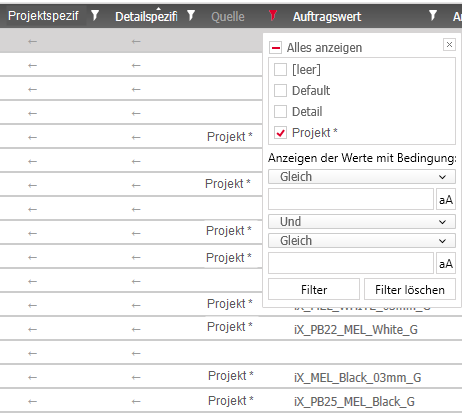
Hinweis: Use the filter function in the source column in order to filter for entries with an asterisk.
Resolving conflicts

If a conflict is automatically resolved, the program will overwrite the order and/or source value to according to the variable hierarchy’s logic. Resolve conflicts automatically by clicking on the hazard triangle in the variable dialog’s ribbon menu and confirming the query dialog by clicking on OK; click cancel if you do not wish to resolve automatically.
Alternatively, you can resolve the conflict manually by defining an order value for each conflict, so that the source value changes to “User”.
If you do not resolve all conflicts but still click on Apply, the program will adopt the current status in the variable dialog without running any checks - in this case, a query dialog will inform you of your options. Continue by clicking on OK or click Cancel to return to the variable dialog.
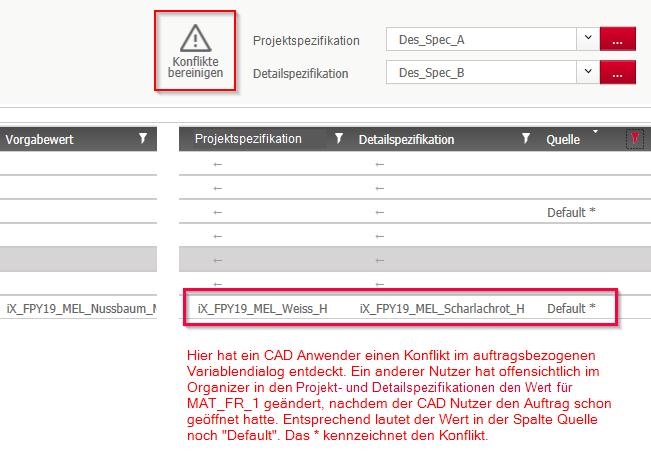
Example:
The upper graphic shows an order-related variable dialog that has been opened by an order manager. The hazard triangle informs them that there is a conflict within the order that was not in place when the order was opened – obviously data administrators have been working in the background and changed something in the main data. The variable whose order value does not come from the source is marked with an asterisk: it still reads “Default”, even though values have been entered in the columns Project- and Detailed Specification. The obvious conclusion is that the data administrator have adopted these variables into both Design Specifications shortly before, and assigned each of them a value.
If the order manager now clicks on the hazard triangle and confirms the notification dialog, the variable source will automatically switch from ‘Default’ to ‘Detail’, as the Detailed Specification overwrites both Default and Project values. The order value will change in accordance with the Detailed Specification and the conflict is resolved.
If the Specification does not meet the manager’s requirements, they can instead add an individual order value to the order column and then click Apply – the source will be switched to ‘User’ and this will also resolve the conflict.
- If you exit the variables dialog with NO Conflict, the Spec-Principles and Spec-Hashes are updated.
- If you exit the variables dialog via Close, nothing is applied or updated. Es werden keine Laufzeitdaten, etc. aktualisiert.
- If you exit the variables dialog with one or more Conflicts via Apply, changed (user) values are applied and according articles are updated. Spezifikationen und Hashwerte werden NICHT aktualisiert. Der Auftrag bleibt "konfliktbehaftet"
- When saving the order in CAD, the current run time data is written into the FXF AND the table PROADMIN is updated.
Jun 2019 | imos iX 2019
#01149