
Artikel Designer - Drawers
Access
iX Elements Palette > [Article Designer selected] > Tab Parametrics > [ Construction element Drawers selected ] > iX Properties Palette > Tab: Components / Tab: Zone settings
General Information
Drawers can be inserted in the selected zone with the support of the parameters.
Options
Division
| Linear Division |
The entered division defines the number of drawers in the zone. With activated front definition/Use design parameters the entered values define the size oft he drawers. If the automatic front definition/ Use design parameters is not activated, then the gap dimension between each zone must be defined via the linear division. |
| Show/ Hide Gap dimensions | Shows or hides the gap dimensions in mm in the input field Linear Division. If Use Design Parameters/ Front Definition is completely or partially inactive , you can define the gap dimensions individually. Additionally, the buttons for the dimension references are activated. |
| Zone division |
This table lists the drawers according to the input in the field Linear Division. When a linear division is applied, you can click the ellipsis button to open the Element Manager and assign a Drawer principle.
If you want to insert a door, instead of a drawer, in the zone you have to deactivate Use Design Parameters/ Front definition. With a click on the field To show or hide advanced drawer settings for each drawer zone
or each door, click the button " Zone definition " |
| Construction | Determine whether the drawer should be onset or inset. |
| Type of Construction |
With the support of the construction type you can define how the available space for the construction of the drawers should be used. Max. utilization of space If you select the option, the drawer will be constructed that the existing space can be utilized optimally. The drawer is inserted as big as possible. On lineboring With the function the drawers are constructed so that they are aligned on the existing lineboring. Equal front workings With the function the drawers are constructed so that all fronts have the same lineboring. |

 you can
switch the type and the symbol
 will appear.
Then a door will be inserted in the zone.
 .
| Use design parameters/ Front definition | By default, the Front Definition (Use design parameters) is enabled. When enabled, the values for the gaps will be obtained from the Design Parameter principle. The gaps between the drawers are not displayed in the field Linear Division. |
| Division |
The option is only available when Use design parameters/ Front definition is completely or partially inactive. Determine the reference type for the front division.
|
|
Offset Left/ Right Offset Top/ Bottom |
The availability of the field depends on the settings in the fields "Use Design Parameters" and "Division". Define an offset to the left or right, or to the top or bottom. |
|
Dimension Reference
|
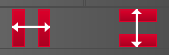
Change the reference points of the linear division by clicking on the top or bottom edge in the image:
|
Zone settings
| Recess |
An individual inset for the drawer can be defined here, for front, back, right and left.
If an independent inset has to be defined for every drawer, then this setting must be made via the zone definition. |
| Reference Face Frame Parts | When this option is selected, the drawer guides are referenced to the frame parts when using frame parts |
| Front edges parallel to sides | If the function is activated, the front edges of the drawer are created parallel to the sides. |
Related topics: