
Display entire order in a viewport
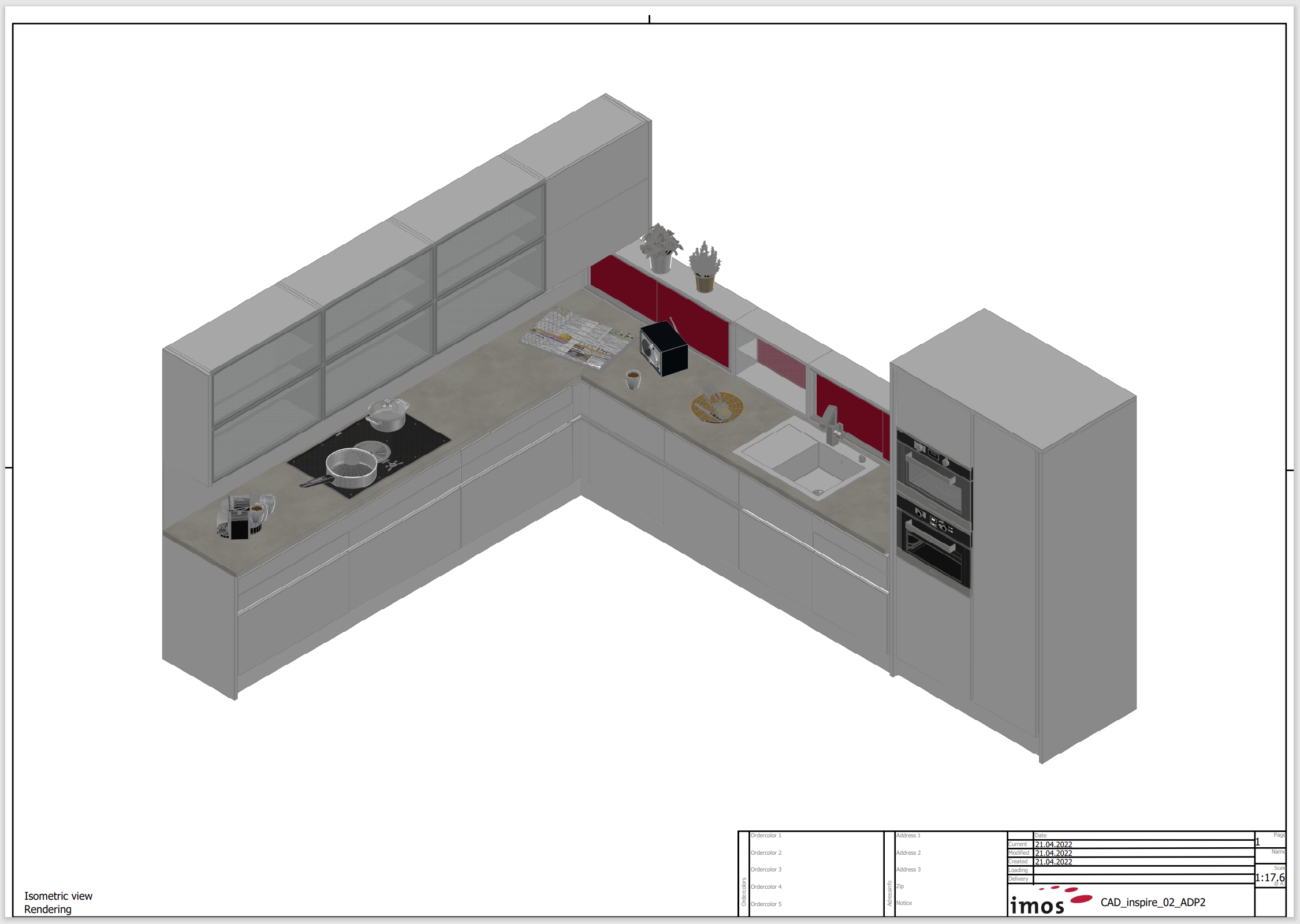
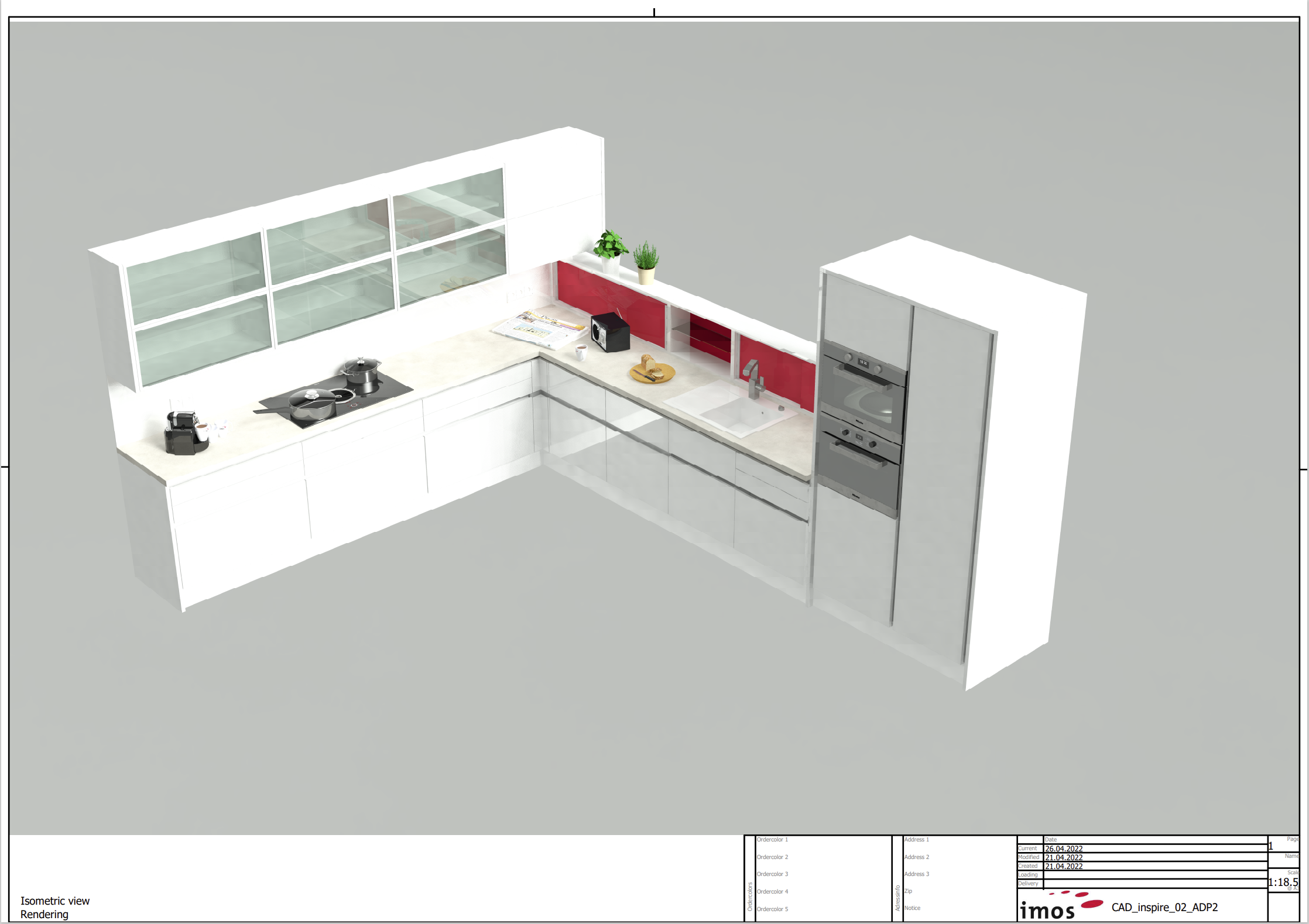
The Object level "Order" has been added to the Document Manager, which enables a realistic or rendered display of the entire order.
Example: Order realistic
Example: Order rendered
Procedure:
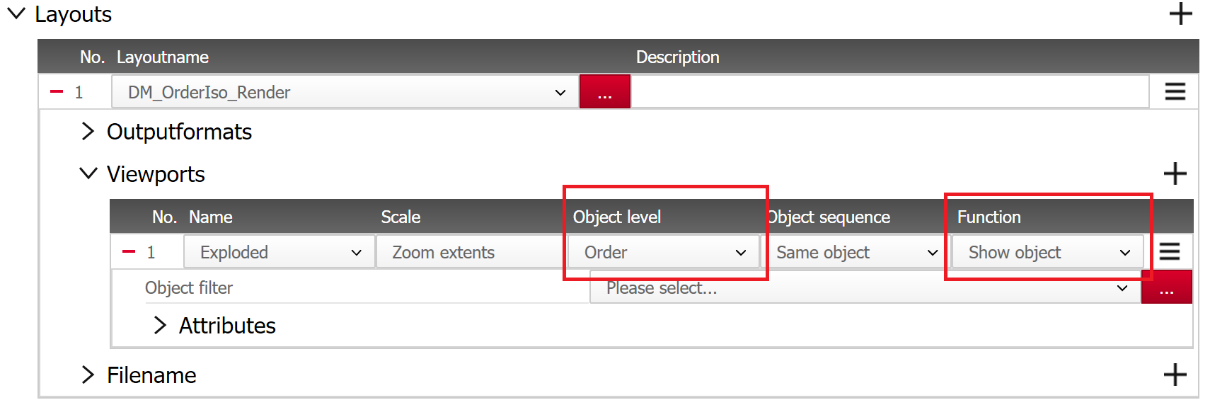
To render the order, configure a viewport in the border (layout) as follows:
-
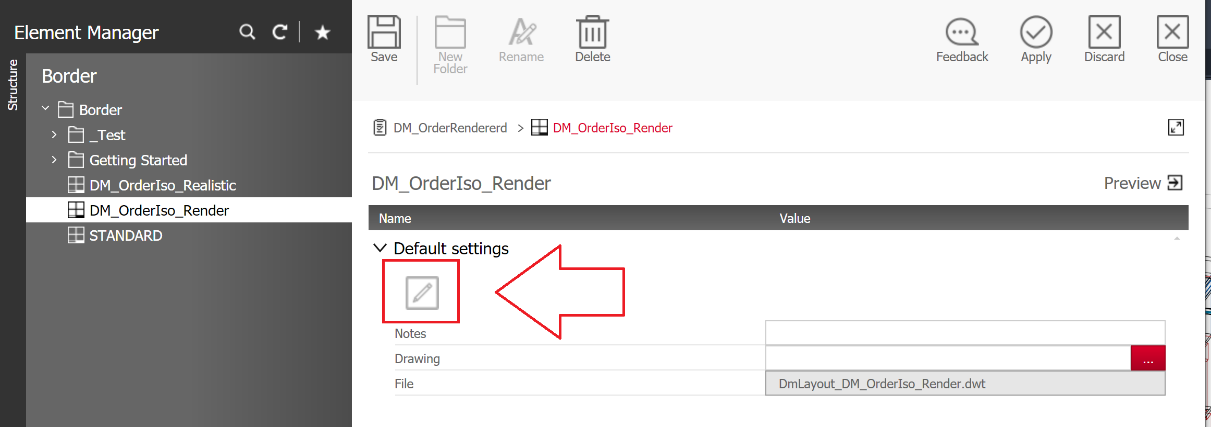
To edit the desired drawing border open it using the corresponding Element Manager button.
- Select the view window, right-click to open the context menu and select "Properties".
-
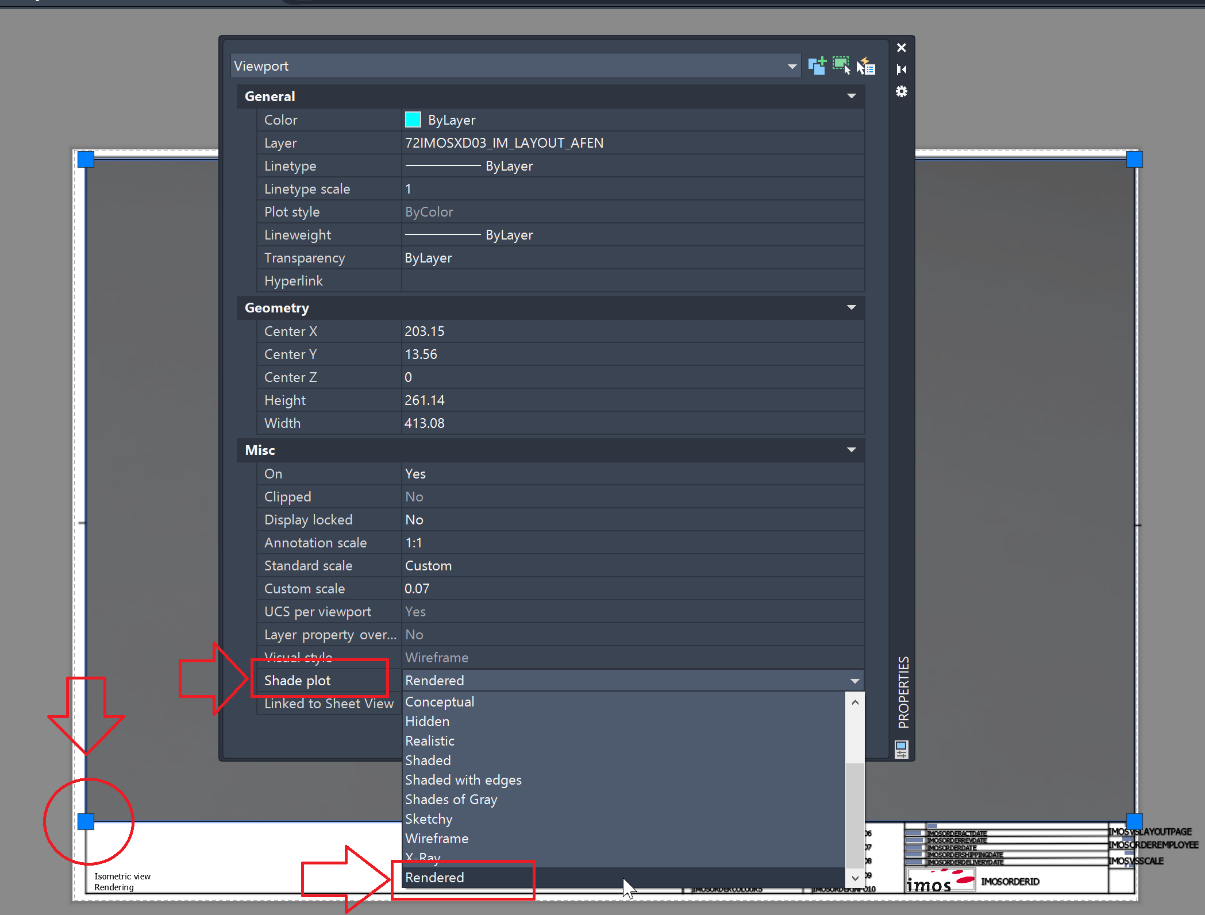
In the AutoCAD Properties palette, set the “Shade Plot” property to “Rendered”.
-
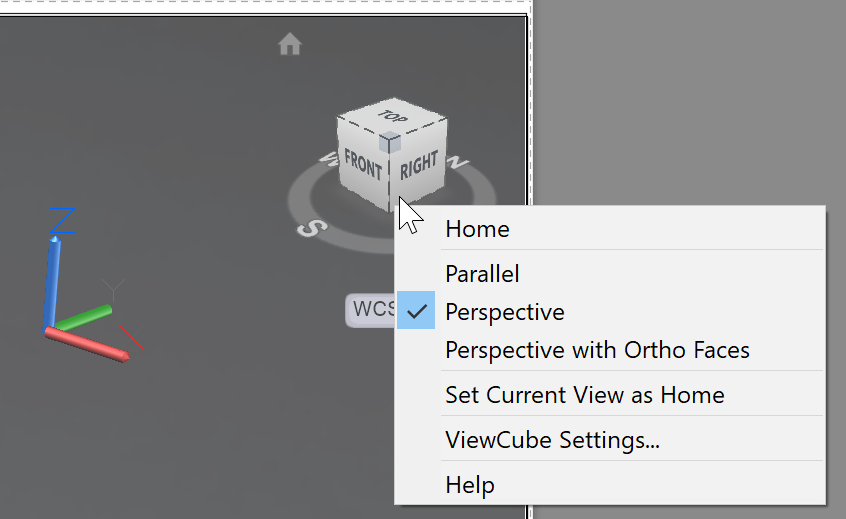
Activate the viewport by double-clicking in the viewport. Adjust the orientation as you like using the ViewCube and switch on “Perspective” if you want to.
-
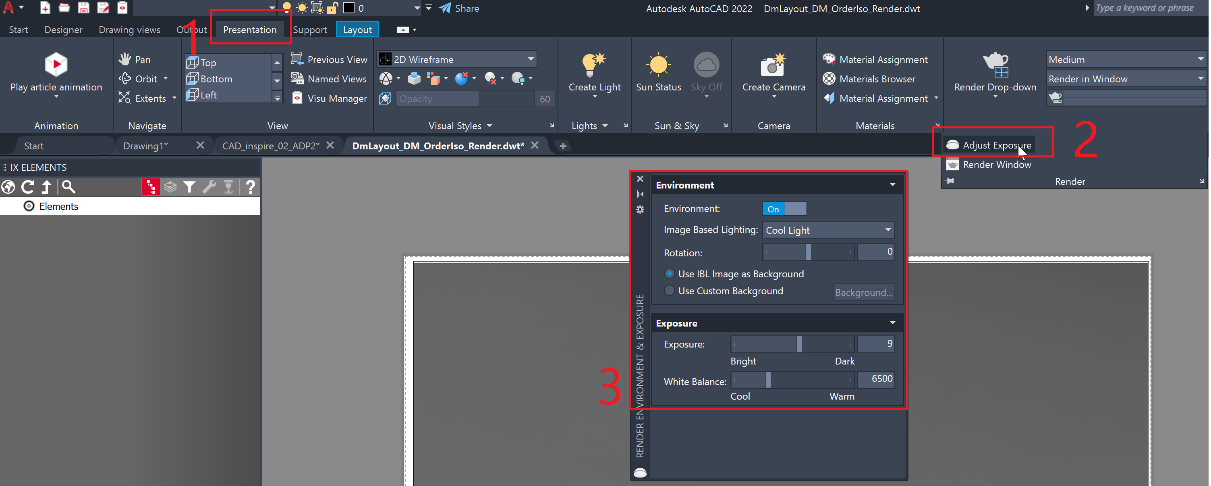
Switch to the "Presentation" tab of the ribbon, open the "Adjust exposure" palette in the "Render" group and set an appropriate exposure.
-
Save the Layout.
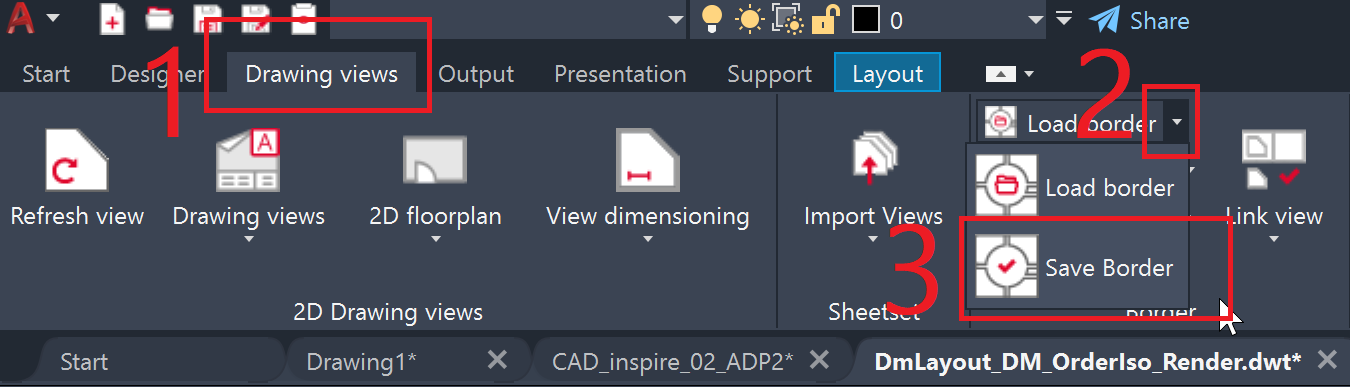
Result: You can use the border (layout) to create renderings via the Document Manager.
Note: During the Document Manager run, keep in mind that renderings typically take longer than other visual styles.