
Associative dimensioning
Until now, it was not always clear during the manual dimensioning of sections to which part the selected measuring point belonged. If, after the manual dimensioning, dimensional changes were made to the article shown in the 2D section and the manually dimensioned 2D section was subsequently refreshed, it could happen that the manual dimensions produced undesirable results.
The function "Associative dimensioning" has been developed so that you can clearly assign the dimensional points of a manually set dimension to parts in 2D sections. This feature supports linear dimensioning only.
Note: No data set-up is required.
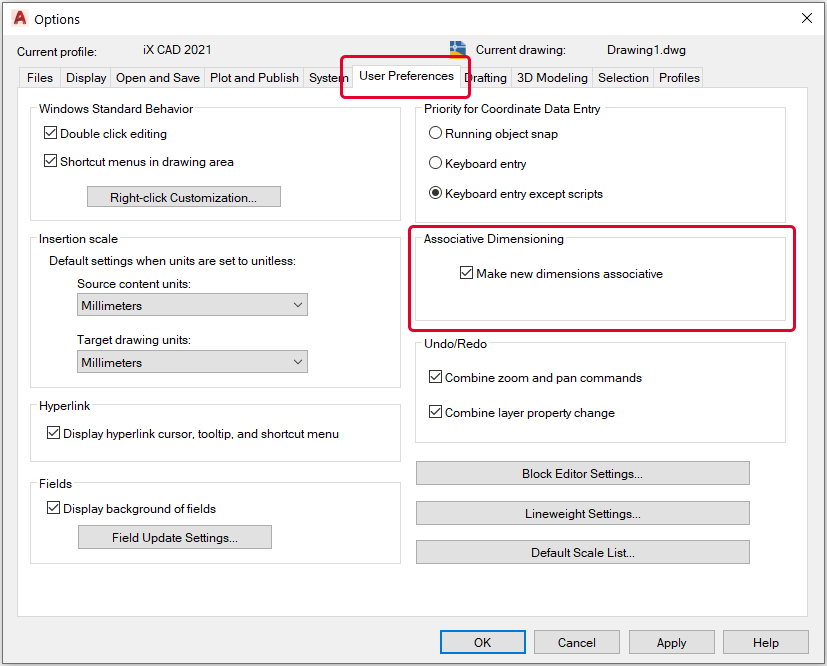
Prerequisite: In AutoCAD Options> User Preferences tab> Associative Dimensioning “Make new dimensions associative" is enabled.
Procedure:
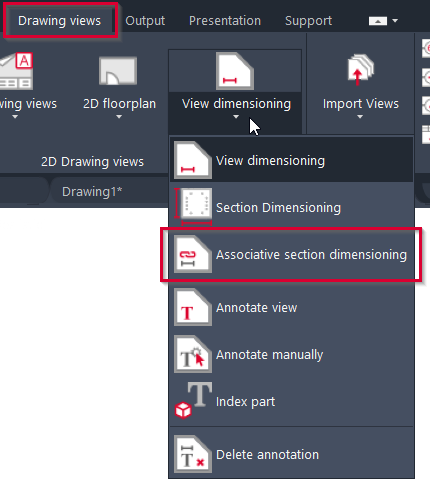
- In the ribbon menu, navigate to the tab Drawing Views.
- Click on Associative Dimensioning.
-
In the drawing area, select the two desired dimension points for the linear dimension and position the dimension line.
Result: After positioning the dimension line, iX checks whether both dimension points can be clearly assigned to an object. If this is the case, there is no further query.
If a dimension point cannot be clearly assigned to an object, then
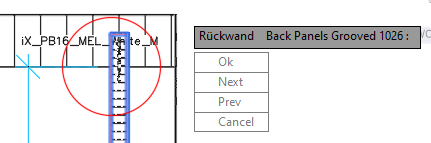
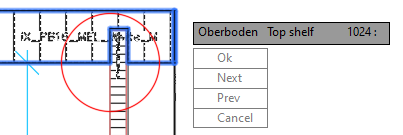
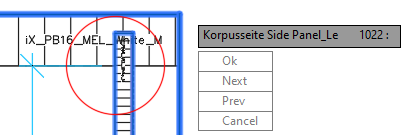
- imos focuses on this dimension point
- highlights the dimension point with a colored circle
- suggests the first object found with its name and barcode
- shows a selection dialog in the drawing area and in the command line
- highlights the selected object
- For each dimension point that cannot be clearly assigned, follow one of the instructions. As soon as you have assigned an object to a dimension point or canceled the process, iX jumps to the next ambiguous dimension point.
- Assign the first proposed object to the dimension point with "Ok".
- Have the next object suggested with "Next" or "Previous" and then assign one with "Ok".
- Use “Cancel” to undo the associativity for the dimension point. No object will be associated with the dimension point.
Example: In the example shown, the dimension point can be assigned to one of the three proposed parts.
Selectable/ non-selectable objects
For these objects, you can select points as dimension points:
- Standard part (side, bottom, ...)
- Stretchable Purchased Parts
- MPE Parts
- Face-frame parts
- Connector
- iX room elements (excluding floor and ceiling)
You cannot select points as dimension points for the following objects:
- Floor and ceiling
- Workgroups
- Machining