
Cutout article
The cutout article has been added to the construction and article types in the Article Designer. This makes it possible to create cutouts in furniture that accommodate projecting walls or protruding installations by using outline geometries.
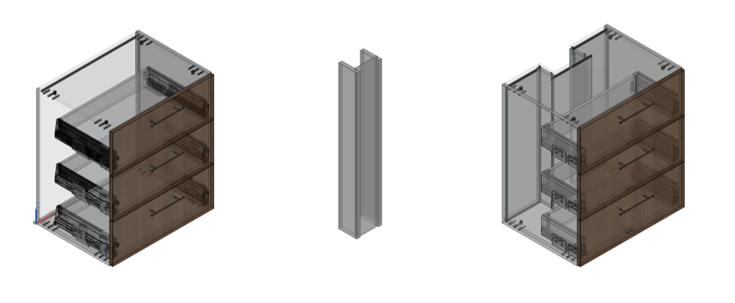
Creating a cutout article
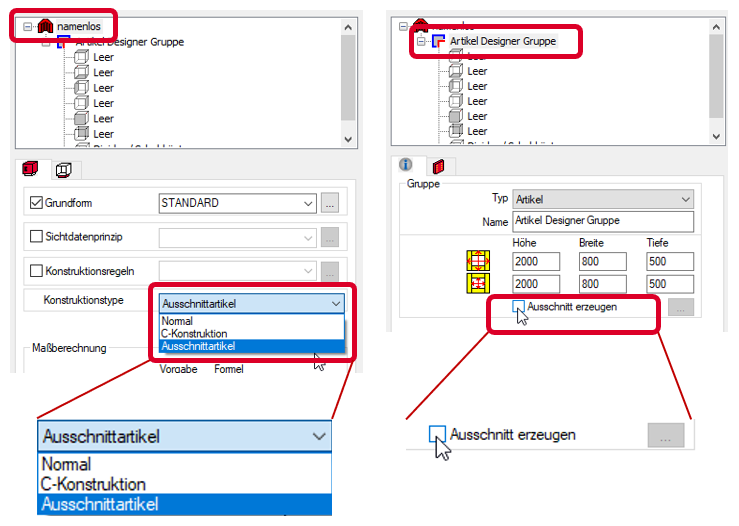
First define the Construction type Cutout article on the Article level in the Article Designer and also select the Create cutout check box under the respective Article Designer Group. Then create the cutout as a dedicated article. Then create the cutout as a dedicated article.
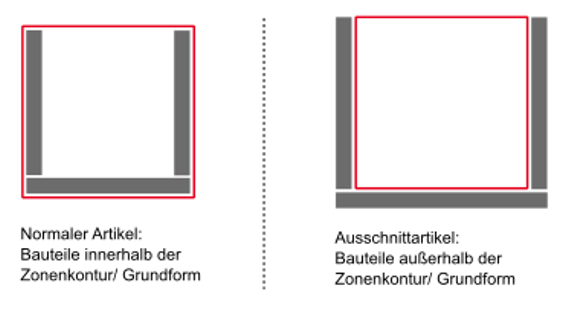
Be aware that the side panels are typically created outside the zone or rather the outline geometry. The consequence is, for example, that a right side panel is automatically assigned the construction principle of a left side panel.
A bottom shelf is also assigned the construction principle of a top shelf and vice versa.
Placing cutout articles
There are two possibilities to place a cutout article and to reference it to a surrounding article.
Place the cutout article in the drawing area, followed by the surrounding article; adjust the dimensions of the cutout article to the surrounding article. To apply the inner contour to the surrounding article simply refresh it using Edit Article”/ Refresh article.
Alternatively, insert the surrounding article first followed by the cutout article – in this case the inner contour will be recognized immediately.
Tip
To position the cutout article and adjust it in the drawing area without difficulty, it is recommended that you use both the Stretch article and Change article contour function as well as the AutoCAD snap points. The 'Stretch article' method is located in the 'Article Designer' tab of the ribbon menu.
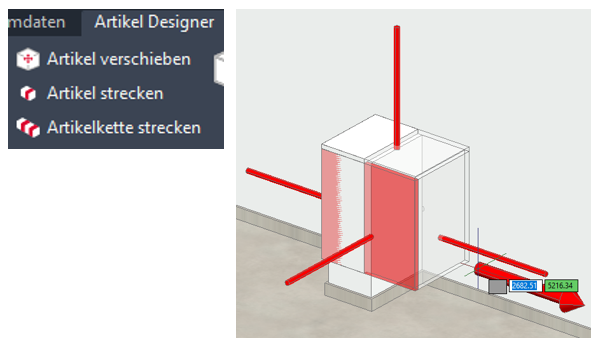
In the Visu Manager set the visualization of the profiles to “Do not visualize” or to “indicate”. That makes it particularly easy to snap corner points of parts.
Note: Mind the part trims of the cutout article during the stretch operation. For example, when stretching a cutout article vertically, where its side panel trims to the top shelf is set to “short”, you will have to snap a point on the upper side of the top shelf.
Cutout articles do not influence the drawers of an article.
Keywords: cut out, notch
Jun 2019 | imos iX 2019
#01150