
Integrating process data transfer into the database
As configuration data is saved in the database, it is managed and maintained via the Element Manager. Existing configuration files from older versions are automatically imported into the database at the first start.
CFG output
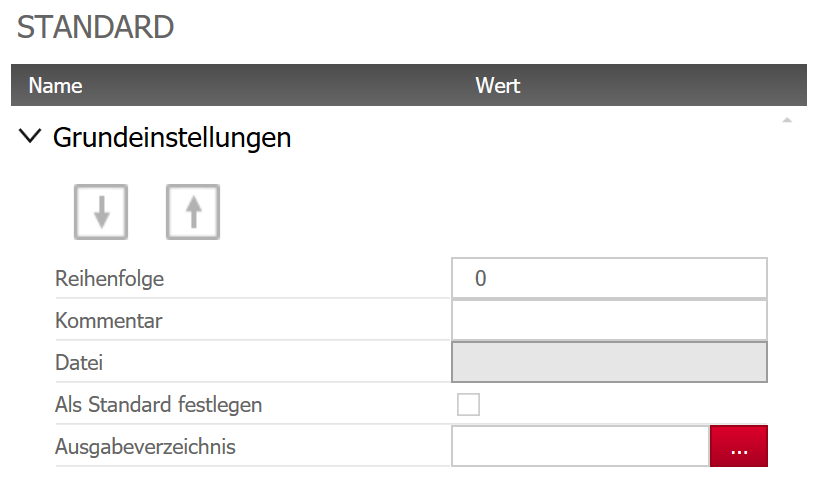
Import your existing CFGs in previously created principles and allocate them a position in the sequence for creation.
If the 'Process Data Transfer' option is activated in the Save as dialog box, all CFG files will be created automatically during the save operation if the corresponding 'Set as Default' checkbox is selected.
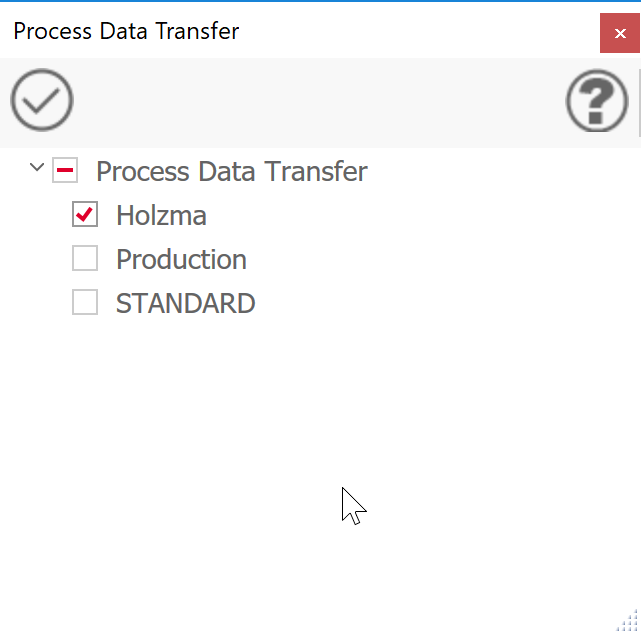
Process data transfer is started manually on the Output tab of the ribbon menu: to do so, select all CFGs that are to be generated, then click the tick icon to confirm your selection.
You have multiple possibilities to initiate the process data transfer to other industry programs:
Process data transfer dialog
Open the dialog "Process data transfer" located in the register tab "Output" of imos CAD or in the tab "Order Manager" of the Organizer.
Select all CFGs to be generated and confirm the selection by clicking on the check mark.
Start the process data transfer automatically
Optionally, you may initiate the transfer every time you save the order by activating it in the "Save order" dialog.
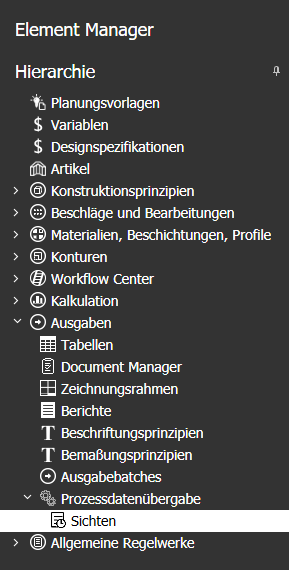
Views
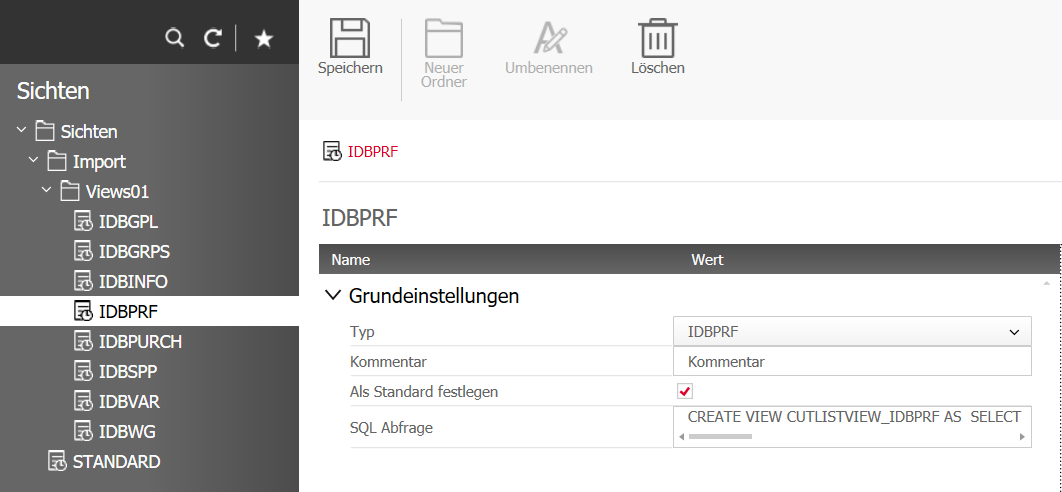
Create any number of views in the database:
In the Type drop-down list select the process data table in which the SQL query is to run.
Then enter the query into the SQL query text box.
When you select the Set as default check box, the corresponding views will be taken into consideration during process data transfer.
.
|
|
May 2019| imos iX 2019
#01131