
Adapting the user interface
Inserting new lines in the positions
To manage the positions and simplify the operations contained within them, new lines are always inserted below the respectively highlighted lines. If no line is highlighted, the new entry will be written at the end of the list, by default.
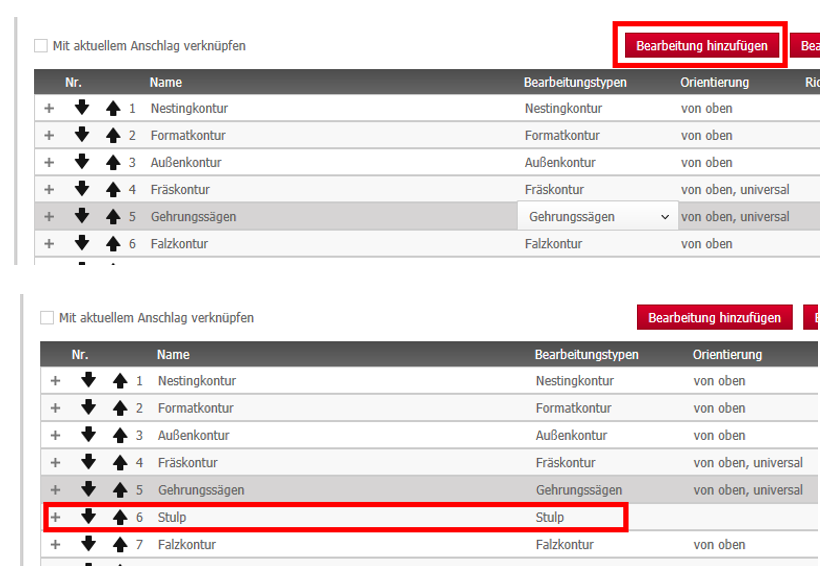
Changing the position or operation
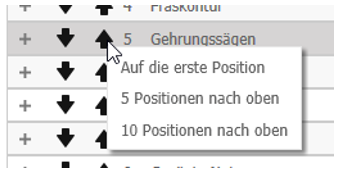
Six new options are available in a shortcut menu (right-click an arrow) to support the arrow key functions when changing the sequence of the lines.
- “On the first position” moves the selected line to the top of the list
- "On the last position” moves the selected line to the bottom of the list
- "5 positions up” moves the line 5 positions upwards
- "10 positions up” moves the line 10 positions upwards
-
"5 positions down” moves the line 5 positions downwards
-
"10 positions down” moves the line 10 positions downwards
Grouping machine parameters
Analogous to the attributes of the machining principles, related attributes in machining parameters have been grouped together in corresponding groups.
There are cross-class groups that are the same in all installations; However, there are also machine-specific attributes that are only visible for the respective machine class.
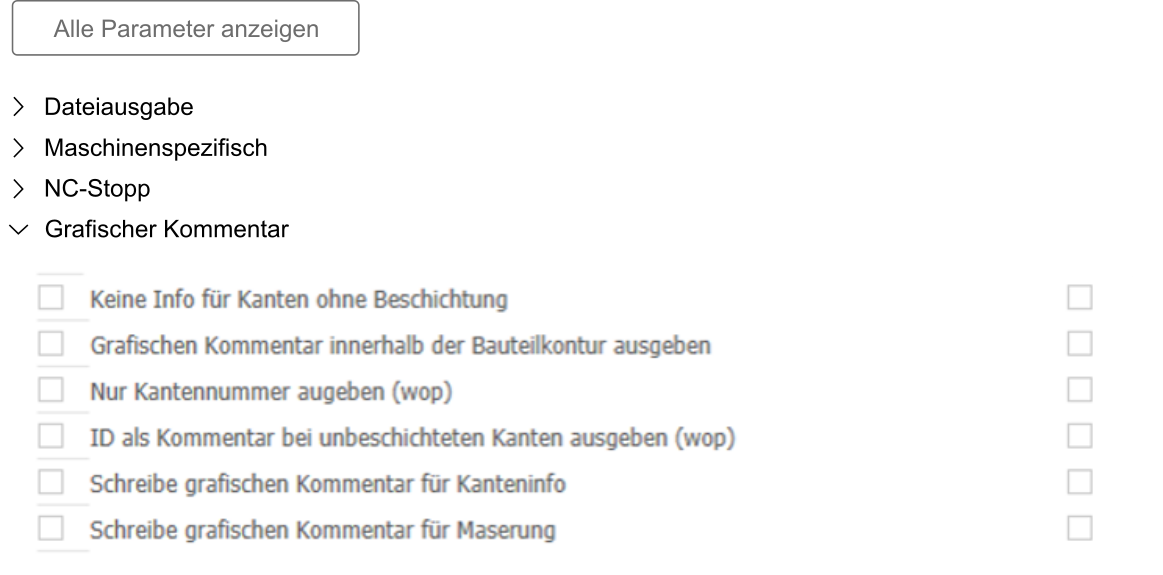
Grouping only takes place when the function “Show all parameters” is activated. If this button is deactivated, the groups are hidden and all active parameters are listed.
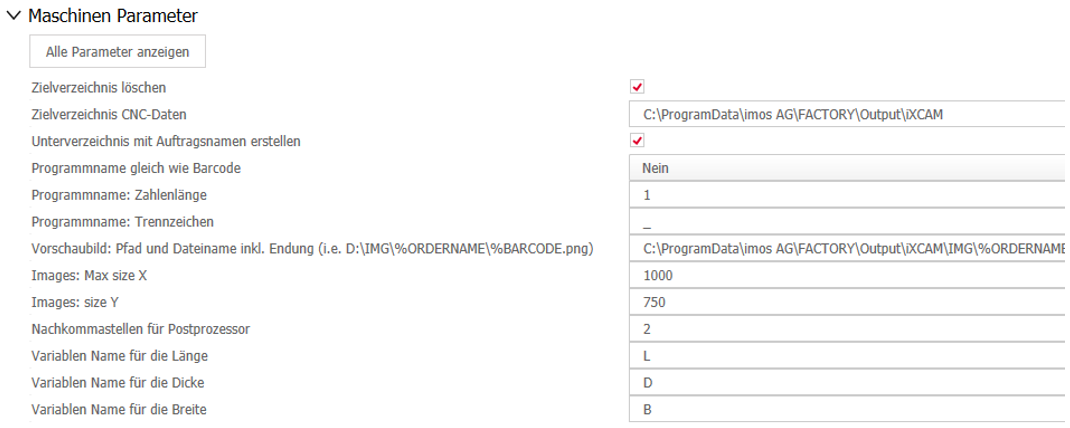
Accessing the variables list in text boxes
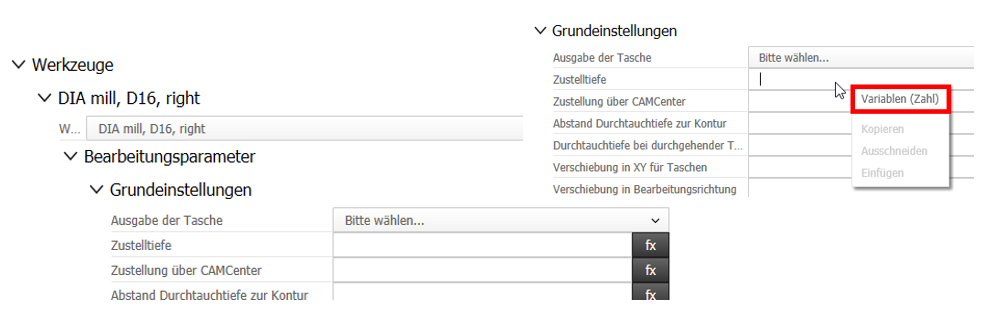
To simplify writing formulas or using variables, an 'fx' button next to input fields gives you quick access to CAM variables (e.g. %IPX for insertion point in X). In addition, imos variables can be accessed via the context menu of text fields (right-click). The selection is limited to variables of the type "Number".
Jun 2019 | imos iX 2019
#01152