
imos License Portal and your imos Administrator
In the License Portal environment, it is possible to manage company-specific licenses and user accounts. To use the License Portal a member of your staff must register as an imos administrator.
imos administrators are responsible for managing the imos user accounts of your company. They are authorized to create, edit and delete imos user accounts for users and other administrators. In future, imos administrators will be responsible for assigning imos licenses belonging to your company to the respective imos users.
Following conclusion of a contract as a new customer, you will promptly receive an email containing a unique link to register the imos administrator. If you do not receive a link, please contact the imos Hotline.
If you are an existing customer (!) please first initiate an account request on the homepage of the iX Support Center. imos
Proceed as follows as an imos administrator:
Log in to the iX Support Center and click My imos to access the License Portal (Admin). All licenses available to your company are listed in the License Portal.
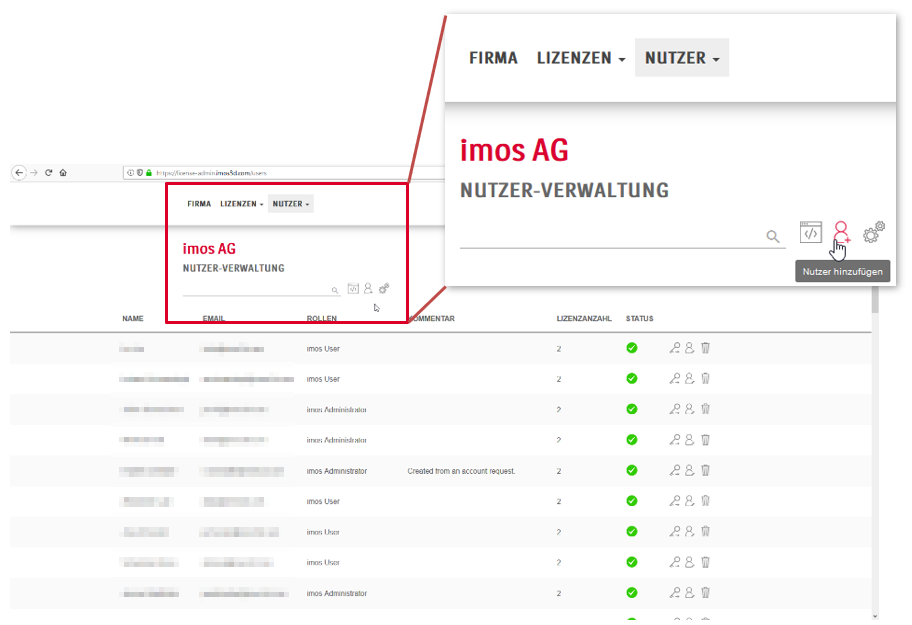
As no users have been created when you first log in, click Users in the menu bar. Click the Add new user button next to the status column to open the corresponding dialog box. Complete all mandatory fields and, if necessary, all voluntary fields with the details of a member of staff. To create the user click Save. If you wish to discard the input, click Cancel.
Note: The address must correspond to the company address.
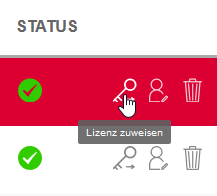
Once you have created a user, you can assign an available license to the user.
All available and licenses assigned to the user are listed in the dialog box. Slide the slide switches to assign the required licenses to the user, then click Ok to confirm the operation. To discard the changes click Cancel.
Repeat the process to create more users and assign them licenses.
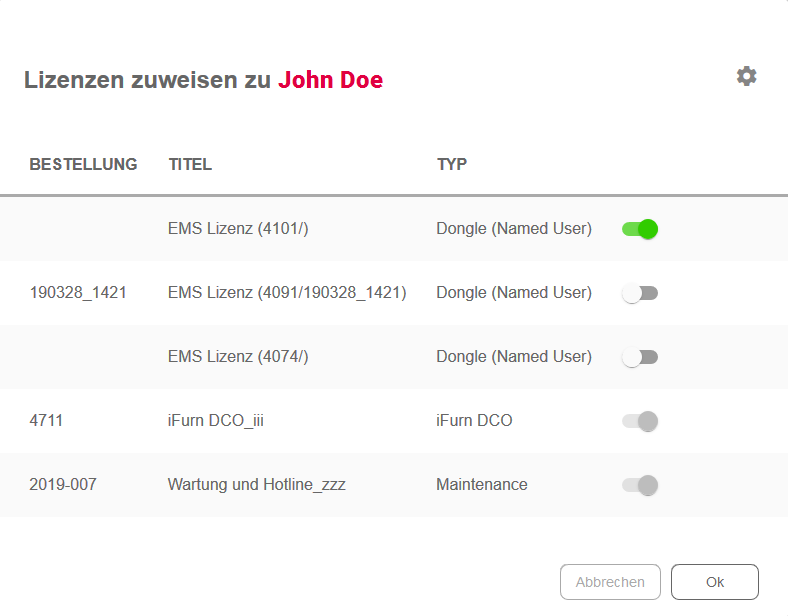
The option Assign licenses  is also available under the menu item Licenses, with which it is possible to assign a license to one or several users.
To be able to better identify the licenses, change the license title via the command Edit license  .
Immediately after a user is created, a confirmation email is sent to the user containing a link to create a password. The account is enabled when a secure password is set.
If the user does not receive the email, click the envelope  to resend the confirmation email.
Note: In contrast to the access information of the former imos Support Center, the information required to access the new iX Support Center is personalized for each member of staff. This information must not be passed on to others.
Note for existing customers:
It is particularly important that you initiate the account request and register in the iX Support Center in good time; this will enable us to continue to provide you with services such as the imos Knowledge base.
Tip
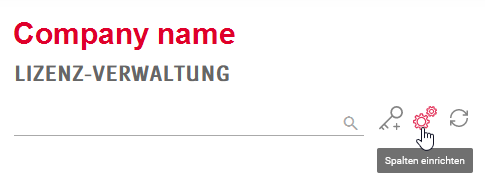
You may use the column options to display more or less licences and user details in the tables, for example, the PC name or the users assigned to licences. The additional columns will come in handy when tracing errors/ malfunctions.
May 2019 | imos iX 2019
#01134