
What's New iX 2019 Licence Manager
To use an imos application you first have to apply a license in the Licence Manager.
Since iX 2021 SR2, NLM licenses are available. These are reachable over the network, but they are not concurrent.
Note: In the iX Support Center media library, you can find video instructions on how to register the company's iX Administrator and how to use the License Portal and License Manager.
The manager itself can be launched as follows:
- by starting an imos application
- via Windows start menu
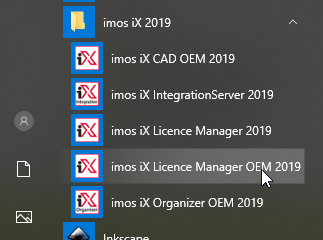
In the log-in dialog, type in your email address and password.
Checkmark "Save password" to skip the log-in dialog on restart. You can reset the option in the Organizer under "APP -> Account Info".
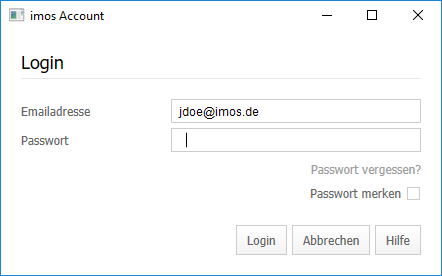
Click "Forgot Password" if necessary. It opens a web page where you are asked for your email address; a link to set a new password will be sent to this email address.
After successful login, the Licence Manager opens; it lists all available licences that have been assigned to you.
Note: If the internet access is restricted at your company, at least the following IP-addresses and ports must be accessible:
- 92.79.127.228
- 92.79.127.229
- Port 80
- Port 443
- iFurn tools (e.g. Design Catalog Online) require additional rights.
If necessary, change your firewall and router settings and add exception rules for iX applications.
Application launch
Select a licence of type single-user in the Licence Manager and click Apply. This activates the licence and assigns an individual protection key id. If the activation was successful, the licence is automatically applied and the program of your choice launches.
Note: If no licences are listed, please contact your administrator so he can assign a valid licence to you.
The workstation (PC) name must not exceed 15 characters! Otherwise, the softlock licence will no longer be listed in the Licence Manager anymore as soon as you activate the licence - it makes the program process a workstation name that is too long.
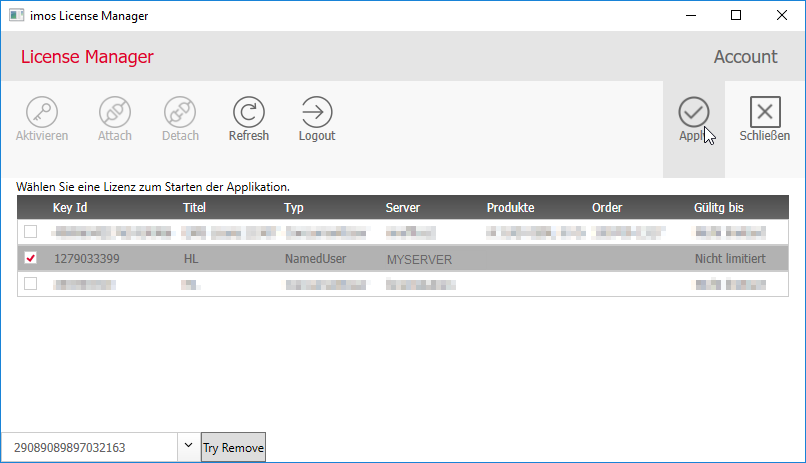
Attaching and detaching licenses
Proceed as follows if you wish to use your license on a different workstation: launch the License Manager on the workstation where the licence currently is attached, select it and click "Detach" in the ribbon menu.
On another workstation, you may then "Attach" the same licence. If the License Manager was previously opened, click Refresh to update the status of all licences.
You can tell apart hardlocks and softlocks by their respective title "HL" and "EMS".
Note: Always detach your licence before restoring your PC or laptop! Otherwise, you can no longer attach your licence.
Note: Corrupt licenses are not displayed in either the License Manager or the License Portal. Please contact our Hotline if one of your licenses is missing. Please contact our Hotline if one of your licenses is missing.
Working offline
There is no need to interrupt your work in the event you are offline: when you launch the application the License Manager will indicate how long you can continue working offline. You will be notified before the time period expires and requested to connect to the Internet again.
Note: You will be notified before the time period expires and requested to connect to the Internet again.
Opens a dialog box containing account information and the “Remember me” option
If you wish to view or change your licenses at a later date, all you need to do is log out by clearing the Remember login check box in the Account information area and then closing the program. You can view Account information in all iX 2019 applications:
- in the Organizer as well as the Integration Server on the APP tab
- in CAD, PLAN and DESIGNER in the Product information dialog box
- In the License Manager on the menu bar
- You may also open it via Windows start menu; Please mind that all other imos applications should be closed.
You can access the License Manager again by relaunching the program.
Overview of all functions
| Method | Description |
|---|---|
|
Activate
|
Activates a license |
|
Attaches a license similar to a dongle
|
Attaches a license similar to a dongle. |
|
Detach
|
Detaches a license similar to a dongle |
|
Refresh
|
Updates the licences' status |
|
Logout
|
Exits the License Manager and resets the “Remember me” function |
|
Apply
|
Activates the license; attach-es the license and launches the application |
|
Close
|
Closes the program |


Key words: TCP-Port not work working malfunction login registration applicable impossible accessible share sharing
May 2019 | imos iX 2019
#01144