
iX Section Views – Enhanced Associative Linear Dimensioning
As part of the associative section view dimensioning, which interactively links dimension
points to parts, you can now create an entire chain dimension by continuing dimension
lines in addition
to a single dimension line.
Tip: To check
which part an associative dimension is linked to, use the "Select Part" command.
When you select the desired dimension line, both the dimension line and the linked
part are highlighted. If no part is highlighted, the dimension is NOT associative.
To assign a different part to a dimension, delete it and create it again.
Procedure
Prerequisite: iX section views in the drawing area
- Go to 'Ribbon> Tab Drawing Views> Command Associative Section View Dimensioning'.
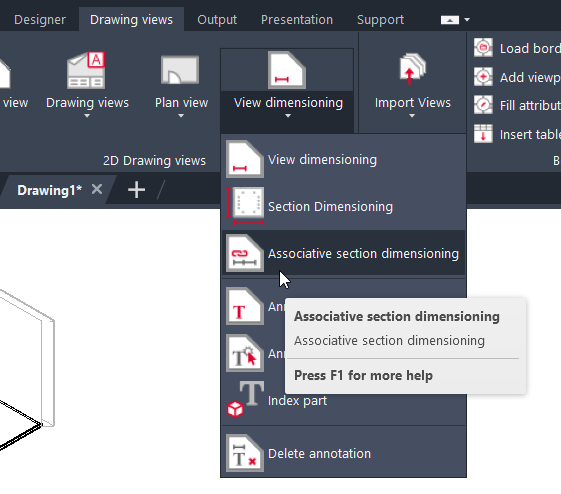
- You have two options:
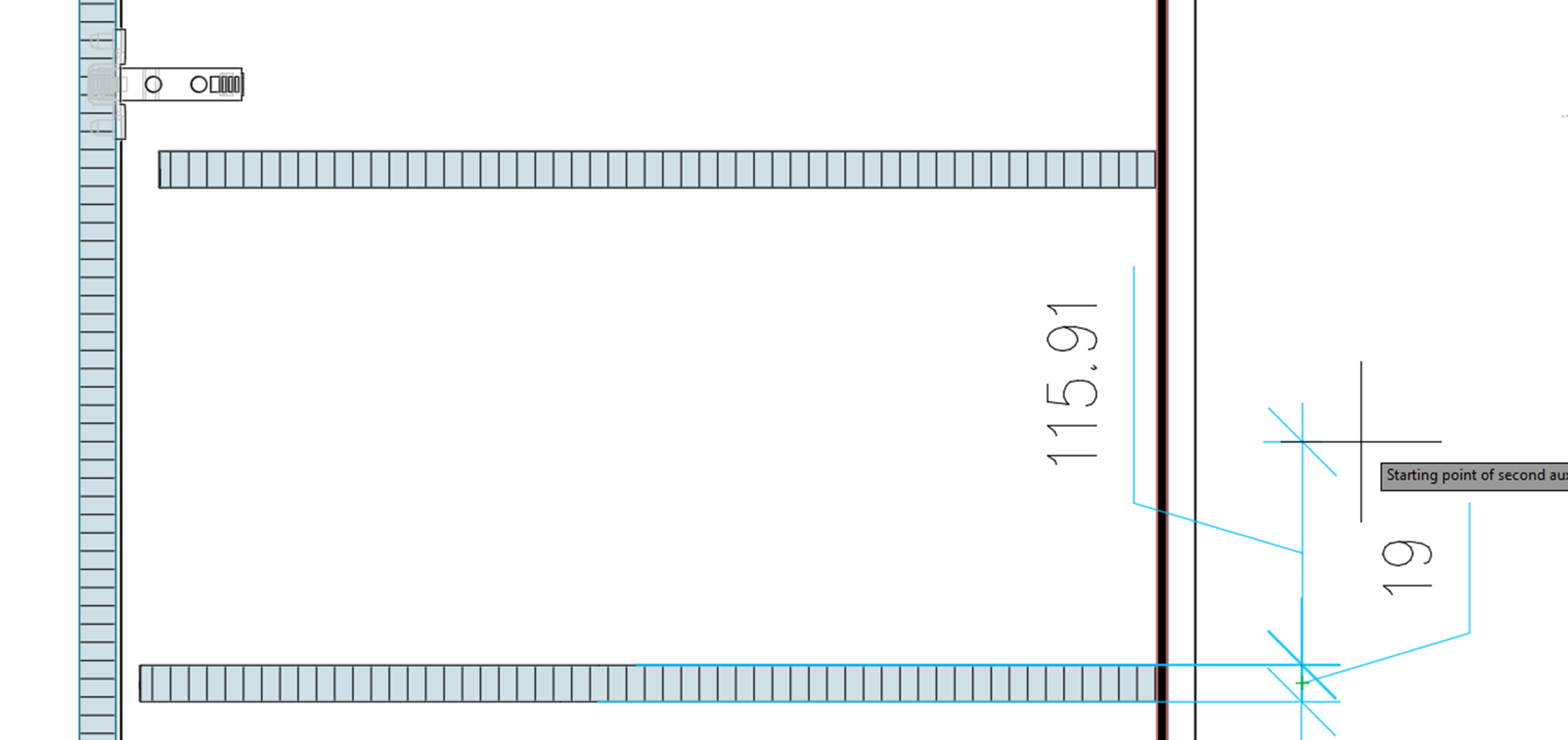
- Create a new dimension chain:
- Select the starting point of the first extension line.
- Select the starting point of the second extension line.
- Move the cursor to where you want to place the dimension chain and click in the drawing area. The first dimension line of the chain will be inserted. Continue with step 3.
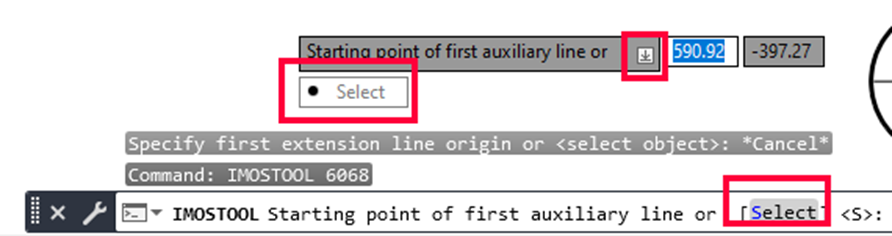
- Continue an existing dimension chain:
- Click on 'Select' in the command line. Or press 'W' and then 'ENTER'.
- Select an existing dimension chain of an iX section view. Continue with step 3.
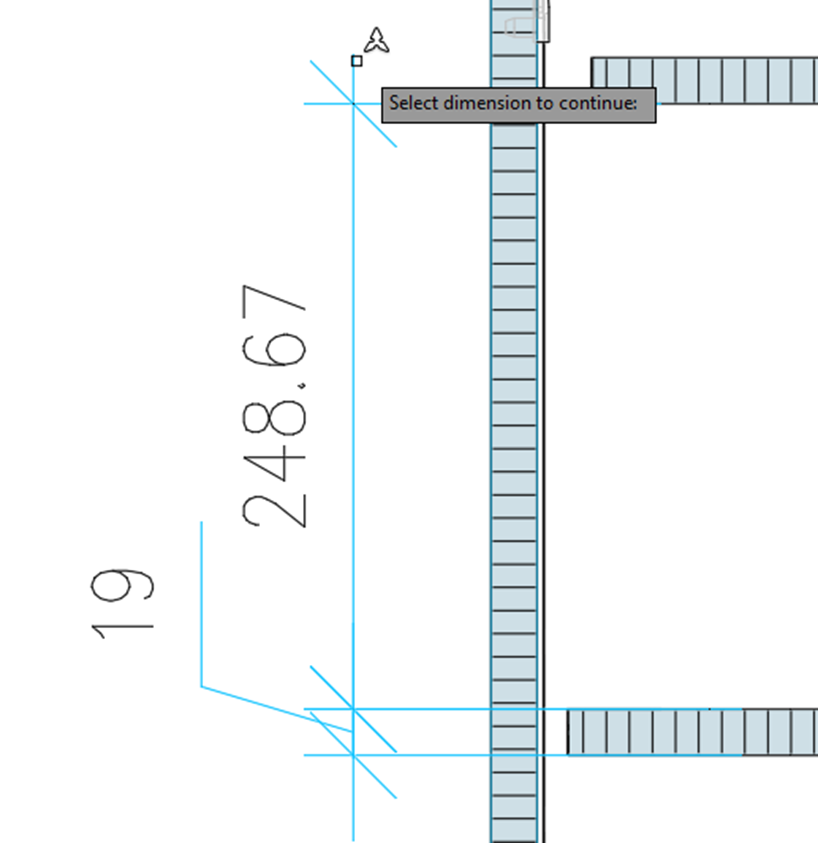
- Create a new dimension chain:
- Select additional points in the iX section view one by one. With each selection,
another dimension is added to the chain. Note: To ensure the continuity of the dimensions, select the dimension points in ascending order. Avoid selecting the dimension points in a random order.
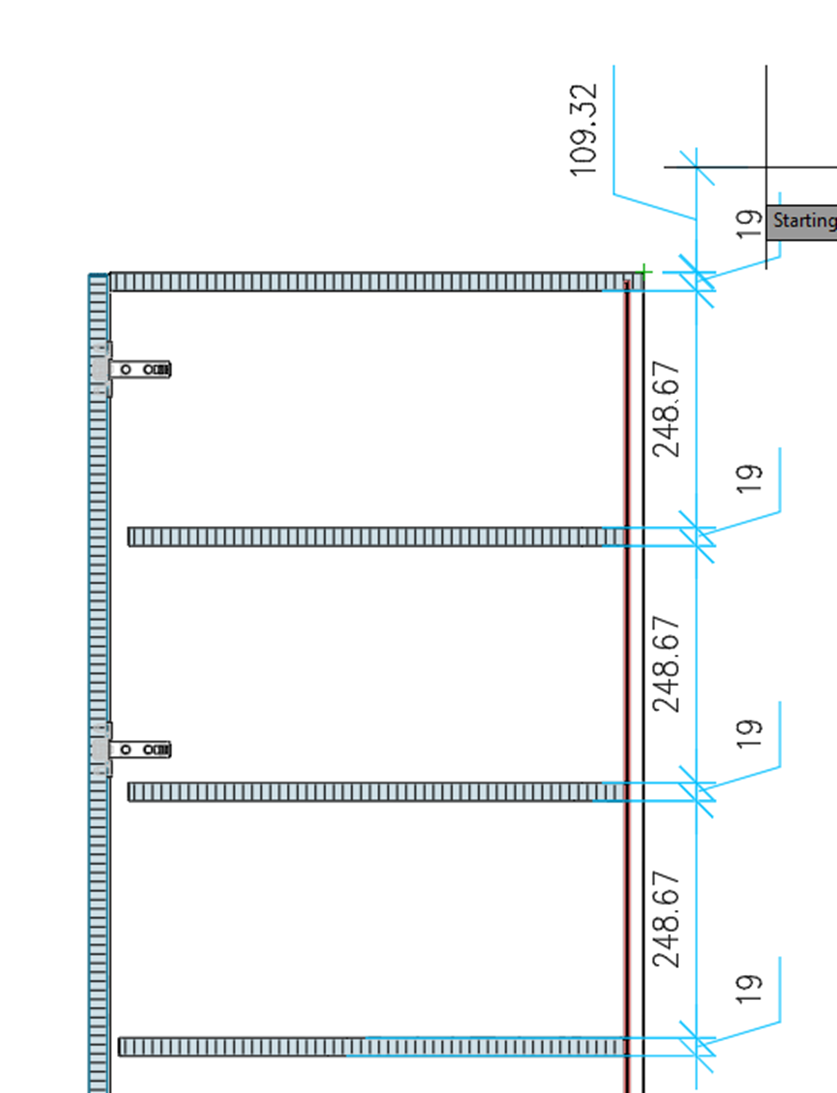
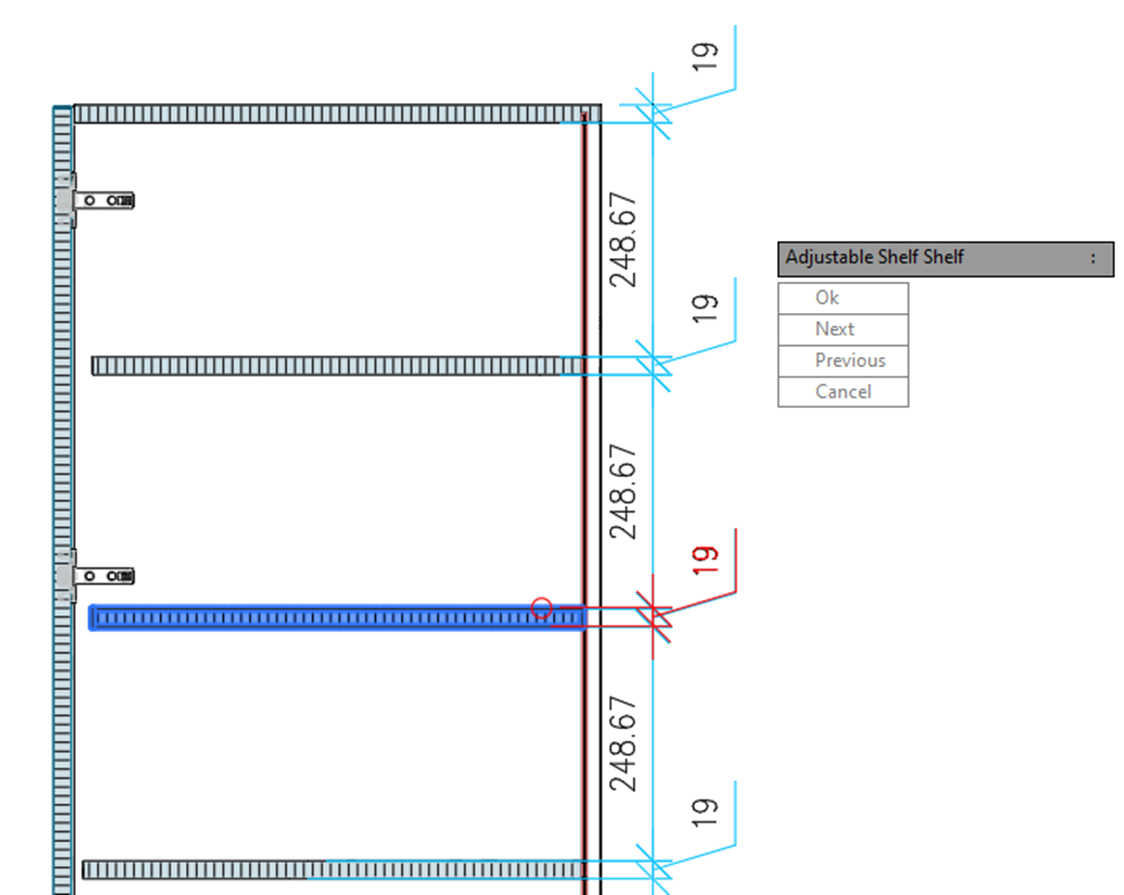
- To confirm the dimension chain, press 'ENTER'. If the system cannot clearly
assign a dimension point to a part, it prompts you to make the assignment
yourself. It highlights the affected dimension and one of the matching parts in
color. You can navigate to the desired part using commands in the context menu
and command line. This prompt is triggered for each affected dimension point.
The following commands are described:
- Ok: Assigns the highlighted part to the dimension point.
- Next: Highlight/select the next matching part.
- Previous: Highlight/select the previous matching part.
- Cancel: Does not assign a part to the dimension point, so it will not behave associatively.
- Once all dimension points in the chain are linked to parts, you can create/edit additional dimension chains or press 'ENTER' to complete the process.