
iX Scout – Isolate and Lock Elements in the 3D View
If you want to focus on selected articles or components in the 3D viewer for an extended period, simply lock your selection.
Additionally, locked elements can be displayed as 'exploded'. (See 'Display Locked Elements Exploded'.)
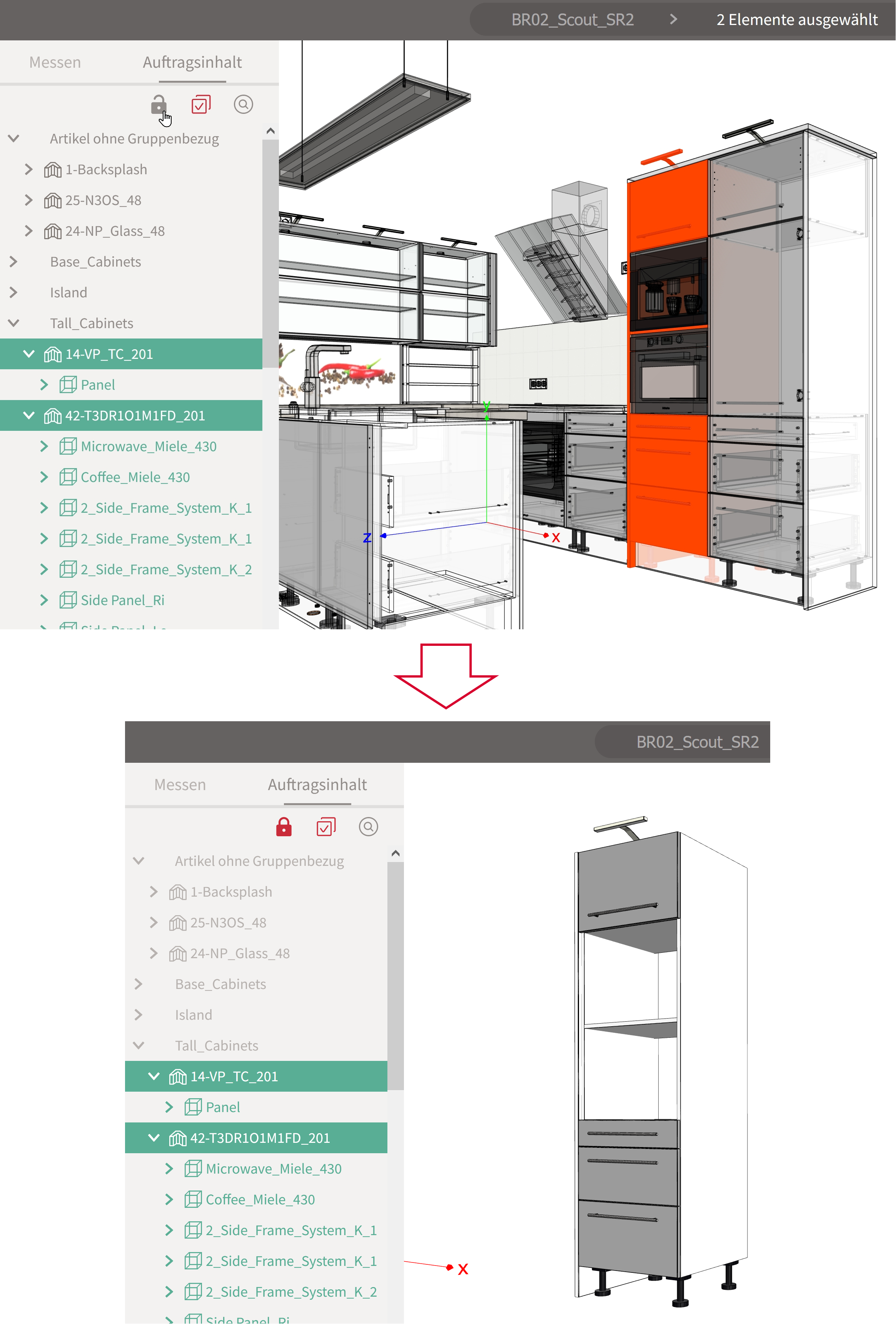
Procedure
- Select one or more elements.
- Click 'Lock' in the Elements sidebar menu. Selected elements will be isolated and locked. The 'Explosion' switch in the drawing area menu will also become active.
- To return to the standard view, click 'Unlock' in the Elements Sidebar menu. This will undo the isolation and selection of the elements.
Display Isolated Elements Exploded
In the 3D Viewer, you can display isolated elements in an exploded view. An exploded drawing illustrates the interaction of components by showing the object disassembled into its individual parts.
Additionally, an exploded drawing can make it easier to select measurement points if they are close together.
Procedure
- Select one or more elements.
- Click 'Lock' in the Elements Sidebar menu. The elements will be isolated and
locked. The 'Explosion' switch in the drawing area menu will also become
active.
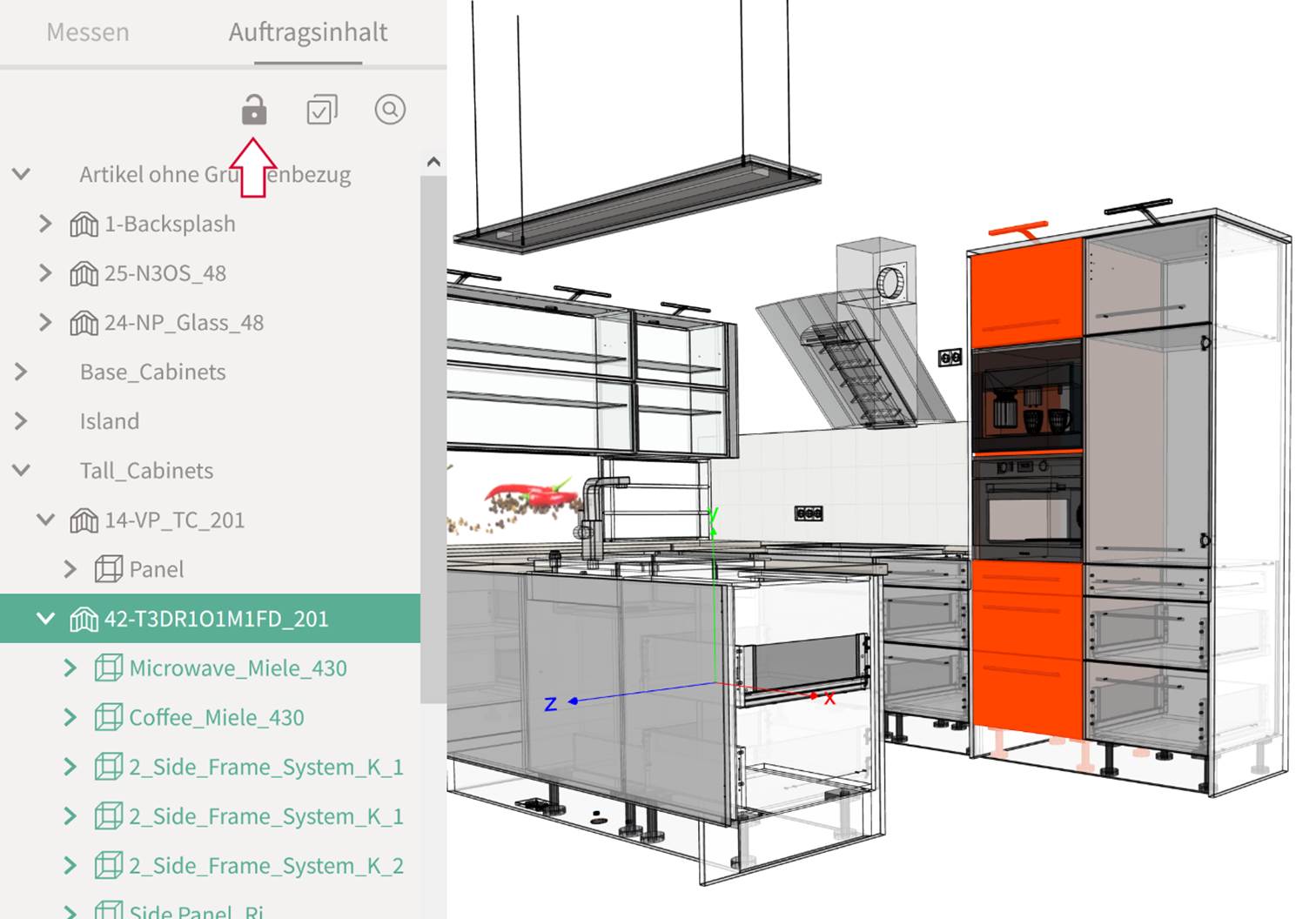
- Click 'Explosion' in the drawing area menu.
- Use the slider to adjust the desired explosion level.
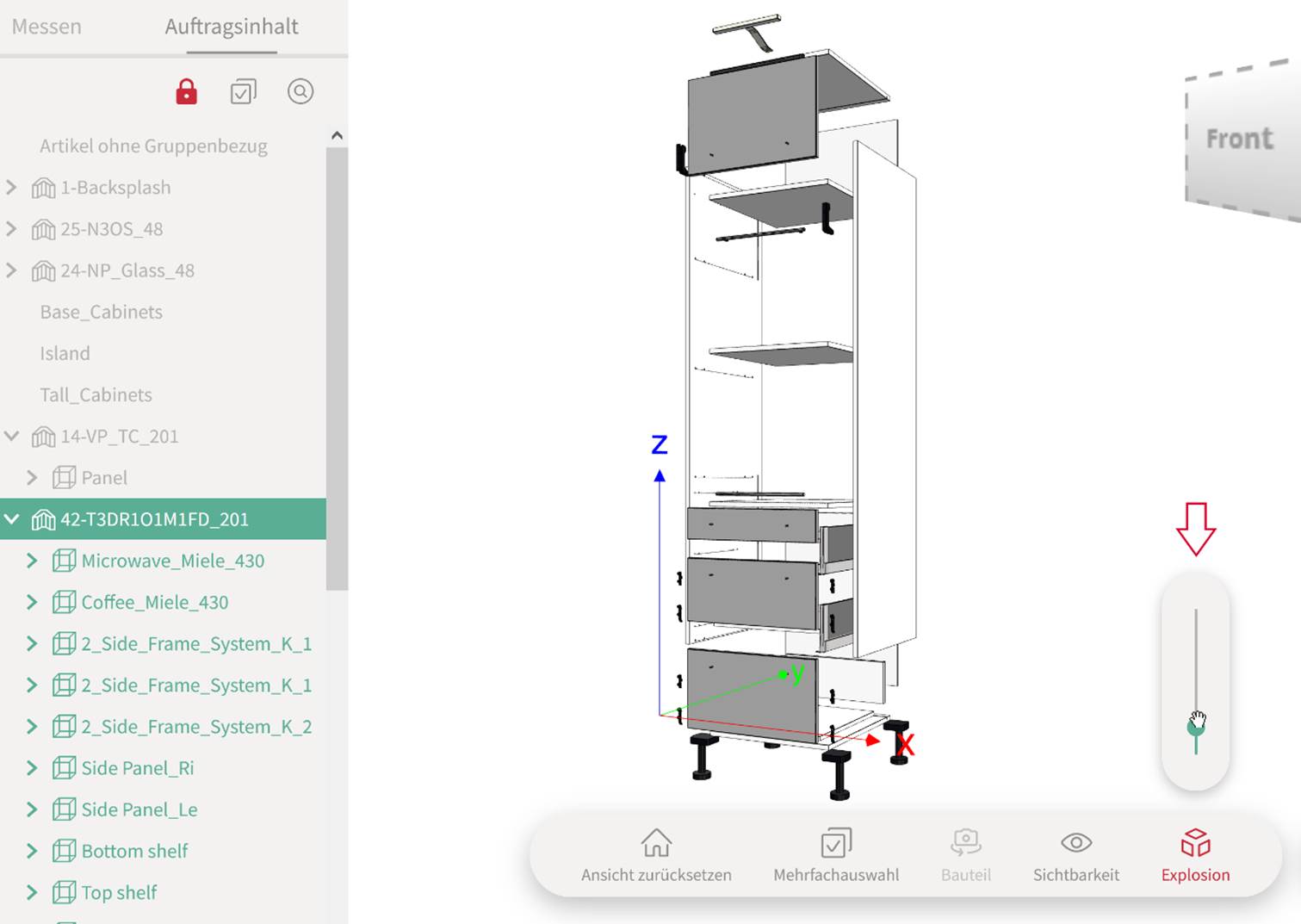
- To return to the standard view, click 'Unlock' in the Elements sidebar menu. This will undo the explosion, isolation, and selection of the elements.