Offline Mode
Starting in August 2024, you can use iX Scout offline when needed. To do this, download the application as a 'Progressive Web App' (PWA) on your device, along with the selected projects.
As a PWA, iX Scout allows you to work in locations with poor or no internet connection. Once you're back online, the relevant data will be synchronized between the server and your device.
Another advantage of the PWA is the elimination of the browser menu and address bar. This allows you to make full use of your device's screen size. Therefore, using the offline mode can also be beneficial for devices with smaller screens.
Requirement:
- iX Scout license
- An initial internet connection
Notes and Tips:
- The chat function does NOT work offline.
- Recommended browsers: Chromium-based browsers such as 'Brave' or 'Edge.' Flawless functionality cannot be guaranteed in all browser environments.
Downloading the Application
- Sign in to iX Scout.
- Use your browser’s built-in feature to install a webpage as an app. Refer to
your browser's documentation for detailed instructions. Example for 'Brave Browser': Click on the 'Install' button in the address bar. If necessary, disable restrictions like 'Shield'.

Result: Once the download and installation are complete, the iX Scout PWA will open as a standalone application. During installation, you may also have the option to add shortcuts.
You can perform the following steps either in the browser or in the app.
Downloading Orders
-
Go to ‘User Menu in the Title Bar > Offline Mode.’
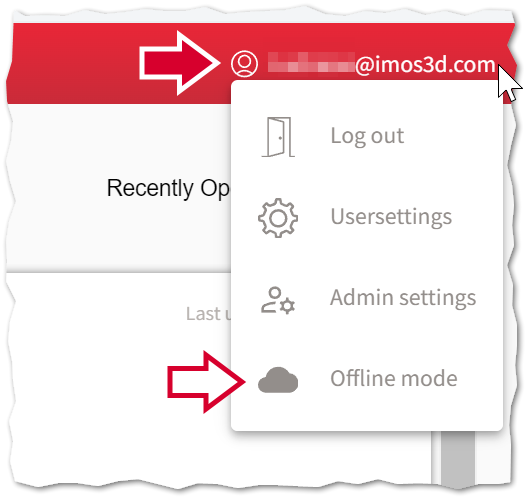
The selection mode is activated, meaning:
‘Add’ selection buttons will appear next to orders that have not yet been downloaded.
‘Remove’ selection buttons will appear next to orders that have already been downloaded.
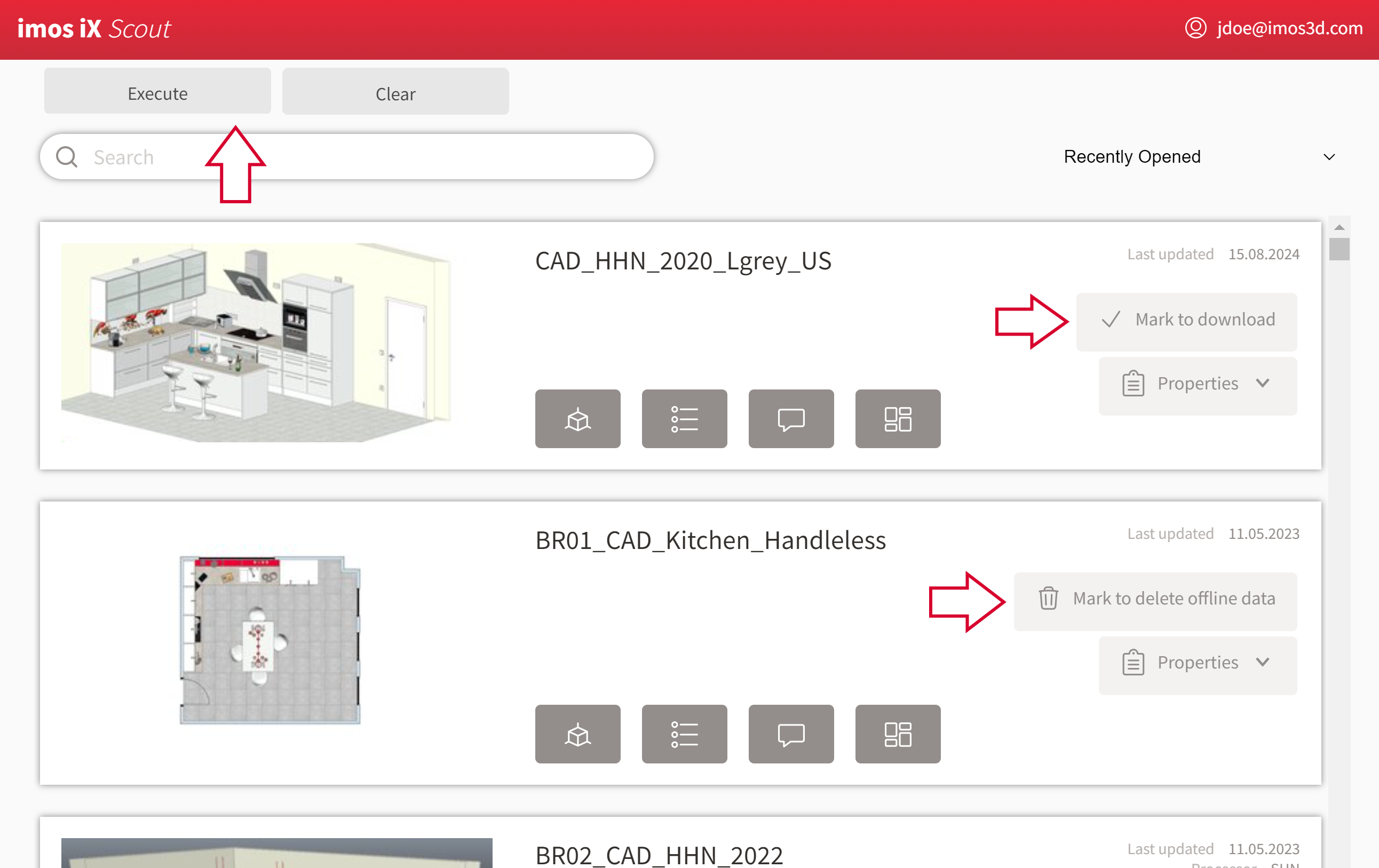
Use the selection buttons to choose the orders you want to download from the server or remove from the device.
Note: Deleting orders only affects the data on the device—it does NOT affect the data on the server.- To proceed with the action, click ‘Execute’ under the title bar.
To cancel the operation, click ‘Clear’.
Once you have downloaded the app and at least one order, you can log out in the browser and close the browser window.
Working Offline
Requirement: You have downloaded the app and at least one order.
- Launch the app using one of the shortcuts added by the browser during installation, for example, from the taskbar.
- Sign in with your imos user account.
Result: Once you have successfully logged in, no internet connection is required.
When you reconnect to the internet, the following data will be synchronized between the server and the device:
- Changes in ‘User Settings’
- Changes in ‘Station Views’
- Changes in ‘Lists’
Uninstalling the App from Your Device
The process for uninstalling the PWA app depends on your operating system or browser. Please consult the appropriate documentation.
Example – Android/iOS: On Android/iOS, you can uninstall apps via ‘App Management’ settings.
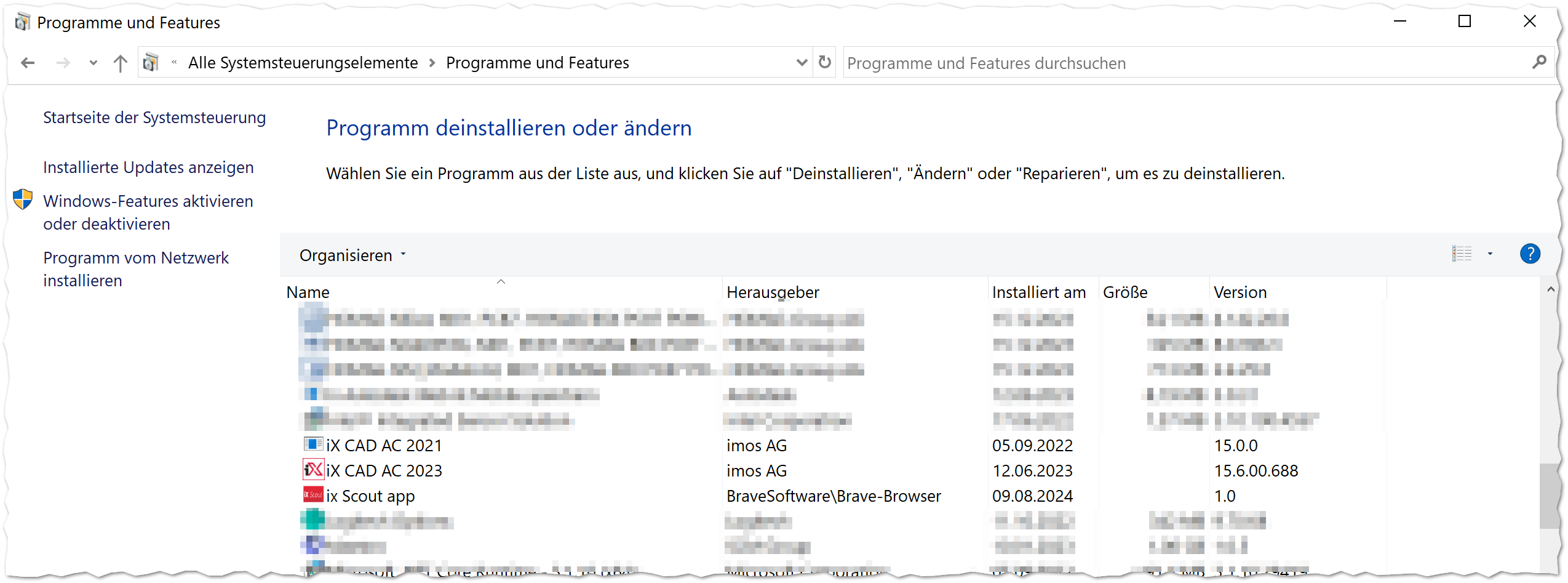
Example – Windows: On Windows, you can uninstall apps via 'System Settings > Programs and Features'.