
Elements Palette in iX Plan
The Elements Palette provides users with a list of all articles in the order. Click on 'iXplorer' in the ribbon to access the 'iX Elements' and 'iX Properties' palettes. The 'iX Properties' palette contains both a tab for properties and one for methods.
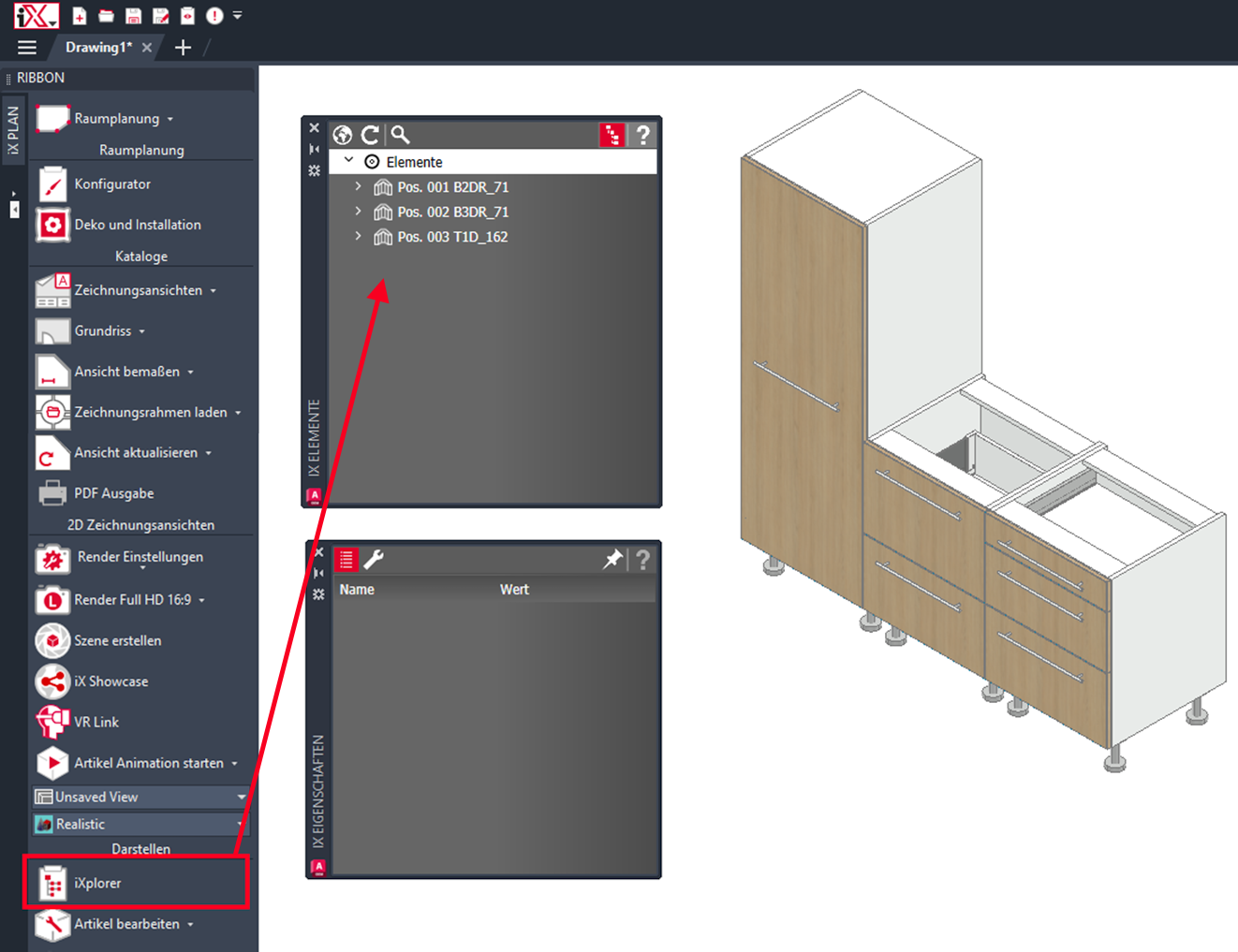
By default, articles are displayed in the palette with their position number and element name.
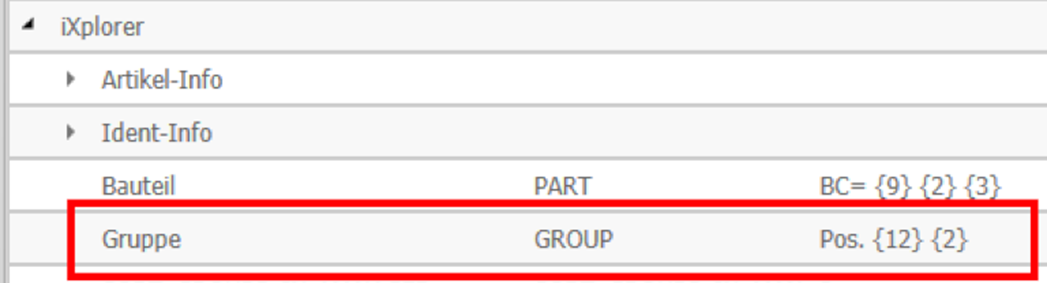
Tip: iX administrators can modify the display of article information in iX Options under "iXplorer >Group".
Elements – Selection
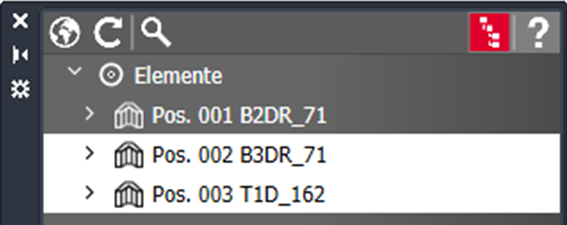
In the Elements palette, you can select articles. Multiple selections using the CTRL key or SHIFT key are also possible.
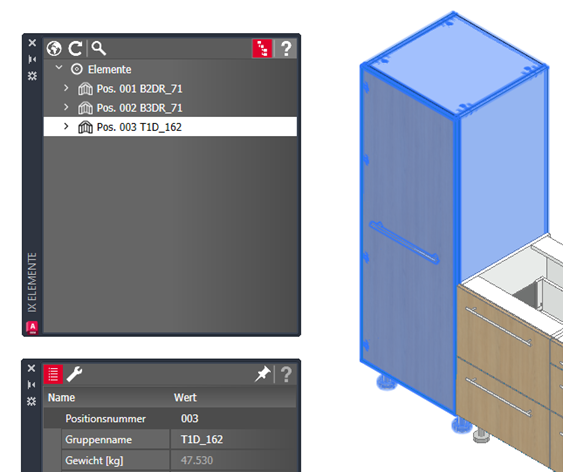
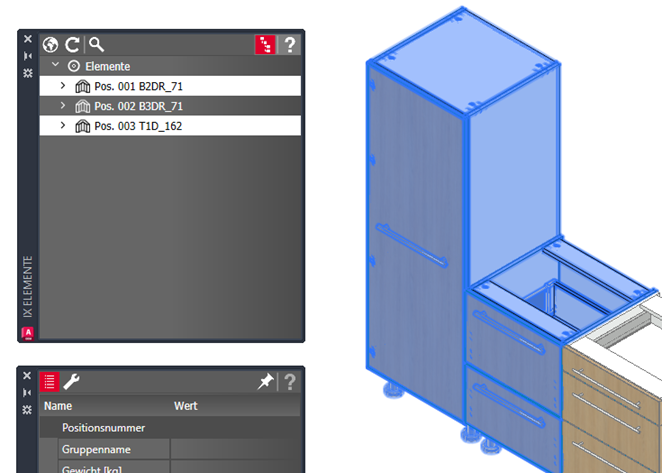
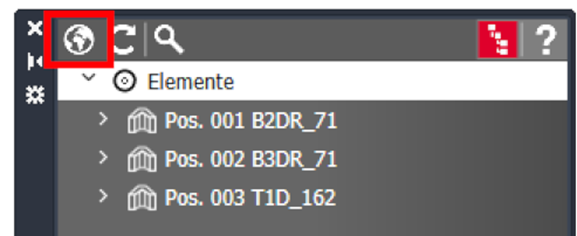
The upper toolbar of the palette offers additional functions:
- Reset Selection (Globe): Cancels the current selection and redisplays all
articles in the list.
- Refresh: Displays only the selected articles
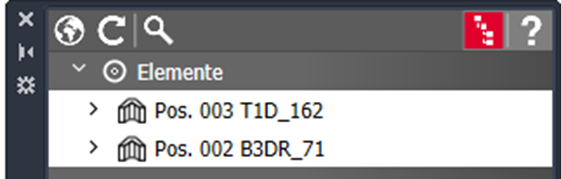
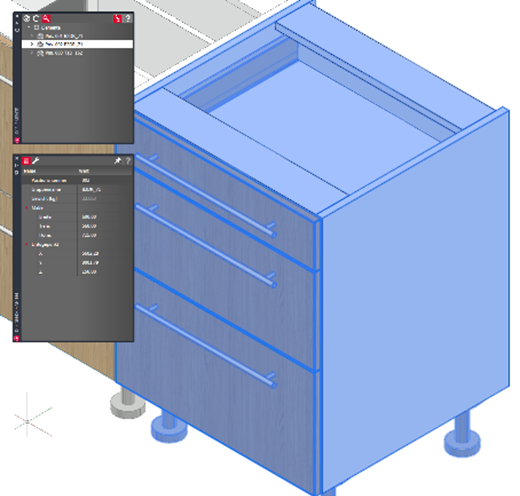
- Zoom (Magnifying Glass): When zoom is active, it zooms in on/ focuses on
selected articles
Elements – Context Menu
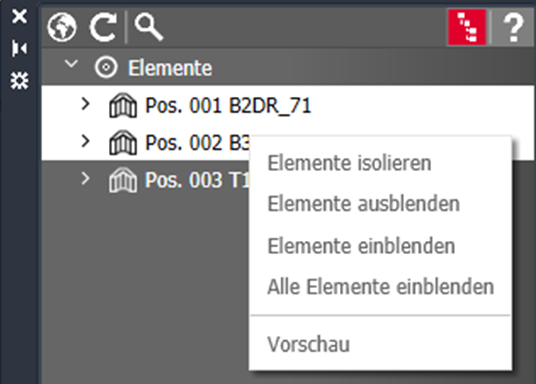
Right-clicking on selected elements brings up a context menu with the following functions:
- Isolate Elements: Hides elements in the drawing area that are NOT selected.
- Hide Elements: Hides elements in the drawing area that are selected.
- Show Elements: Displays selected elements again.
- Show All Elements: Displays all elements again.
- Preview: Opens the selected element in a separate 3D preview dialog.
Elements – Picking
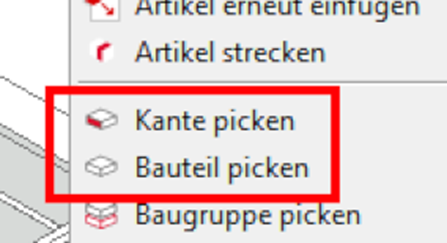
Right-clicking in the drawing area brings up a context menu with the following functions:
- Pick Edge: Select individual edges of parts in the drawing area that you want to examine or modify.
- Pick Part: Select individual parts in the drawing area that you want to examine or modify.
Note: The element nodes cannot be collapsed or expanded in iX Plan .
Elements – Deleting by Mouse Click
In the Methods Palette, a separate "Delete" button is now available for deleting articles if an iX Plan user prefers working with the mouse. Deleting via the DEL key is still possible.