
Tab Header data
Access
Organizer > Order Manager > Tab: Header data
General Information
Header data can be defined for a project or an order.
The data are taken from the imos order data or they can be freely edited on the tab Header data.
Options
The options that can be stored, match with the order information from imos . Additionally with the Organizer delivery and payment conditions can be stored for an order.
Design Specification
| General Specification | Choose a General Design Specification in the Element Manager. |
| Detail Specifications | Select a Design Specification in the Element Manager. |
Related topics
Order information
| Commission | The commission can be entered here if required; this can consist of up to 64 characters. |
| Order number | An additional order number can be entered for the order here, although it must not consist of more than 30 characters. It is a good idea to choose a number that can easily be allocated to the order and found again. |
| Client | The retailers name may contain up to 80 characters. |
| Program | Enter article names, e.g. series name of a construction or a range, although you should not enter more than 80 characters. |
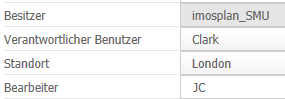
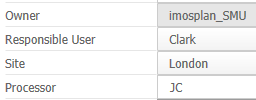
| Owner |
Restricts read and write permissions to an order for users and main users: they may open and edit an order only if they are defined as the Owner. A Super Main User and an Admin can still open, edit and save all orders. The owner is the user, ...
The "Owner" field cannot be changed directly. If necessary, an admin user can change the user in the "Responsible user" field. A Responsible User can edit and save the order, which will make him the owner. |
| Responsible User |
Assigning a "Responsible User" eases
The original responsible user is the one who created the order. The field can be edited by one of the following users:
So when the current Owner makes another user the Responsible user, that responsible user can edit and save the order - he also becomes the Owner when he saves the order. Example: Colleague A will be on holiday, so he wants to transfer his orders to colleague B. He assigns colleague B as the new responsible user. When the holiday is finished, the orders, that colleague B has edited and saved while colleague A was gone, must be assigned to colleague A again by colleague B. During order acquisition, an Admin might have to change owners. Note: When an order is edited and saved, only the Owner changes - not the Responsible user. For example, this is helpful when there is an employee in the company who is responsible for the final review of the orders. |
| Site |
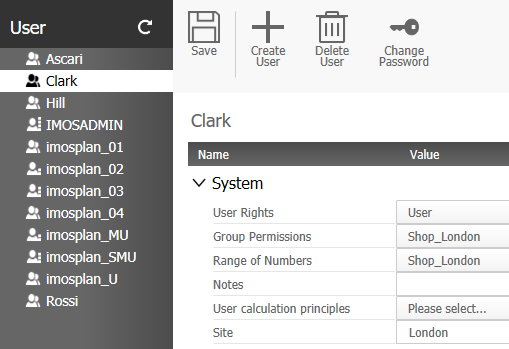
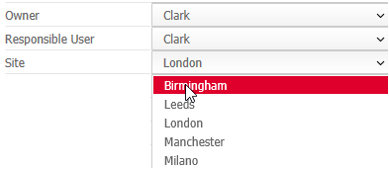
Location means the location of the store where the order was created. In the Save job screen, the field is automatically populated with the exact location assigned to the user.
The field Responsible User can be edited by:
Furthermore, all locations can be selected in a drop-down in the field, which are stored in the user principles, so that the location can be changed with just a few clicks.
|
| Import from resp. User | During PlanLink Import, the field will be filled in with the value of Responsible User at the time of the import. So the sales person responsible for the order will be noted as a contact for the order entry clerks during import. |
| Import from site | During PlanLink Import, the field will be filled in with the value of Site at the time of the import. So the site where the order was imported from will be noted for the order entry clerks during import. |
| Name of the employee | The name of the administrator of an order is entered here; the person who is responsible for preparing the order and construction. The name may contain up to 30 characters. |
| Construction Rules |
Links to a dialog box with all the existing construction rules. A construction rule is highlighted in the selection window, and loaded into the order dialogue box when confirmed. See also Construction Rules |
| Design Parameters |
Links to the Element Manager with all the existing design parameters. A construction mode is highlighted in the Element Manager, and loaded into the order dialogue box when confirmed. See also Design Parameter |
| Short text | Freely editable information field. |
| Description | Freely editable information field. |
| Preview | Opens the Windows File Manager to select a preview image. |
| in Production | If activated, the order is already in production |
| Order Status | Freely editable information field. |
| Order status iX Share |
The Order status iX Share can be set manually or triggered by function calls that have been assigned in iX Share Status principles. The status options in the dropdown list are derived from the Status principles that are set up in the Element Manager and that are enabled. |
Dates
| Order Date | The date of creation and construction of the order. |
| Last change | Date of the last revision of the construction. |
| Delivery date | Date when the order shall be delivered. |
| Shipping date | Date when the order shall be shipped. |
Delivery and payment conditions
| Delivery Condition | Choose a Delivery Condition. |
| Payment Condition | Choose a Payment Condition in the Element Manager |

Only pure textual information is given with the delivery and payment conditions .
Additional information
| Info 6-16 | Choose a Delivery Condition. |
| Payment Condition | Choose a Payment Condition in the Element Manager |
*) This function is not included in the basic program version.