
License Disappears from iX License Manager
Problem
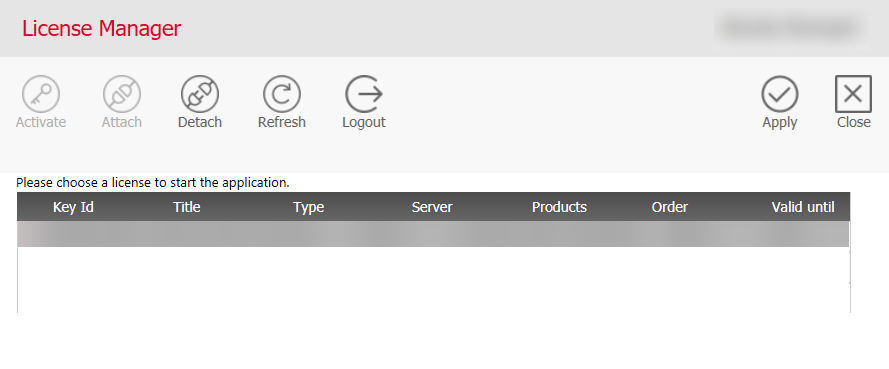
After activating or attaching a license for the first time in the iX License Manager, it suddenly disappears from the list. As a result, you cannot detach the license to attach it to another computer, or the iX applications won't start.
Cause
Your computer name is probably too long. When activating/attaching the license, the License Manager expects a computer or server name with a maximum of 15 characters.
Rename Computer
Procedure
Note: Before proceeding, check with your IT department whether you are allowed to change your computer's name.
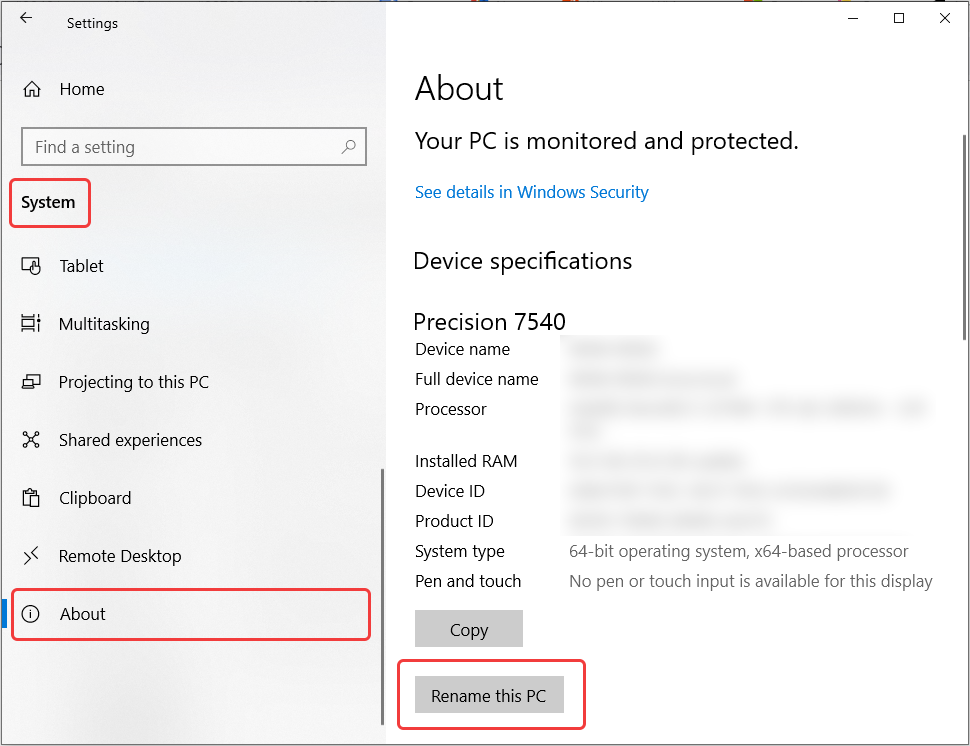
- Go to Windows Start > Settings > System > Info.
-
Select Rename this PC.
-
Enter a new name that is no longer than 15 characters, then select Next. You may be prompted to sign in again.
The license will appear again in the License Manager.Note: If the license still doesn't appear in the License Manager, contact imos Service.
