Connection Problems to iX Servers
Context
You cannot establish a connection to iX servers, causing logins to fail, for example in the 'iFurn' and 'License Manager' applications.
Reason
During login, a connection to iX servers is established. If the connection fails, the login fails. Possible reasons for connection failure are:
- incorrect network configuration
- issue with the internet provider
- issue with the license server
Check Internet Connection
User
Procedure
Check for an existing internet connection.
- Are the network settings on the workstation correct?
- Are network cables properly connected?
- Does the internet provider have an outage?
Change Network Settings in Router and Firewall
Network Administrator
Procedure
If login fails despite an existing internet connection, adjust the network settings and firewalls as follows.
-
Allow IP addresses and domains:
- 85.214.39.107
- Address range 92.79.127.224 - 92.79.127.254
- download.imos3d.com
-
Allow ports:
- Case ftp: 21
- Case http: 80
- Case https: 443
-
Allow protocol types:
- TCP
- FTP (for download)
-
Allow FQDN (domain names):
-
https://identity-provider-list.imos3d.com
- https://connect.ifurn.net
- https://identity.imos3d.com
- the following domains are loaded for page display:
- translate.netshop.imos3d.com for translations
- fonts.googleapis.com for fonts
-
Change Network Settings in Windows Defender
Windows user with admin rights, System Administrator
Procedure
-
Enter
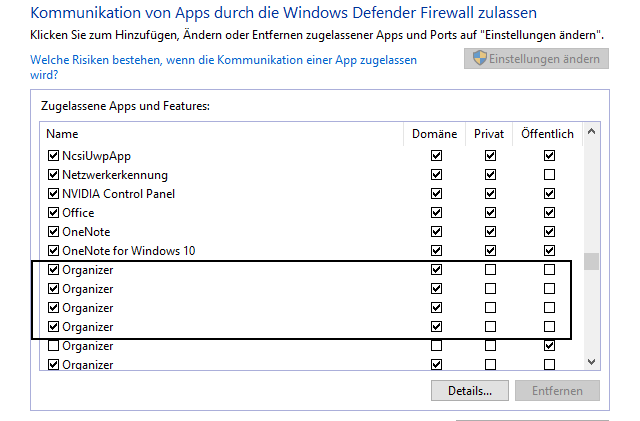
Windows Defender Firewallin the . Click in the results list. - Go to .
- Scroll to 'Organizer' in the list.
-
Check in which networks ('Domain', 'Private' or 'Public') communication from 'Organizer' apps is allowed. Try different settings if necessary: For example, check 'Domain' and 'Private' for all 'Organizer' entries.