
User Account
iX applications require a user account. The permissions of a user are determined by the roles assigned to their account. A License Administrator creates and manages user accounts in the iX License Portal.
Users can view their account details here: .
User Roles
A user's permissions depend on roles assigned to their account. The user roles and their permissions are listed below.
| Role | Description and Permissions |
|---|---|
|
User (imosUser) |
|
|
License Administrator (imosAdministrator) |
|
Creating a User Account
How to create user accounts in the iX License Portal.
Requirement
- User account with 'License Administrator' role
Procedure
- Go to: .
- Click next to the search field. A form opens.
-
Fill out the form with user data. Only assign the roles that the user actually needs.
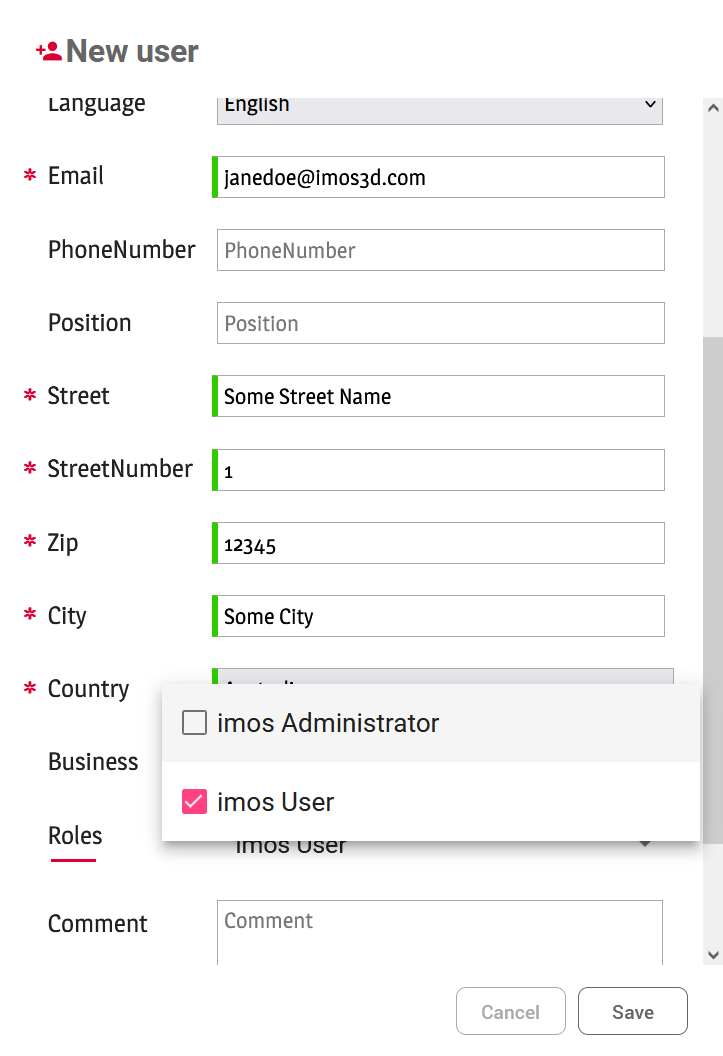
- The activation and password creation email will be sent to the specified email address.
- Enter the company address, NOT the private address.
- Click .
Results
Activate User Account
How to activate a new user account and create a password
Requirement
Procedure
- Open the activation email and click the to open it in your web browser.
- Create a secure password and repeat the entry to verify it.
- Click .
Results
Resend Activation Email
How to resend an email with activation link to users if they haven't activated their account after the deadline has expired.
Requirement
- User account with 'License Administrator' role
Procedure
- Go to: .
- Click at the end of the table row of the corresponding user account.
Changing Your Password
How to change your password if you have forgotten it or if it is no longer secure.
Procedure
- Go to: . The login page opens.
- Click .
- Enter the email address associated with your user account.
-
Click .
You will receive an email with a link to reset your password.
- Open the link in your web browser.
- Create a new password.
Assign Licenses to a User or Revoke Assignment
Requirement
- User account with 'License Administrator' role
Context
- Assign licenses to a user
- Assign users to a license
The following describes the process 'Assign licenses to a user'.
Procedure
- Go to: .
- Search for the desired user in the table.
- Click at the end of the row. A dialog opens.
- Find the desired license in the dialog's table.
-
To assign the license, activate the switch next to it. To revoke the license, deactivate the switch.
Note: If a user's switch is blocked (grayed out), you cannot change the assignment.

The following cases exist:
- The switch is blocked and turned ON – Possible reasons:
- It is a company-wide license that is assigned to all users, e.g., a maintenance contract license.
- The license is still attached to the user's computer. The assignment of an attached license cannot be revoked. See Cannot Reassign a License.
- The switch is blocked and turned OFF – Possible reasons:
- The license has already been assigned to other users.
- The switch is blocked and turned ON – Possible reasons: