
iX License Portal
In the iX License Portal, License Administrators manage user accounts and licenses.
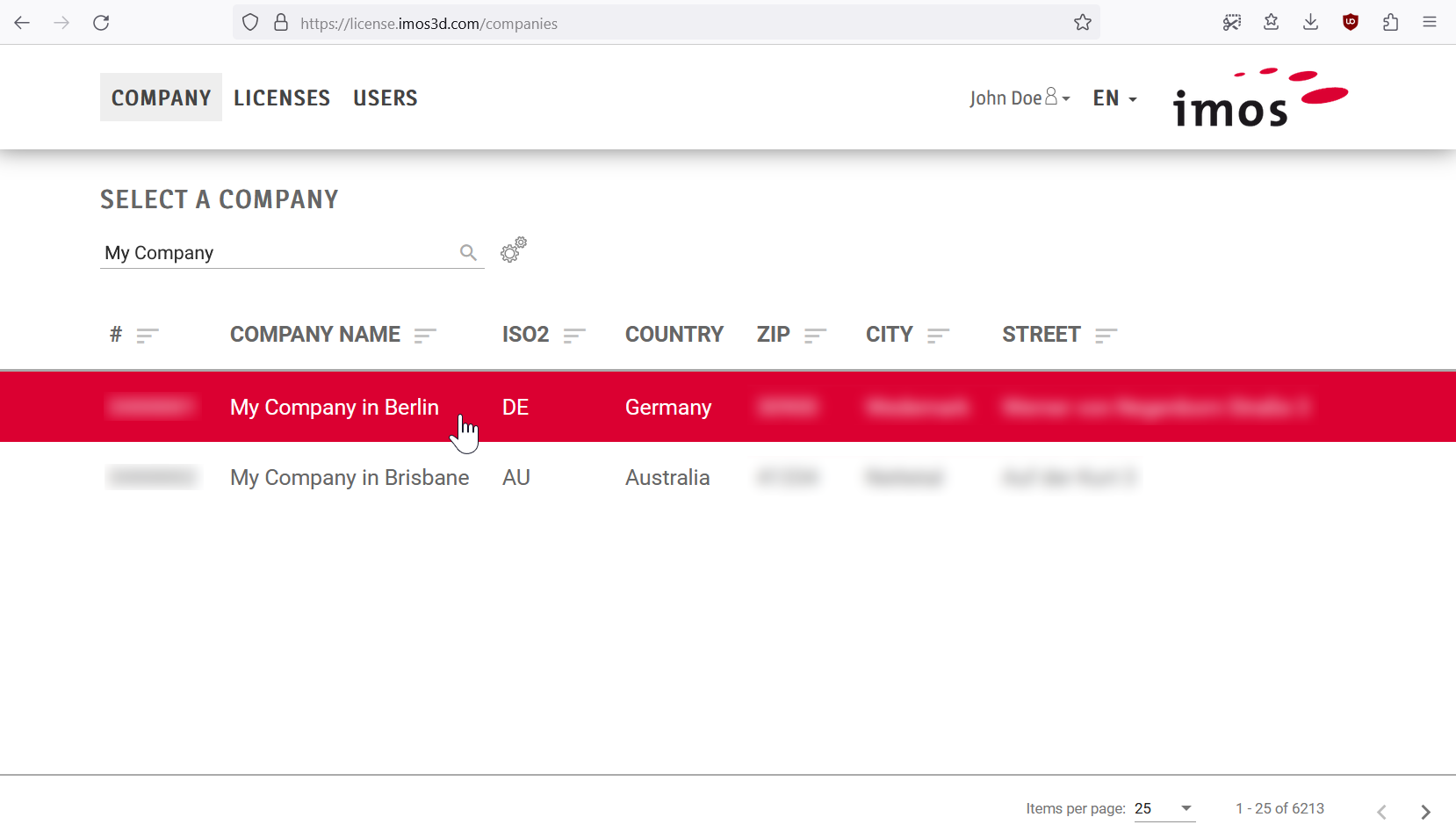
You can access the iX License Portal at https://license.imos3d.com/ or through the Support Center if you are logged in as a License Administrator.
The License Portal is divided into the sections Company, Licenses, and Users. The data displayed in the 'Licenses' and 'Users' sections depends on the company you select in the 'Company' section.
Note: The 'Company' section is relevant if you manage MORE than one company in the portal.
Searching and Finding in the iX License Portal
Context
The following functions are available for searching and finding values in the iX License Portal tables:
- Search field: Searches the most relevant table columns.
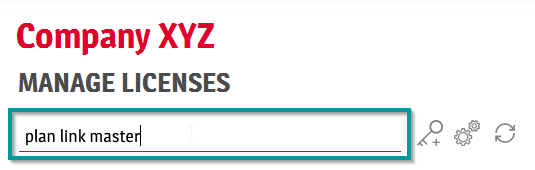
- Browser's own search function (CTRL+F): Searches all content displayed on the current page. Note: Long tables are divided into multiple pages, for example 'Page 1 of 12'.
- Sort table: Sort columns alphabetically or by size.
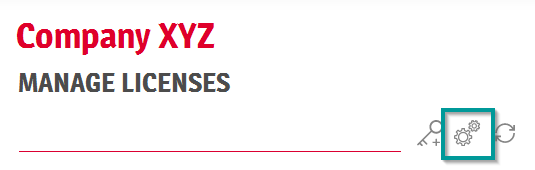
- Show/hide table columns: Show or hide columns until only those relevant to your use case are displayed.
Licenses can be most easily identified using a combination of the following properties:
-
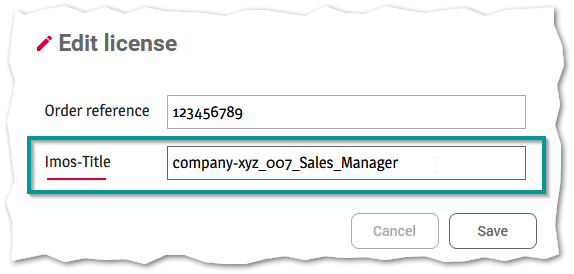
License title: By default, the license title consists of the company name and a sequential number and should therefore be unique.
In the portal, licenses can also be renamed to make finding them easier. For example, you can add an individual role to the title such as 'Sales_Manager', 'Designer', or 'Data_Admin'.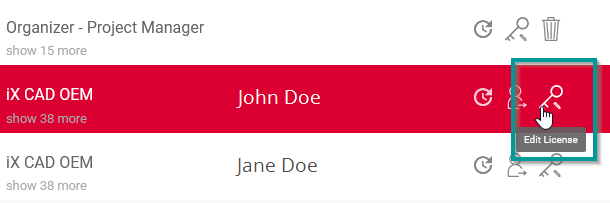
-
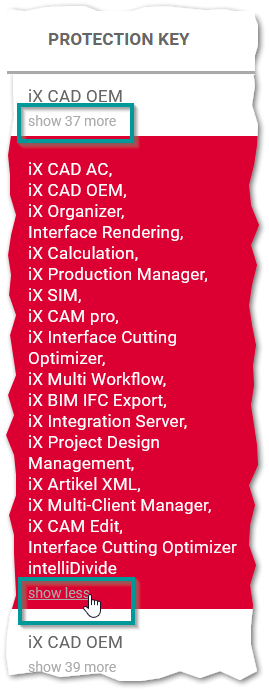
Products: List of products and modules that the license contains. If the list is very long, it will be collapsed. Click 'Expand' to expand the list.
- Order: If your company has placed more than one order, the order number can also help sort the licenses.
Tip: For inquiries to Service or Sales, please use the license title and order number instead of the Key-ID. The Key-ID is not present when a license is not activated.
Jan 2021 | Version iX 2021 SR1
#01467