
Save an article
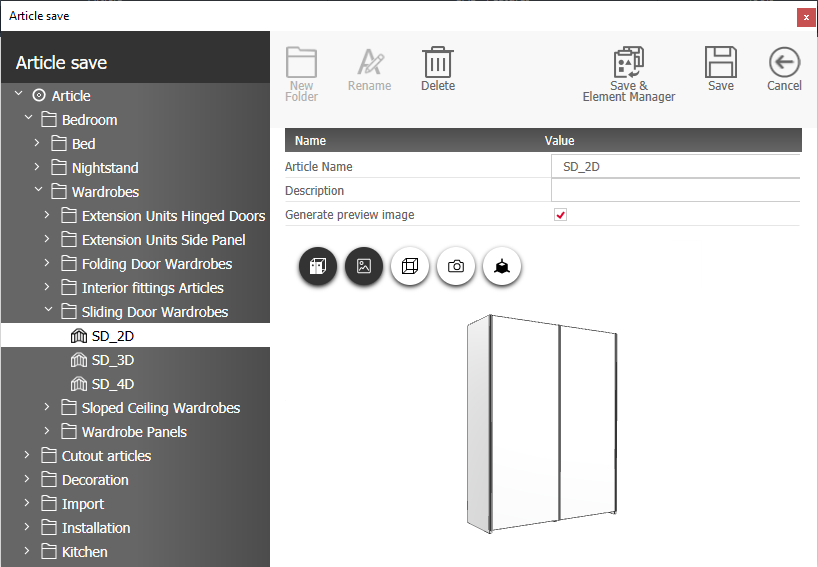
There is now a standard save window for the
- Article Designer
- Object Designer
- Part Designer
- Elements combined into an article position
Note: Part Designer and combined article positions are saved as FXF files.
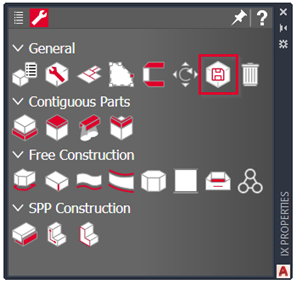
The “Save article” method is available in the software at the following points:
- Designer tab
- iXplorer methods pallet, if an Article Designer, Object Designer, Part Designer or combined article position is selected
- iXplorer Parametrics tab menu bar
The save dialog looks similar to the Element Manager. The saved articles are listed on the left side of the screen. The right side of the screen features a ribbon menu, the properties window, and a preview area that allows you to view the selected article from a variety of 3D perspectives.
Options
Context menu in the articles element tree
| Option | Description |
| New folder | Inserts a new folder in the selected tree node. |
| Save | Saves the article. Type in a unique article name in the name field before clicking Save, or overwrite the article selected in the tree with the article currently selected in CAD. |
| Delete | Deletes the article or folder selected in the tree. |
| Rename | Rename the selected folder. |
| Cut | Cuts out the selected article or folder. |
| Insert | Inserts an article or folder that has been cut out in the target tree node. |
Ribbon
| Option | Description |
|---|---|
| New folder | Inserts a new folder in the selected tree node. |
| Rename | Rename the selected folder. |
| Delete | Deletes the article selected in the tree. |
| Save & Element Manager | Saves the article with the name that is enetered in the field Article name and in the folder that is selected. Thereafter, the Element Manager launches where you can change further settings. |
| Save | Saves the article with the name that is enetered in the field Article name and in the folder that is selected. |
| Cancel | Closes the dialog without saving the article. |
Properties
| Option | Description |
| Article name |
Enter a name for the article. Note: The character length is limited. |
| Description | Free text |
| FXF path |
Directory where the FXF file is located. „C:\PROGRAMDATA\IMOS AG\<Library Ordner>\FXF“ is set as a deafult. Note: Only available when saving Part Designer or combined articles. |
| Generate preview image | Takes a screenshot of the current perspective in the preview area and assigns it to the Article principle as a preview image. |