
Export C2V File from a Dongle
You can export a C2V file from a dongle. This is required for switching to digital licenses.
- First, close all iX applications.
- Insert the dongle into a USB port before starting the License Update Tool. (If you connect the dongle afterward, the tool will not recognize it.)Note:
- Dongles for which a C2V file is to be created must be attached to the same computer on which you are running the License Update Tool. This also applies to 'Concurrent User' dongles.
- When switching from dongle to digital licenses, no more 'Concurrent User' licenses will be issued, but rather the same number of 'Named User' licenses.
- With the License Update Tool, you can export C2V files or import V2C files. Start the tool by following the instructions for your version:
- Version iX 2019
- Open a file explorer and go to the
BINdirectory of your iX installation, e.g.,C:\Program Files\imos AG\iX CAD AC 2021\BIN\. - Start 'ImosLicense.exe'.
- Open a file explorer and go to the
- Version imos 12 and iX 2017
- Go to: .
- Click in the top ribbon.
- Version imos 11 and older
- Contact your sales partner. They will gladly provide you with the latest version of the License Update Tool. You will receive it packaged as a ZIP archive. When extracting the package, you will get two files:
- imoslicense.exe
- ImosLicenseUtil.dll
- Start 'imoslicense.exe'.
- Contact your sales partner. They will gladly provide you with the latest version of the License Update Tool. You will receive it packaged as a ZIP archive. When extracting the package, you will get two files:
- Version iX 2019
- Find the Key-ID of the desired dongle in the table, select the row and click .
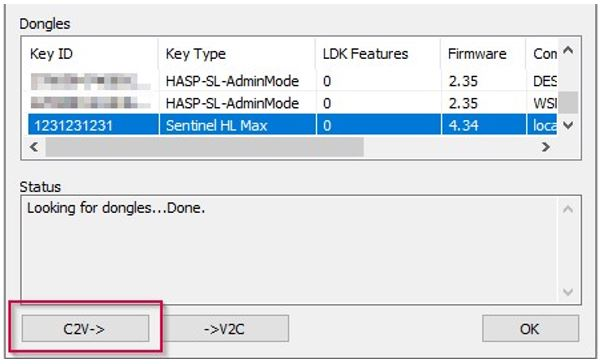
- Then define a storage path where the file should be saved. Do NOT change the suggested file name! Close the tool by clicking .
- Repeat the process with all hardware dongles that are relevant for switching to digital licenses.
- Send an email with the C2V files to the appropriate office:
- If you have a maintenance contract and need to switch to digital licenses during the program upgrade, send the C2V files with a brief description of the situation to license@imos3d.com.
- If you do not have a maintenance contract and need to switch to digital licenses during the program upgrade, send the C2V files with a brief description of the situation to the sales representative who handled your new order. The sales representative will forward the order and C2V files to the appropriate department.