
User Interface
iX License Manager
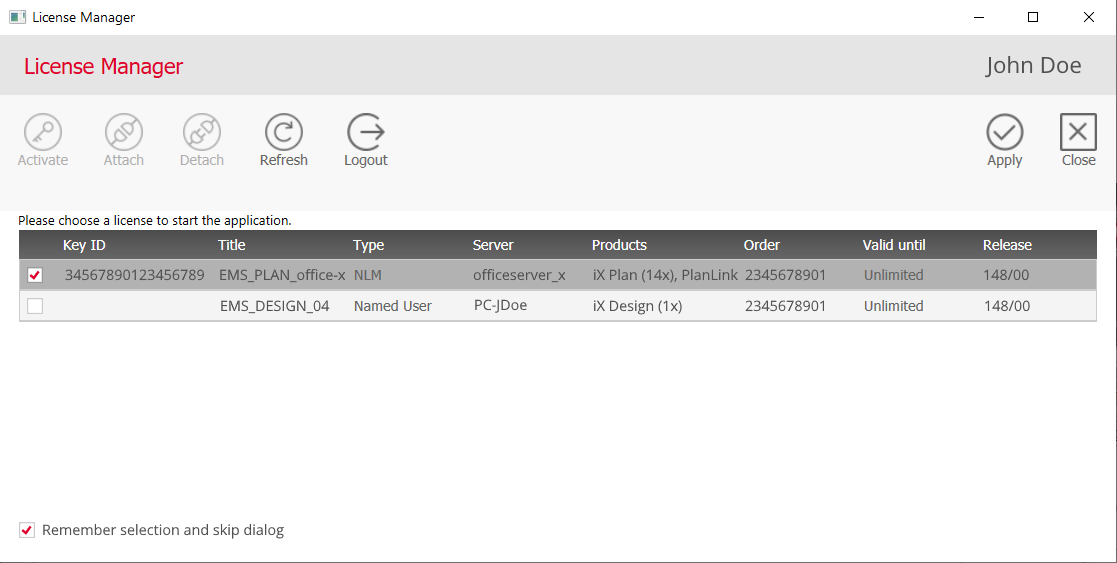
- a title bar with information about the logged-in user
- a toolbar for managing licenses
- a table with licenses available to the user
- additional options at the bottom of the window
User Menu
The name of the logged-in user is displayed in the top bar. Clicking on the name opens the 'Account Info' dialog, which reveals the following user information:
- Company
- Name
- Email address
Activate
Requirement: 'License Administrator' role.
Allows License Administrators to activate licenses in the local network, even if the licenses are not assigned to their own user account.
You can recognize an activated or attached license by an ID in the 'Key-Id' column; If no ID is present, the license is neither activated nor attached.
Attach
Activate and attach the selected license.
You can recognize an activated or attached license by an ID in the 'Key-Id' column; If no ID is present, the license is neither activated nor attached.
See Installing License.
Detach
Refresh
Reload license information from the server.
Logout
Requirement: An iX user is logged in.
Log out the user to allow another user to log in.
This also disables the 'Remember Password' function if it was turned ON.
See Logging Out Users.
Login
Requirement: No iX user is logged in.
Opens the login page in your web browser so you can log in.
See Logging In Users.
Apply
Requirement: The License Manager opened when starting another iX application.
- activates the selected license
- attaches the license to the computer
- starts the iX application you originally wanted to start
Work Offline
- no internet connection
- a user has previously logged into the License Manager and attached a license
- the offline working period has not expired
Starts the iX application you previously wanted to start without establishing a connection to iX license servers.
See Working Offline.
License Upgrade
Requirement: A hardware dongle and corresponding digital license are available in the table.
Close
Closes the iX License Manager.
Key-Id
Unique ID of the license. A license receives an ID when you activate, attach, or apply it; Otherwise, the column is empty.
Title
Name of the license.
Type
Server
Name of the computer or server where the license is installed.
Products
List of products and modules that the license unlocks.
Order Number
Number of the order with which the license was purchased.
Valid Until
Date when the license expires.
Version
Version number for which the license is valid.
Mine
Requirement: 'License Administrator' role.
Helps License Administrators distinguish between their own licenses and those of other users.
Remember Selection and Skip Dialog
When you check this box, the iX License Manager remembers the selected license once you apply it. The next time you start the program, the License Manager will be skipped and the same license will be applied.
- Explicitly use the 'iX License Manager' start shortcut to launch the License Manager.
- Hold down the
ALTkey and left-click on the start shortcut of any iX application.