
iX Scout - a production communication platform
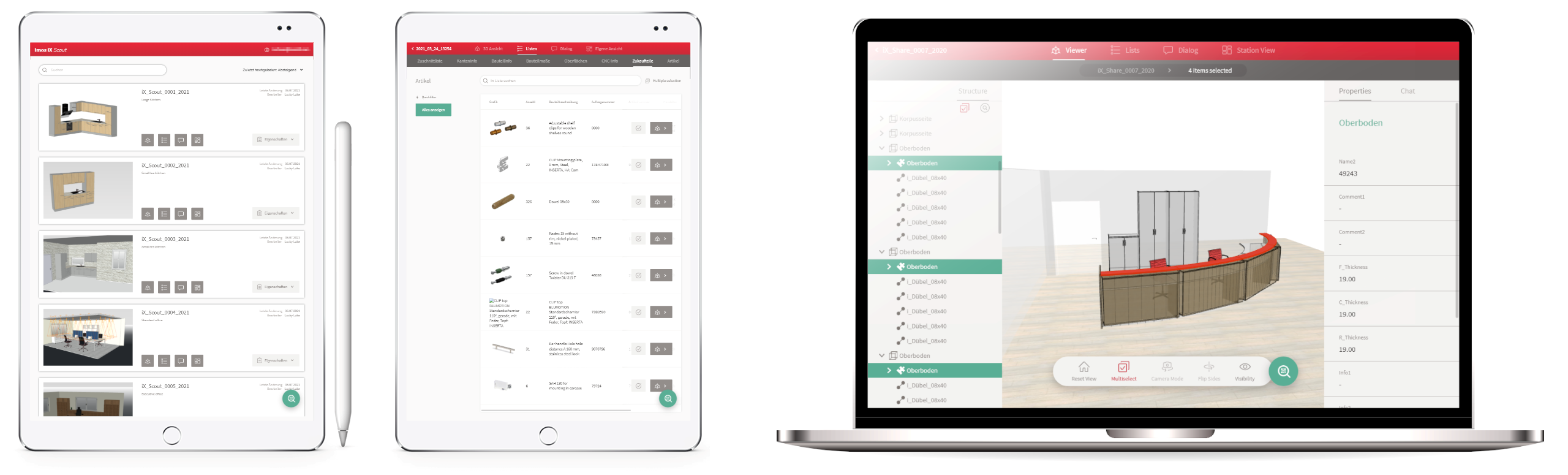
imos AG is introducing a web-based application for production and assembly, iX Scout. The goal is to provide up to date imos order data digitally to all production participants. In addition, the application facilitates consistent communication, so that any questions that might come up between departments or employees can be easily answered.
The iX Scout website can be accessed via an internet browser and is therefore available on all devices. Production facilities can thus use mobile tablets and smartphones instead of stationary work areas.
Relevant iX Scout data is particularly easy to access via QR codes scanned by the cameras available in all mobile devices. The information required to create QR codes can be coded directly in imos or transferred to a third-party system and embedded in an existing QR code.
This reduces the amount of physical documentation significantly; the only necessary components are a label containing the QR code and a device to read it.
The following chapters give you an overview on iX Scout services.
Note: More detailed descriptions can be found in the Online Help.
Note: iX Scout is currently available in Germany only. It is planned to make it internationally available during 2022.
Order overview
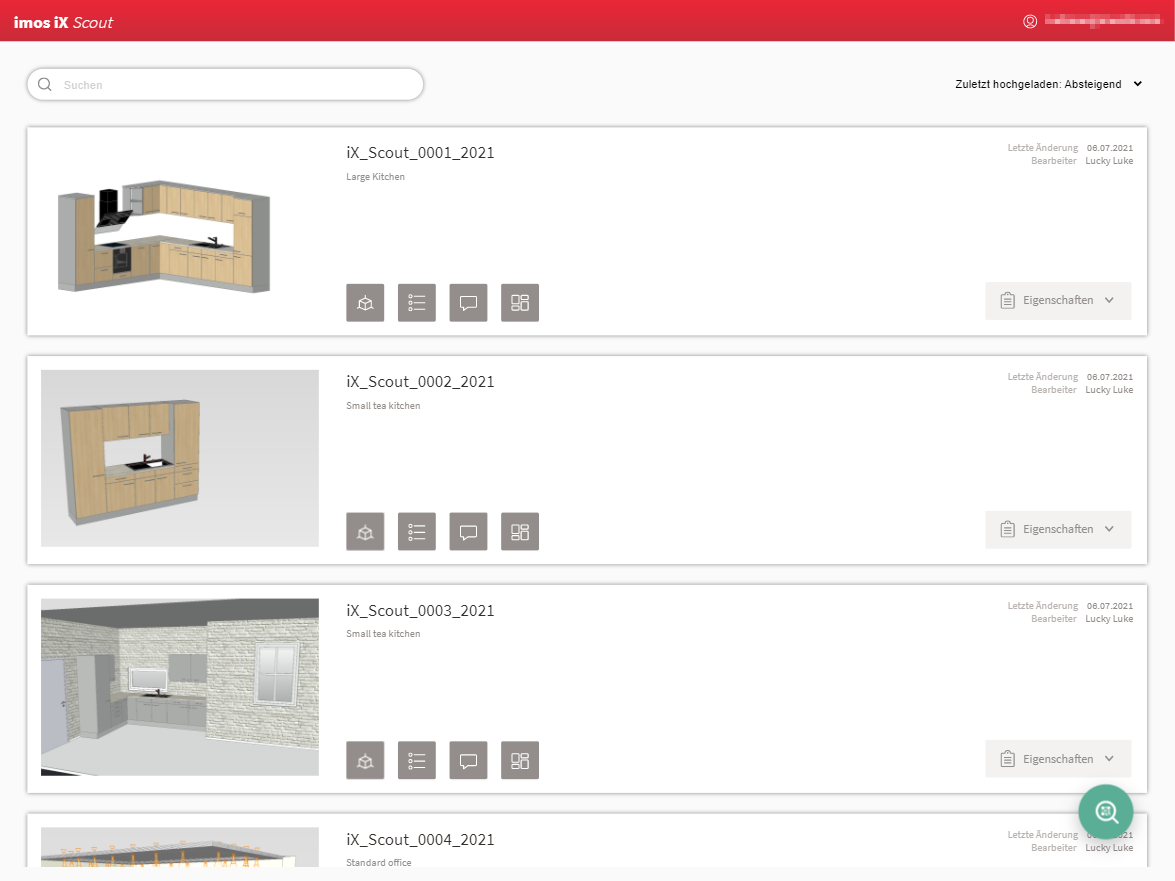
The iX Scout home page contains an Order overview, which displays all orders available online in tiles. You can access all iX Scout options starting from an order tile. Or you can search order headers and customer information in the properties dropdown menu.
3D view
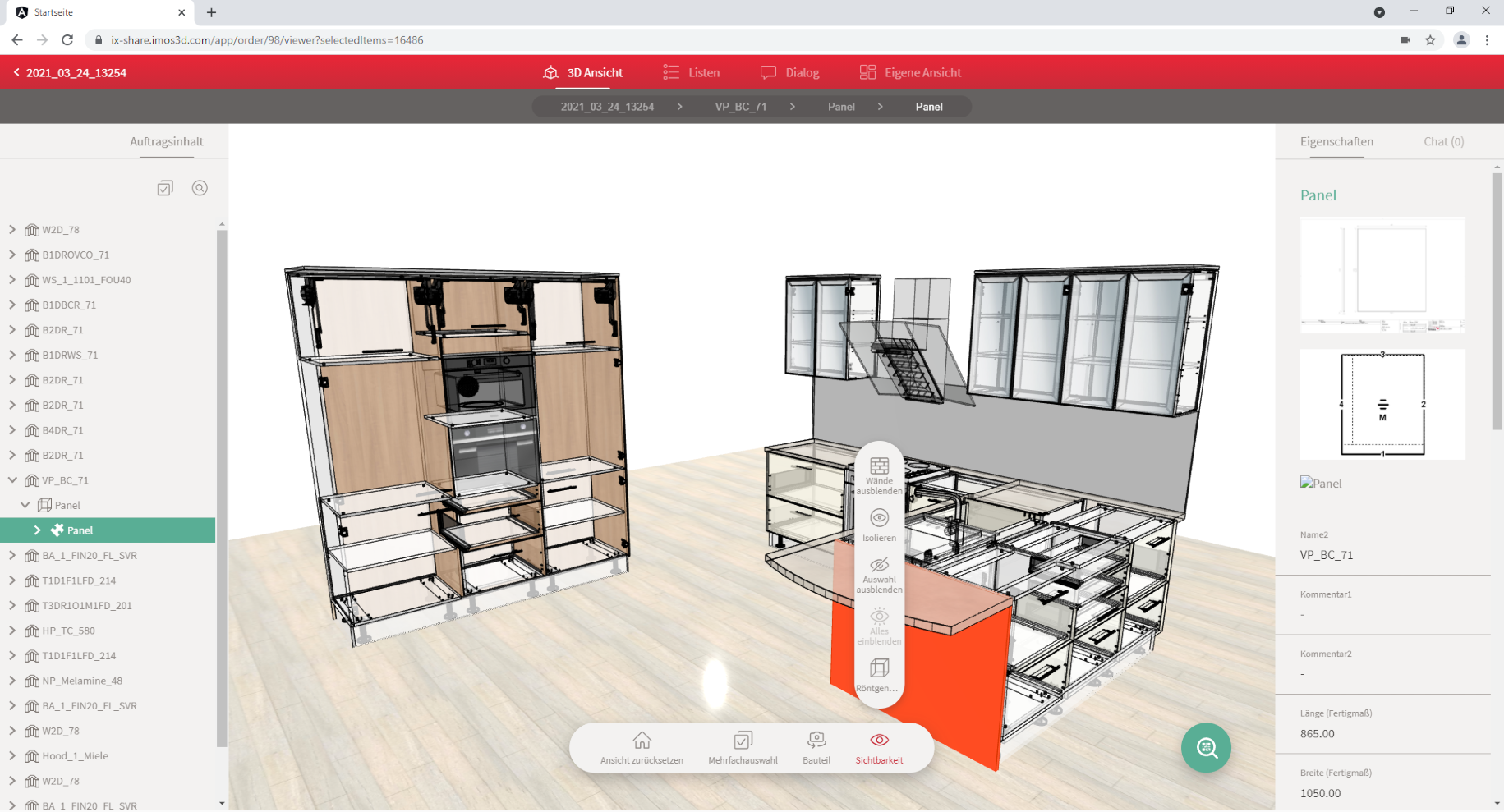
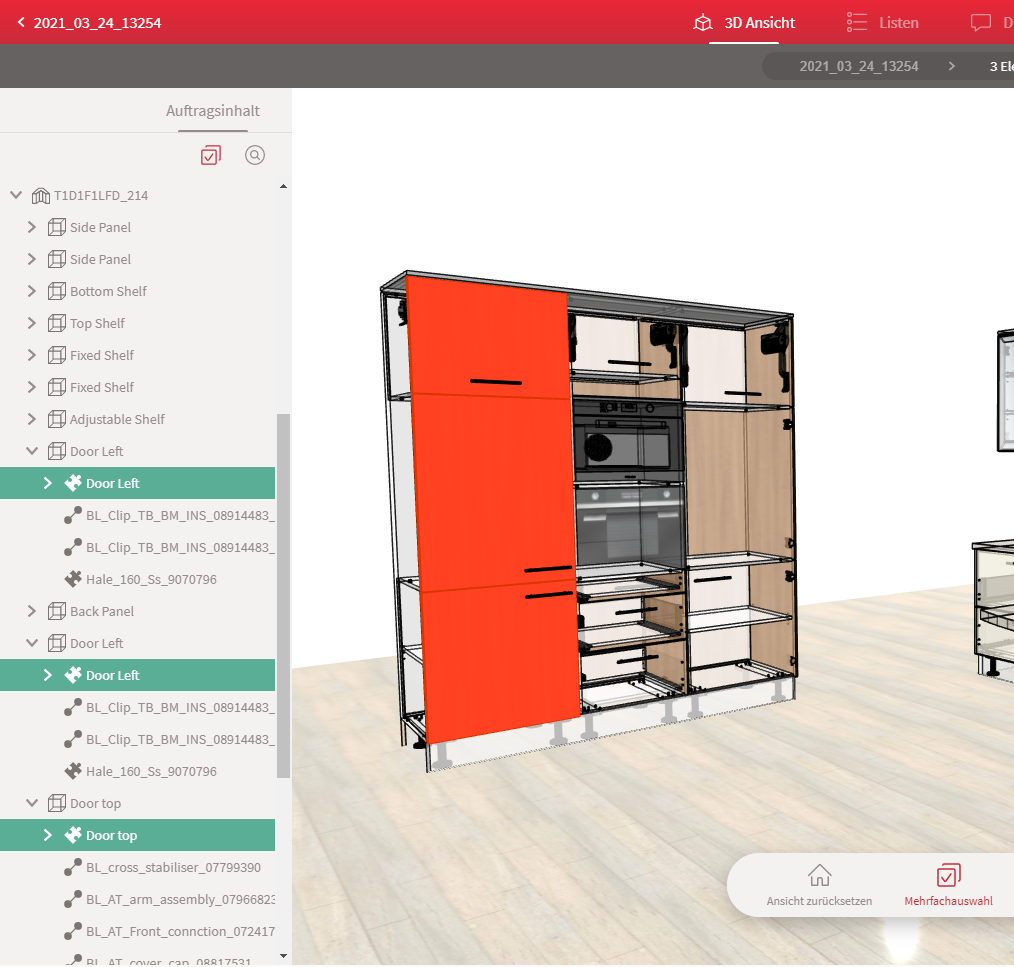
The 3D view is not just a preview of the order model, it can also be used to interactively examine individual objects. Once an object has been selected, its properties will appear in the sidebar on the right. In addition, the Chat tab allows you to comment on the object in order to contact other participants and clarify any issues.
There is an additional sidebar on the left side of the screen that lists all order elements hierarchically, creating an element tree. You can select the elements in CAD or from the element tree.
Dialog
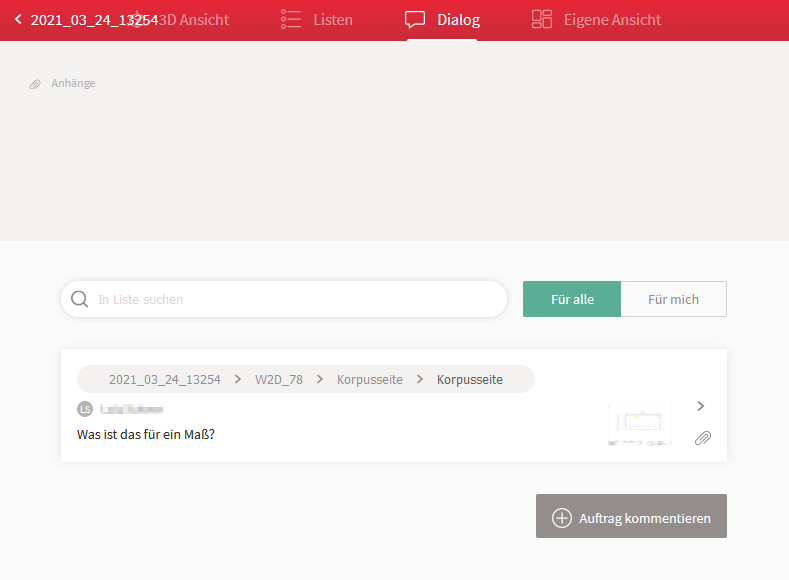
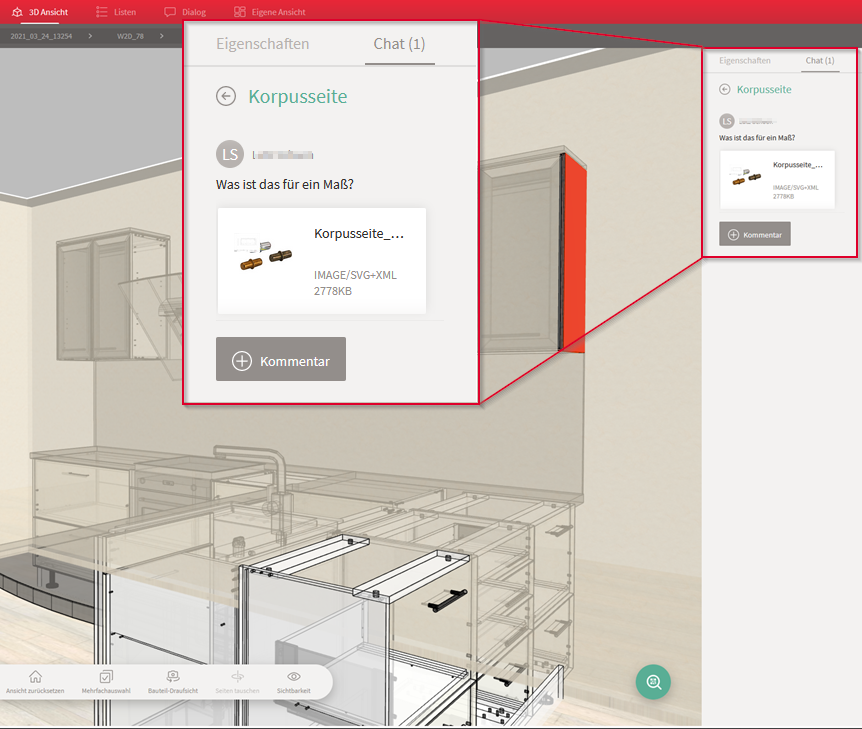
In the dialog (chat), every participant can link their questions to the object they are asking about. Articles, parts, fittings: the message is automatically assigned to the selected object in the 3D view, so that other participants can navigate from the Chat window directly to the viewer in order to identify the object in question, ensuring an unbroken line of communication.
Lists
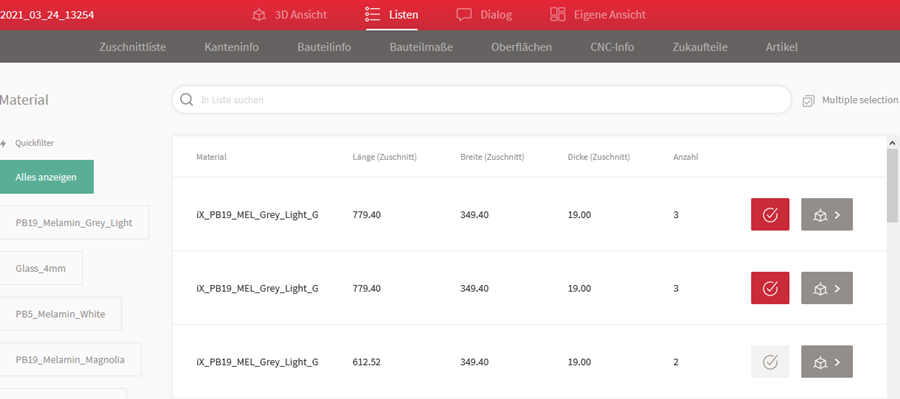
A selection of lists provides access to all order information in various configurations. It is thus quick and easy to view part information such as dimensions, edge information, or details on the purchased parts contained in the order.
The check-list function allows employees to individually cross off every element during production, so they can keep an eye on their progress.
Station views
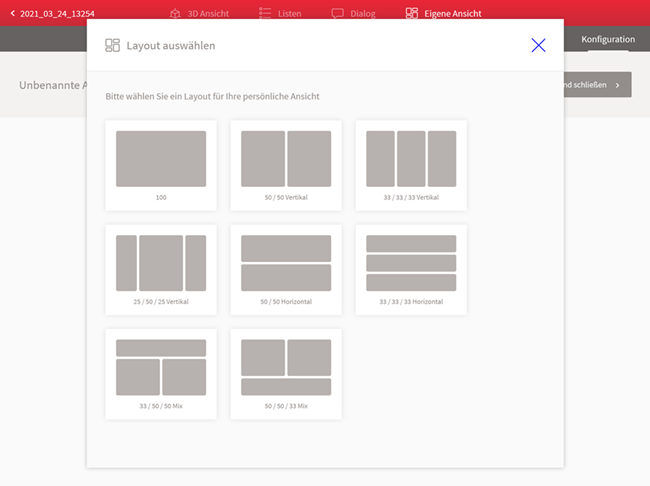
Using Station views, each user can collect precisely the information they need for their work, by selecting from the iX Scout components described above. The components they select are then arranged in a suggested layout and saved internally within the company. This means that all users then have access to a view created in this manner.
QR scans
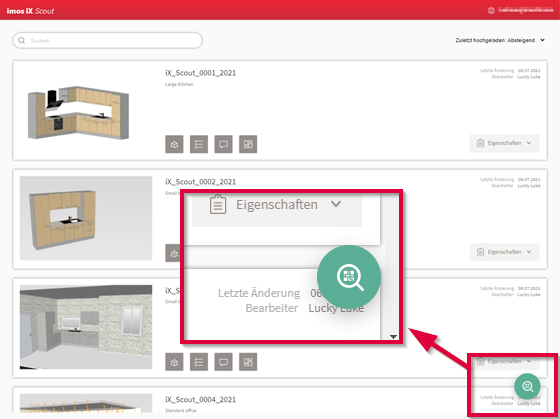
You can scan a QR code on the part label using your device’s camera or a barcode reader. Depending on the settings, information on the scanned part or order will be loaded directly, or you can use a menu to navigate to the feature you need.
Requirements
The following are requirements for using the iX Scout platform:
- An assigned iX Scout license for the platform
- iX Scout data uploaded to the iX Scout platform via the iX Organizer or the iX Integration Server
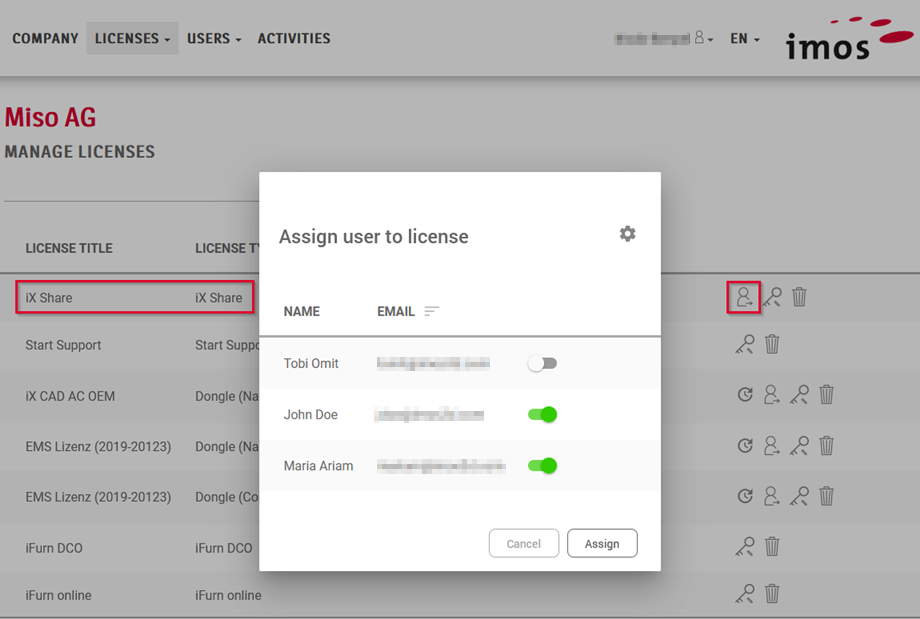
As soon as your company’s imos administrator has assigned iX Scout licenses to company employees, they can log in to the iX Scout platform.
An employee transfers data to iX Scout from iX Organizer. Independent of the online platform licence, his Organizer licence must contain the feature iX Scout.
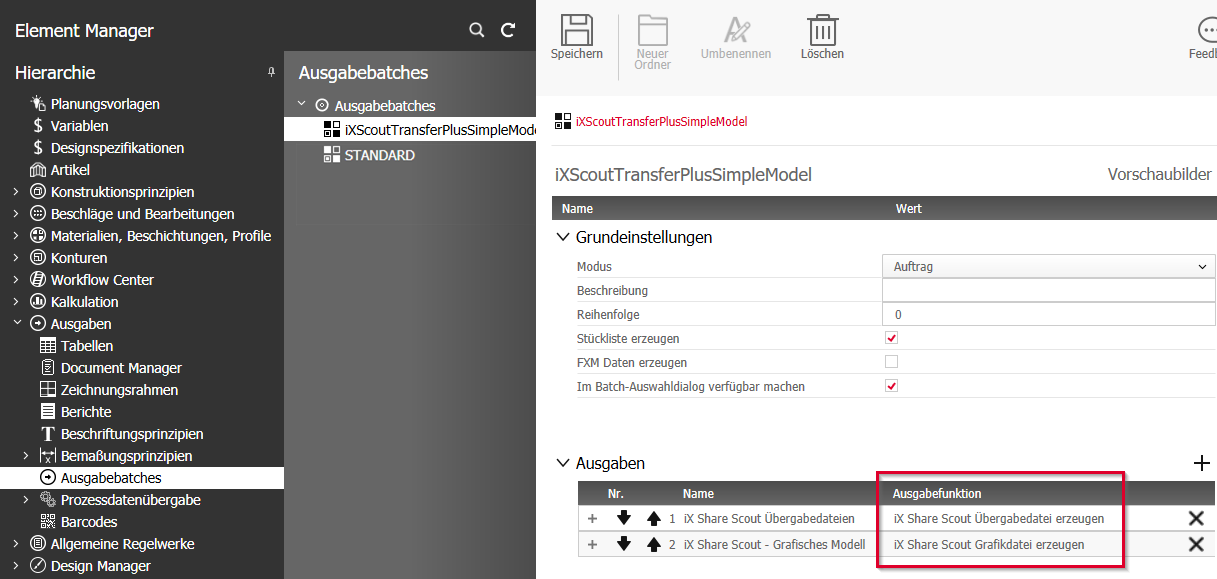
The relevant data for Scout is generated by corresponding output batches .
- Create exchange file for iX Scout
-
Create graphical content for iX Scout or
Create graphical content for iX Scout with Room situation
Other outputs can also be generated, such as Document Manager drawings, CNC preview images, or QR codes for parts.
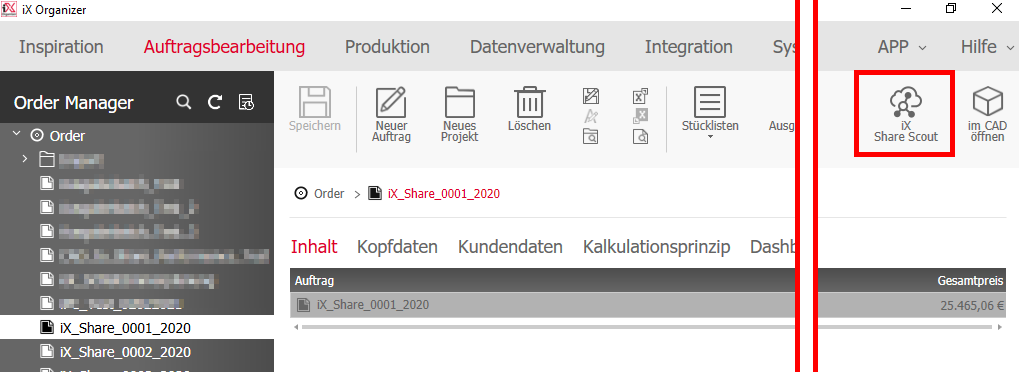
Once all required data have been collected in “iXChange Data”, an order specific Scout folder, the contents of the folder can be transferred from the Organizer Order Manager to the online platform by clicking “iX Scout”. In order to upload subsequent changes to the order, select “Update recordset” in the dropdown list instead. Use “Remove recordset” to delete the order from iX Scout.
Note: This product is not part of the basic installation package.