Transparent order processes in sales and construction
iX 2021 offers several tools to improve transparency within the order process and help with organization at your company. This particularly applies to:
- Companies with imos installations at multiple locations (e.g. iX Plan installations at various sales outlets)
- Companies with many imos users in one location
To make use of these new functions, set the following in your iX 2021 installation:
- Responsible user and Site
- Order status
- Order history
Requirements
The “iX Organizer Main Module” is required to use the functions described below.
Changing settings for users, order status, and order history also requires the user right “Administrator” and an imos “Full Version iX” license.
Responsible user/Site
The information “Responsible user” and “Site” simplifies communication regarding an order and temporary transfer of an order to another user (substitute).
The information is not lost even if the order is edited by a user with administrative rights or super main user rights.
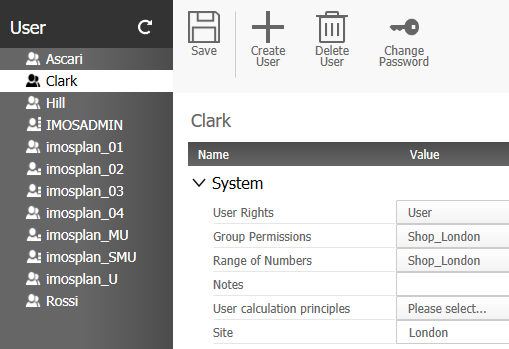
Assigning a site to the user
A user’s site is set in the user data.
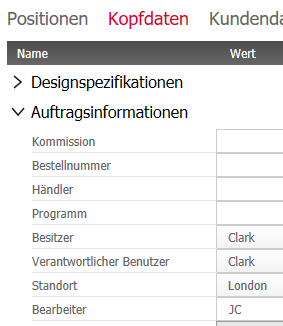
If necessary, the user’s site can be changed in the order.
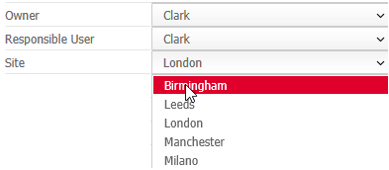
Assigning a “Responsible user” to the order
Creating an order
When a new order is created, the “Responsible user” is automatically set as the “Owner”. The value “Site” is filled from the user data.
Assigning a different “Responsible user”
If a user will not be available, the “Responsible user” can be changed to a different user. The following users can change the “Responsible user”:
- Users with administrator rights
- The current “Responsible user”
- The current “Owner”
Order editing by a different user
If an order is edited by a different user, for example a user with the rights “super main user” or “administrator”, only the entry in the “Owner” field will be changed. This will not change the “Responsible user” entry.
This makes sense, for example, when there is a supervisor who must approve all orders before they can be finalized.
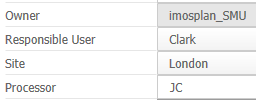
Order editing by the “Responsible user”
If the user who is logged in is the “Responsible user” for an order, they can edit the order even if they are not the order's “Owner”.
This new option is particularly interesting for users with the rights “User” and “Main User”, who up until now could only edit orders when an administrator had entered them as the owner. Now these users can organize to fill in for a colleague, for example, without help from an administrator.
Salesperson displayed in PlanLink import order
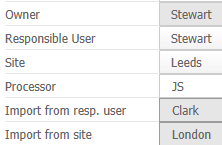
If PlanLink is used to transfer an order from iX Plan to the Order Manager, the “Responsible user” and the “Site” for the sales order are permanently saved as part of the imported order.
The order entry clerk thus knows who to contact in the event that they have questions regarding the order.
Order status iX Share
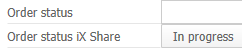
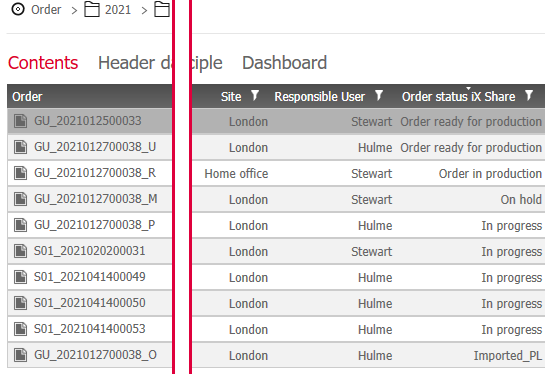
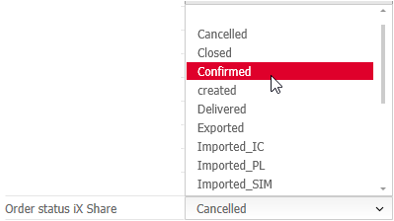
In iX 2021, you will find the new field “Order status iX Share” in the purchase header description.
Info: This field is independent of the “Order status” field used by some imos customers.
Using “Order status iX Share” allows you to organize your order process transparently and search for, sort, filter, and provide information on orders based on the current order status. The status of an order can be set automatically by the program and/or manually by the user.
Example: The office manager sorts their department’s orders to see which orders have which status.
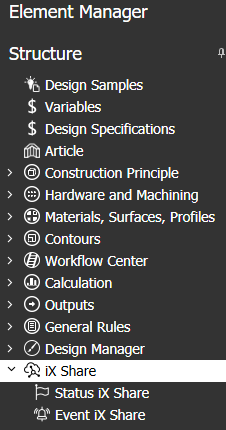
Status principles in the Element Manager
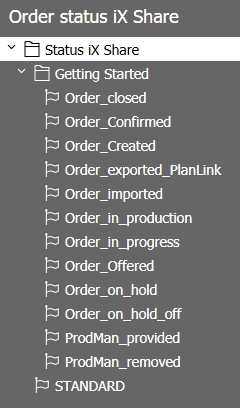
The desired status principles must be created so that an order can be assigned a value for “Order status iX Share”.
These status principles can only be created and maintained by users with administrator rights and an imos “Full Version iX” license. Users with lower-level rights and iX Plan users with administrator rights cannot see the “iX Share” node in the Element Manager.
Tip: In the Design Catalog Online (DCO) there is a data package with the following example principles for statuses (and events) ready to be downloaded and imported.
The status principle
Default settings
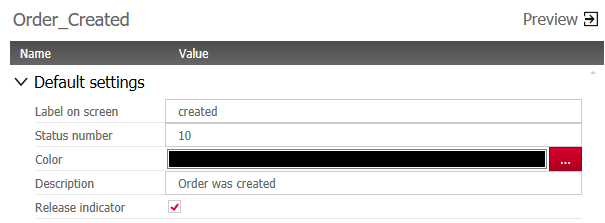
- The element name (in this case “Order_Created”) is used by imos, but does not appear in the user interface.
- The text for “Label on screen” can be defined freely using a maximum of 30 characters and is displayed in imos at various points as an “Order status iX Share” value. This means that, if changes are made to the text, there is no need to delete the status principle and create it once more.
- The status number can also be assigned freely (numerically), but does not appear in the current user interface.
- The status can be assigned a color. The color is not currently used by the program.
- In the description field, the meaning of this status can be described in more detail at a max. of 255 characters.
- The release indicator determines whether this status will be applied.
Trigger functions
Every status principle created can be manually assigned to an order.
However, if a “Trigger function” is saved for the status principle,

the status will be automatically set by the program.
- Every status can be automatically set by 1 to n functions
- If a function is set for a status principle, it cannot be used for a different status principle
The following functions are available in imos for automatically setting Order status iX Share:
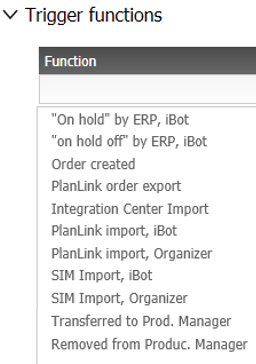
The triggering functions are defined by imos in the program and can be assigned by the data administrator. If imos implements additional trigger functions, they will be provided via a program update.
Please contact your local imos sales partner for a translation of the text.
A detailed description of which actions trigger these functions in the program can be found here.
Allocating status principles with PlanLink
Transfer of newly created, changed, and deleted status principles is carried out (as with all imos principles) using PlanLink main data export and import to the PlanLink Client databases.
In doing so, it is important to ensure that the imos version for the importing Client installation is at least equivalent to the exporting imos version. This means that the “Trigger functions” are present in the Client database and can be used by the program.
Manually exporting and importing status principles
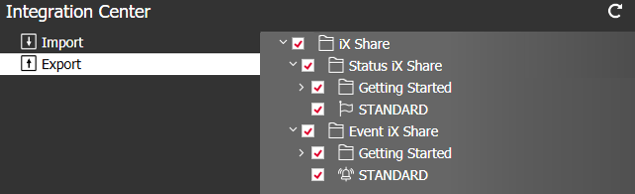
When manually exporting and importing status principles in the Integration Center, imos recommends always importing and exporting all status and event principles.
Order history
The order history can display certain statuses and actions that occurred as part of an order.
Example: The order history can be displayed in the Organizer’s Order Manager under the Order history tab.
There, the user can filter and sort the order history based on specific characteristics.
Line 1: The order has been created by the user „Ascari“.
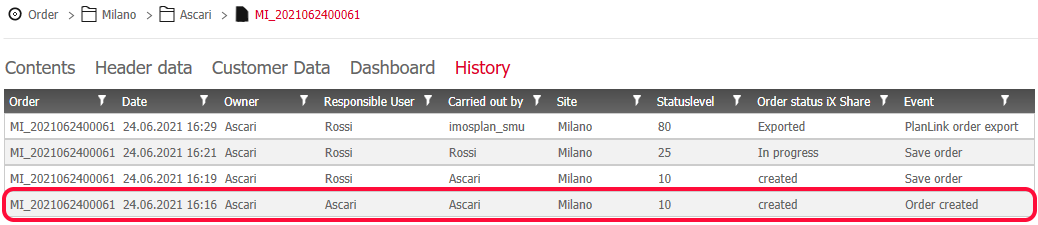
Line 2: The user "Ascari" made the user “Rossi“ the „Responsible User“ and saved the order.
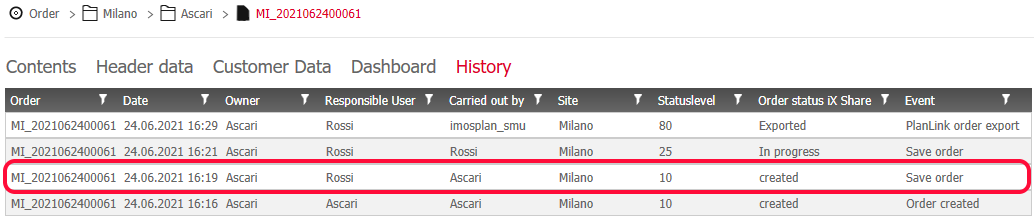
Line 3: The user „Rossi“ changed the status of the order to „In progress“ and saved the article.
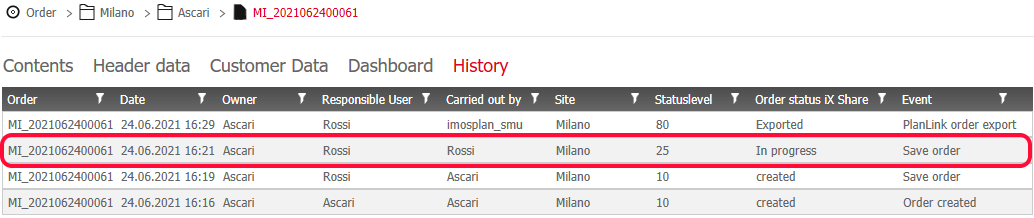
Line 4: The user „imosplan_smu“ (who has super main user rights) has exported the order using PlanLink order export.
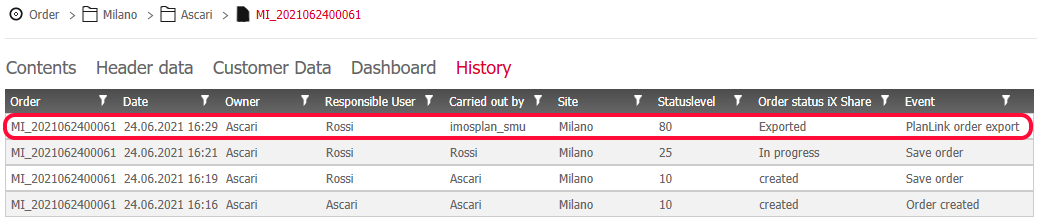
Event principles in the Element Manager
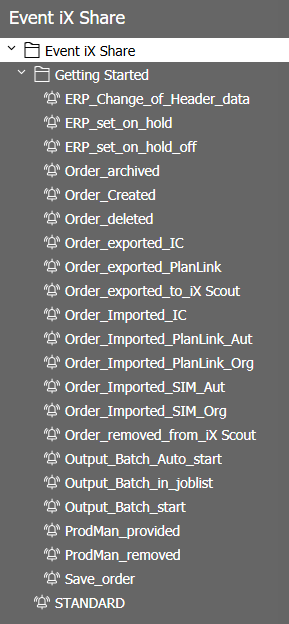
Event principles are required to ensure that history information is saved for an order.
Event principles can only be created and maintained by users with administrator rights and imos “Full Version iX” license. Users with lower-level rights and iX Plan users with administrator rights cannot see the “iX Share” node in the Element Manager.
Tip: In the Design Catalog Online (DCO) there is a data package with the following example principles for events (and statuses) ready to be downloaded and imported.
Event Principles
Default settings
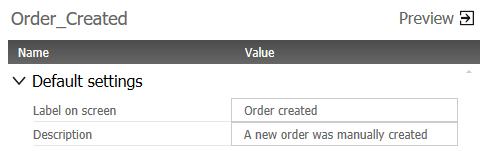
- The element name (in this case “Order_Created”) is used by imos, but does not appear in the user interface.
- The text for “Label on screen” can be defined freely using a maximum of 30 characters and is displayed in the imos interface. This means that, if changes are made to the text, there is no need to delete the event principle and create it once more.
- In the description field, the event can be described in more detail at a max. of 255 characters.
Trigger functions
Order history information can only be recorded automatically by the program. It is not possible to manually trigger an order history entry.
Event principles are thus only useful if a “Trigger function” has also been created.
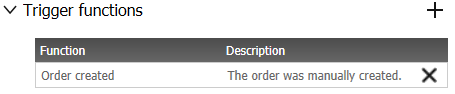
- Exactly 1 “Trigger function” can be set for each event principle
- If a function is set for an event principle, it cannot be used for a different event principle
imos offers the following “Trigger functions”, which can be assigned to event principles:
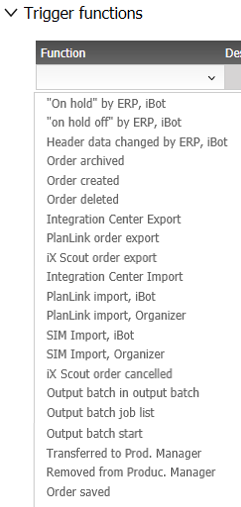
The triggering functions are defined by imos in the program and can be assigned by the data administrator. If imos implements additional trigger functions, they will be provided via a program update.
Please contact your local imos sales partner for a translation of the text.
A detailed description of which actions trigger these functions in the program can be found here.
Allocating event principles with PlanLink
Transfer of newly created, changed, and deleted event principles is carried out (as with all imos principles) using PlanLink main data export and import to the PlanLink Client databases.
In doing so, it is important to ensure that the imos version for the importing Client installation is at least equivalent to the exporting imos version. This means that the “Trigger functions” are present in the Client database and can be used by the program.
Manually exporting and importing event principles
When manually exporting and importing event principles in the Integration Center, imos recommends always importing and exporting all status and event principles.
Order search
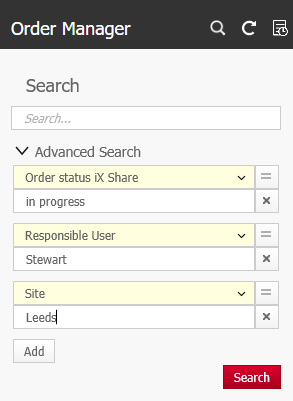
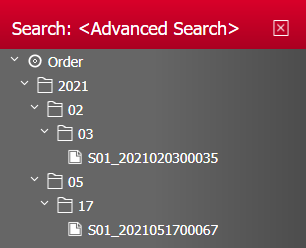
The full text order search can be used to search for Order status iX Share, responsible user, and site values.
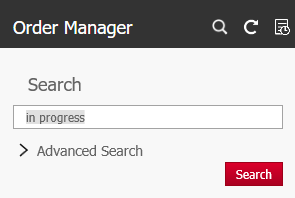
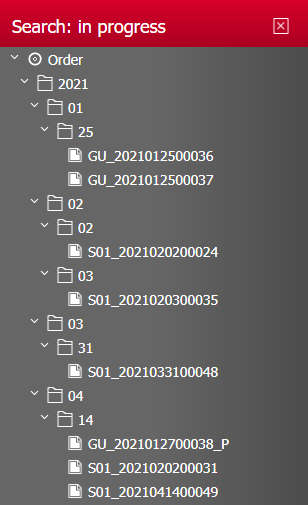
The extended search can be used to search for a targeted combination of new order characteristic values.