
Switch from hardware dongle to softlock licence after software upgrade
Note: Relevant for existing customers, who switch from an old version to iX 2021.
Since version iX 2021, licensing is done exclusively via softlock licenses.
When a user who owns a dongle upgrades to iX 2021, his softlock licences will be valid for 30 days. A final activation will take place after your existing hardware dongles have been devaluated and the corresponding softlock licenses have been unlocked for permanent use. After successful activation of the softlock licences, the hardware dongle can no longer be used.
Note: During an upgrade, the number of workstations of a network license is replaced with the same number of single-user licenses.
Prerequisite: To make a switch to softlock, we require the C2V files of all relevant dongles. If you have not sent them to us already, please follow the instructions in the topic Create C2V files.
-
As soon as you, the iX Administrator of your company, have received the delivery mail with the registration link, you must first log in to the iX License Portal via the registration link and create user accounts for your colleagues in the company.
You can find more information on that in the Support Center FAQ.
- Users can log in to the iX Support Center after a successful registration, download the current software setup under >Software>Setup & DVD and install it on their workstations. More information on the iX 2021 installation is available
- in the delivery mail,
- in the Online Help,
- in the Support Center FAQ.
- There are two approaches to finalize the softlock upgrade that we will portray in the following use cases. The premise for both use cases is that
- all users have finalized the registration of their accounts by assigning their own passwords.
- all users have installed iX 2021 on their workstations.
Note: The upgrade of Hardware-Dongle to Softlock must take place within 30 days after the softlock licences have been created and you have received the delivery mail. You will find the end date of this period in the License Manager after the installation of the imos iX application. If the upgrade from hardware dongle to softlock is not performed within the period, the softlock licenses become invalid!
Note: When the softlock licences expire with the deadline, you can continue using the hardware dongles with the prior software version (iX 2019 and earlier).
Option A: Everyone for themselves (recommended).
Each user applies the upgrade only to the softlock licence that was assigned to him.
Prerequisite: The iX Administrator of the company assigned the softlock licences to their respective users. He informed every user when the softlock upgrade can be applied on the user's dongle.
- Close all iX applications on your workstation.
- Start any iX 2021 application. After a login is successful with your personal iX login data in the browser, the iX 2021 Licence Manager launches.
-
If your hardware dongle is not plugged in to your workstation yet, please do so now and click "Refresh" in the top menu. Select the softlock – it usually has the same number in the title as the dongle, and it has not yet been assigned a Key-Id. Click "License Upgrade" to perform the upgrade.
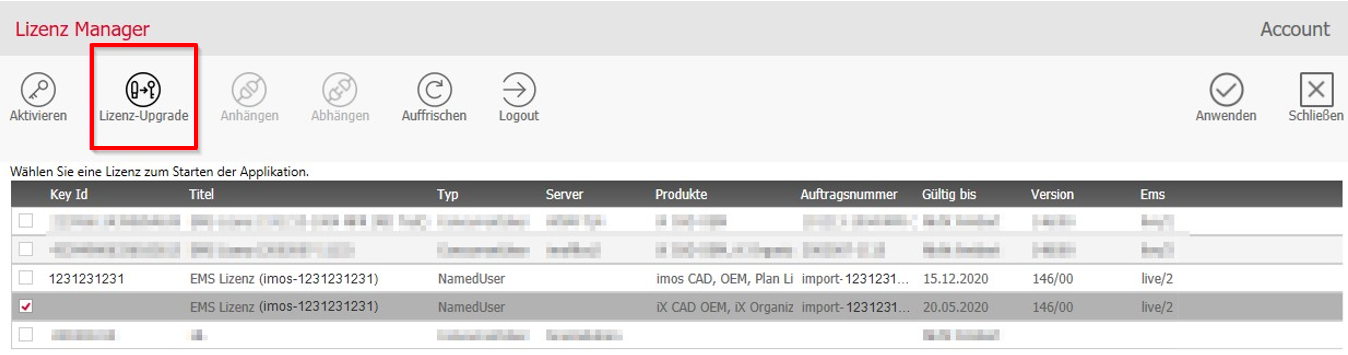
Note: A click on "Licence Upgrade" will execute the softlock license upgrade without asking for further confirmation!
Note concerning network licences: The network dongle must be plugged into the same computer where you perform the upgrade. It is sufficient to invalidate the dongle via a single softlock and thus activate the softlocks of all concurrent network license users in the company.
You can recognize a successful upgrade:
- by the dongle information in the table: the columns Products, Order number and Version are empty, which means the dongle was devaluated during the upgrade.
-
by the permanent activation of the softlock licenses.
- Click on „Apply“ to close the License Manager. This will install the softlock license on your local workstation. The iX 2021 application, that you clicked on initially, will then launch.
Option B: One for all.
In your company, there are hardware dongles which should be exchanged for softlocks centrally by the iX Administrator of your company.
- First, you, as the iX Administrator, assign the new softlock licenses to yourself in the license portal and collect all relevant dongles in your company.
-
Run the upgrade for each dongle. Proceed as described in option A points 2) & 3).
Note: Do not click "Apply" in the License Manager, as this will install the softlock license on your local computer.As a result, the actual users of the software will not be able to apply the licence on their own workstation unless you remember to detach it.
- Return to the license portal and release the softlock licenses from your account.This time assign the licenses to the correct users and inform your colleagues.
Related topics:
Oct 2021| iX 2021
#01449