Notes in preview images
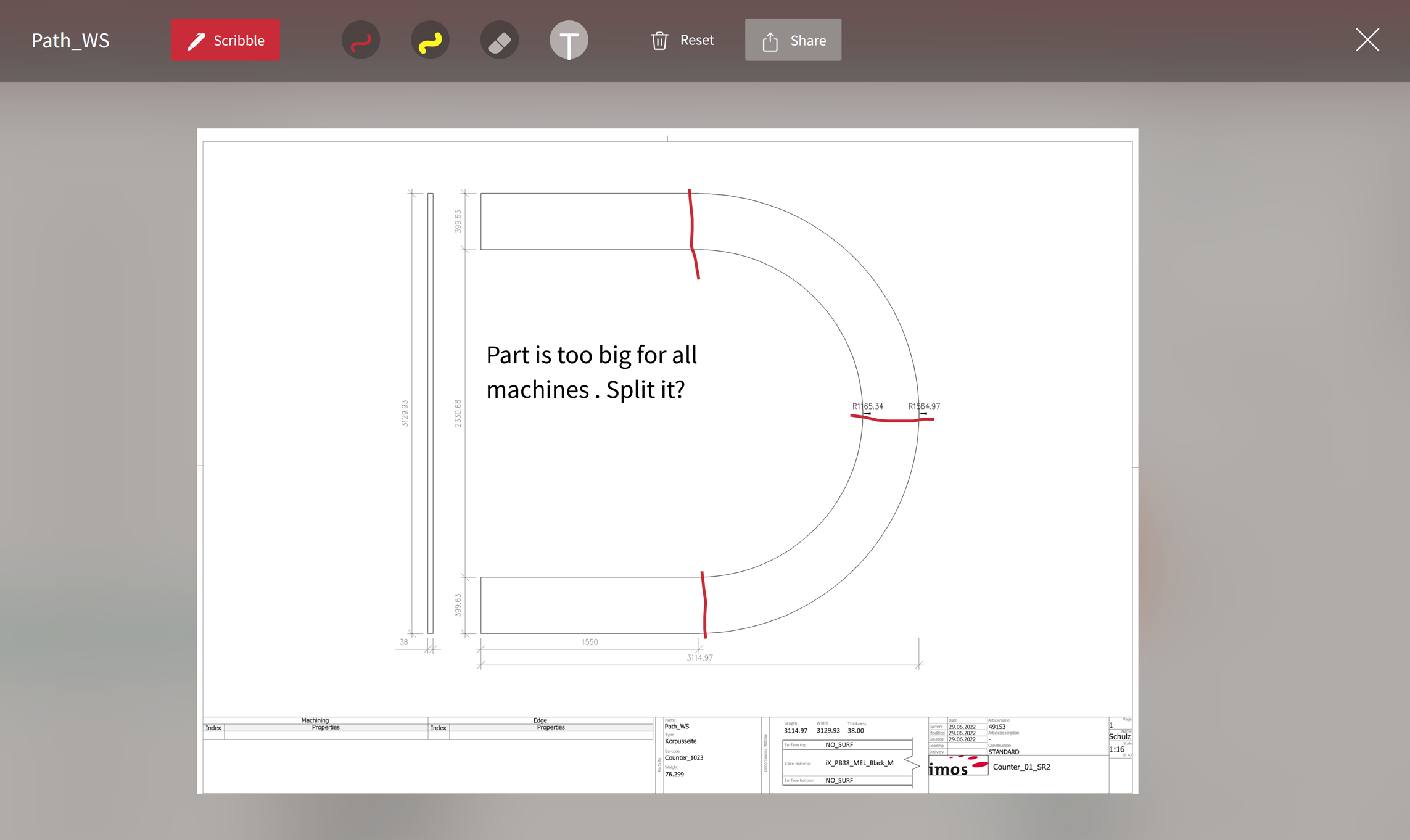
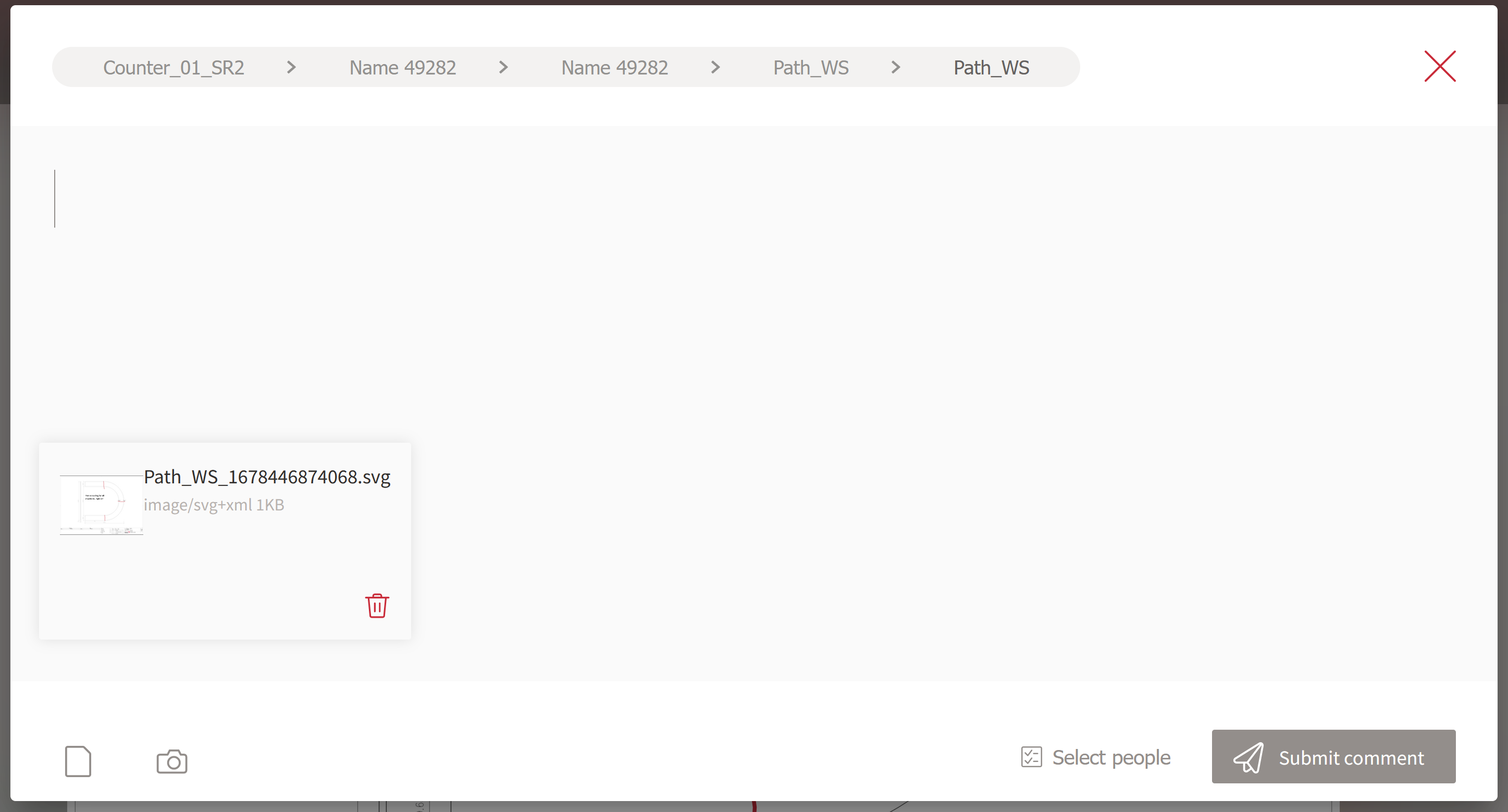
Leave notes and sketches in preview images to describe an issue more easily.The notes are saved in SVG format and placed as a separate layer on top of the preview image.The original state of the preview image is thus retained.
Procedure
-
Click on the preview image, for example in the Properties area of the 3D preview.The image opens in a modal window.
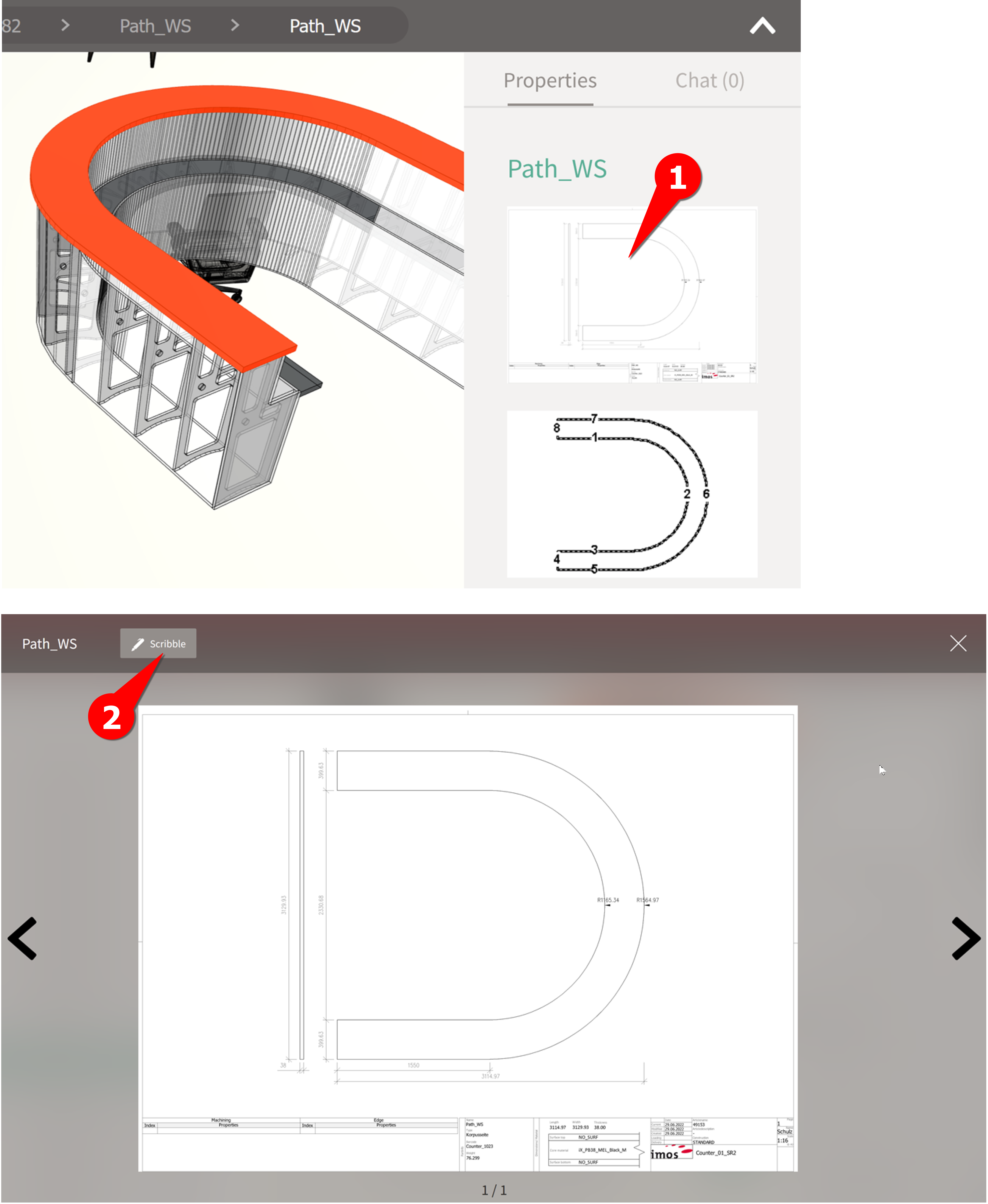
- Click on Mark up. The following tools will appear in the top bar:
Draw Draw freehand. Highlight Highlight in yellow, similar to a marker pen. Text input Enter text.The font size can be changed by dragging the text box larger/ smaller. Erase Remove an SVG element from the drawing. Reset Remove all SVG elements from the drawing. Share Write and send a message including preview image and notes. - Use the tools to add any drawing elements in the preview image.
-
Click Share to send the preview image including the SVG drawing to a colleague.