
iX CAM Report extended
The layout and handling of iX CAM Report have been adjusted to the iXplorer.In addition, other tools have been added to simplify troubleshooting.The details are described below.
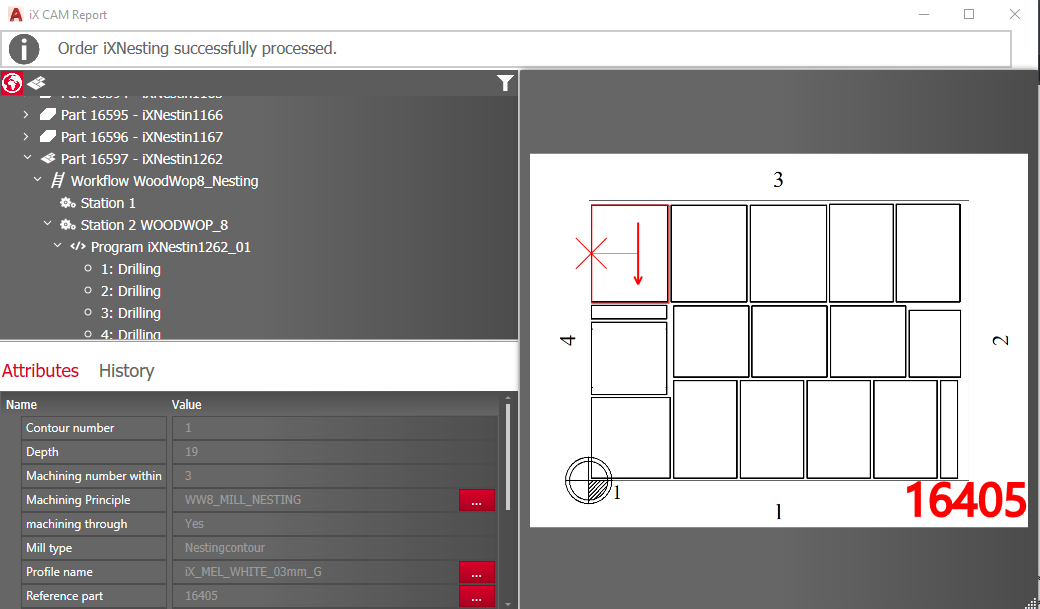
Reload element tree
In the element tree, the globe button has been added, which reloads the tree with all elements and closes open nodes.
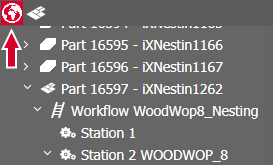
Filter elements
To simplify the search for machining and programs, you can now also use the iXplorer filter in the CAM Report.
Tip: Use the globe button to reset the filtering with one mouse click.
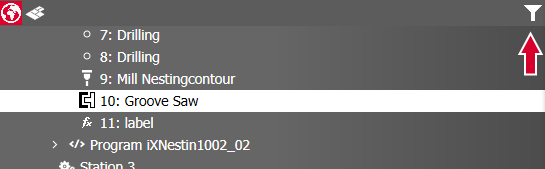
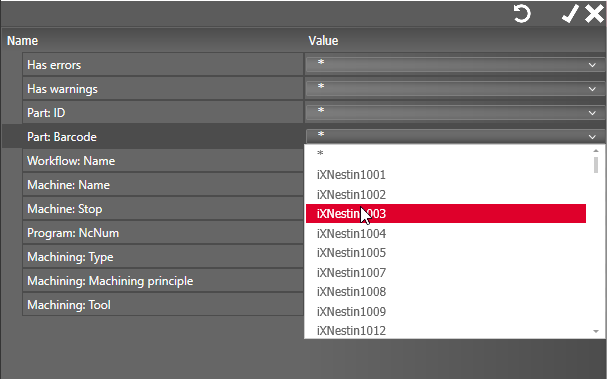
Open principles via the element tree
If you select an element in the tree that references a principle, you can examine this principle directly in the Element Manager via right-click > Open in Element Manager.
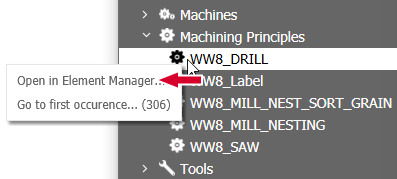
Jumping through all occurrences of a principle
If you want to investigate at which points in the Workflow a Machine, a Machining or a Tool occurs, then use the new function Go to first occurrence in the context menu of the principle.
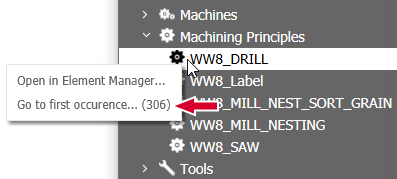
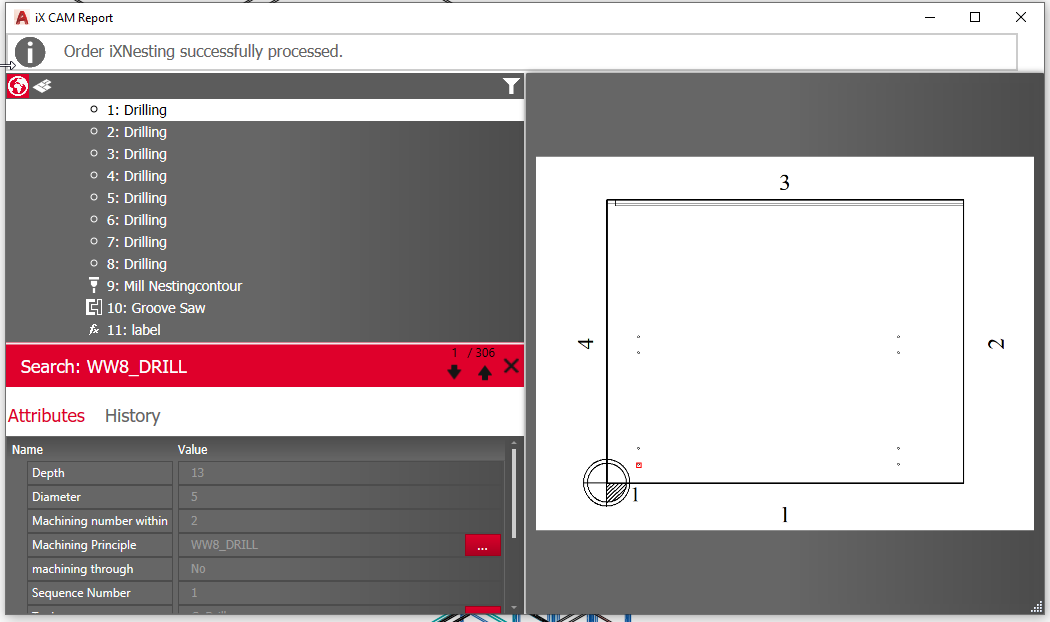
The function searches for all occurrences of the principle in the element tree and jumps to the first occurrence in the tree.You can use the forward and backward buttons to jump back and forth between occurrences – the corresponding properties are loaded and displayed in parallel. A status display provides information about which occurrence you are currently at, for example "5 out of 100".
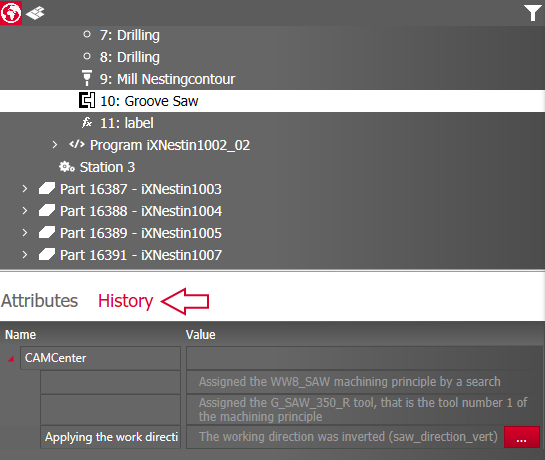
New History tab
In the History tab of the properties, all changes that have been made to the element are listed.
Finding errors
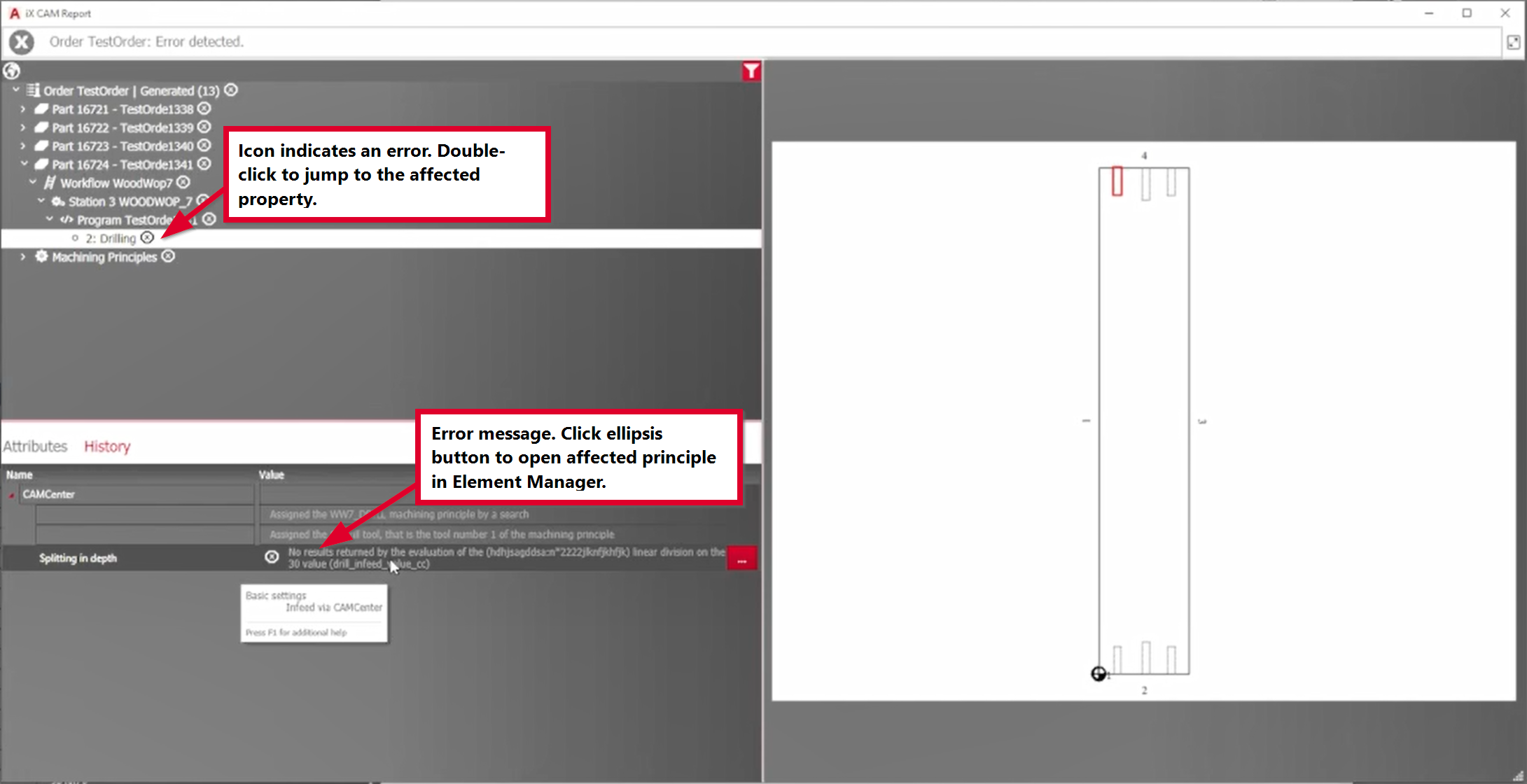
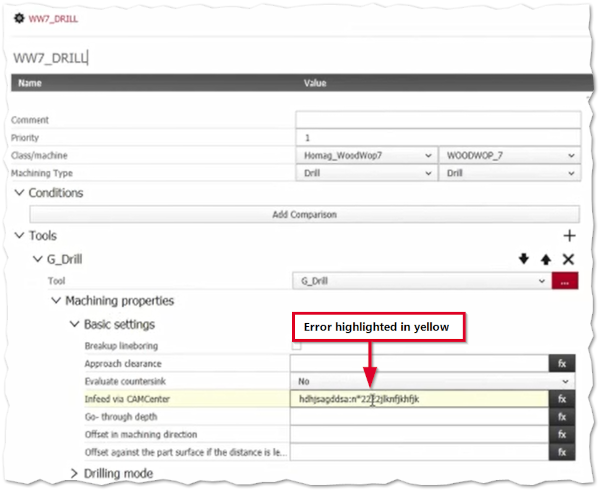
In the tree, elements that are themselves faulty or contain faulty child nodes are marked with corresponding icons.As soon as you click on the icon, the first affected child node that contains the error opens.In the properties area, the faulty property is loaded in parallel and the error message is displayed.A 3-dot button next to the property takes you directly to the principle in the Element Manager, where the incorrect field is highlighted in color.The existing syntax control will help you fix the error.
Nesting parts
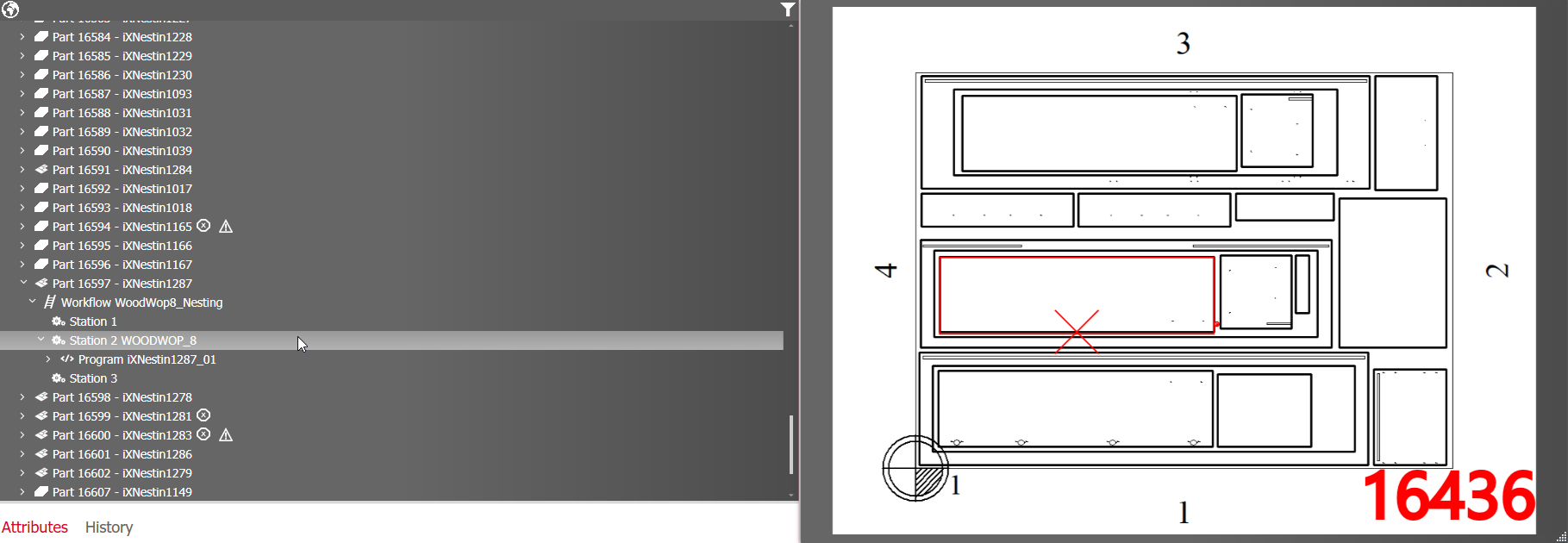
The nesting parts generated from iX CAM Nesting are also evaluated in the report.If you select a machining in it, not only the machining is highlighted in the preview, but also the affected part inside the nesting part.
In the properties area, you can use the 3-dot button next to the part number attribute to jump to the occurrence in the iX CAM Edit palette to make changes.
Nesting Dashboard
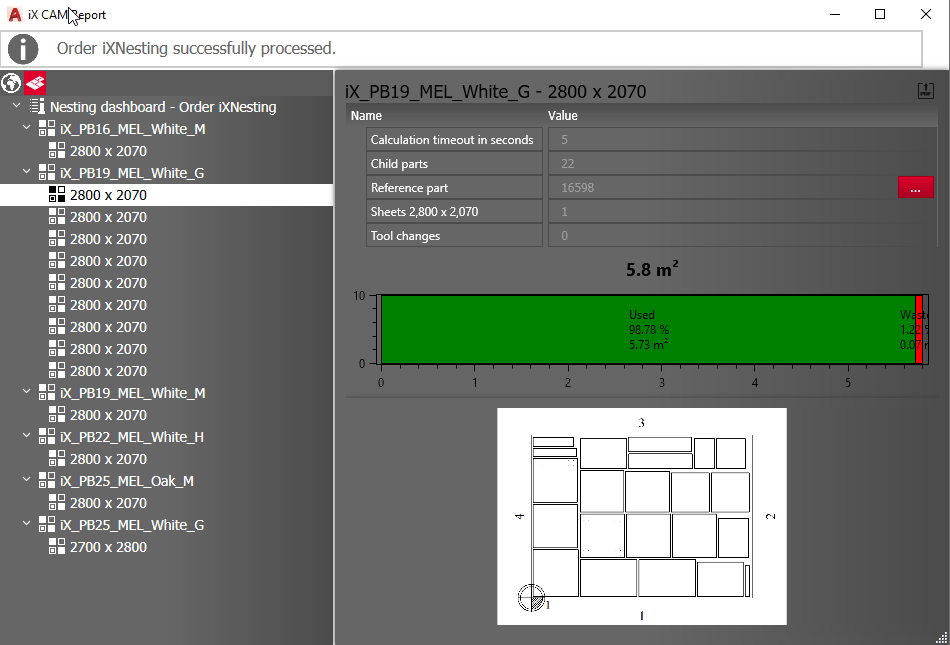
The CAM Report tab Nesting Dashboard bundles all nesting information of the current order.The element tree depicts the created nesting parts sorted by workflow and material.In the report area on the right you will find the details and statistics.For example, in the report you can see the ratio of used area to the rest directly in a diagram for each nesting part.Take action if the result is not optimal for your purposes.Either you increase the timeout time so that the nesting core has more time to sort, or you change the layouts of the nesting parts manually in the drawing area. (See Options in Machine principle > iX CAM Nesting section and Make subsequent changes to the layout of nesting parts.)
By clicking on the 3-dot button next to the part number, you can select the corresponding nesting part in the Report standard view.
Create nesting report PDF
Save a nesting report as a PDF to compare it with subsequent nesting results to find the optimal nesting configuration.The Save as PDF button can be found in the upper right corner of the Nesting Dashboard.