
iFurn DataBroker* – Central access to all supplier data
Access
imos Organizer > APP > iFurn DataBroker
The iFurn DataBroker* is the central contact point for browsing, importing and updating data packages. First and foremost you will find connector data from various manufacturers here. You decide whether individual connectors or entire catalogs are imported into the database.
Notes:
- iFurn is not part of the iX basic installation.
- The iFurn DataBroker combines Design Catalog Online (DCO), iFurn online and iFurn Update from the earlier program versions.
Launch iFurn Data Broker
Prerequisite: iFurn license
In the iX Organizer, open the Apps menu and click on iFurn Data Broker.
The iFurn Data Broker opens in a separate dialog.
Start page
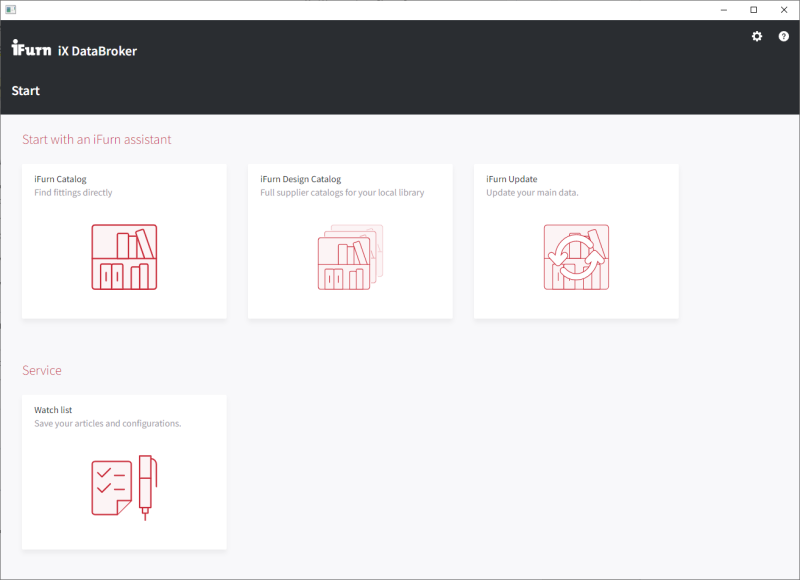
The main functions of the DataBroker can be found on the start page in the form of tiles. These include the following assistants:
- iFurn Catalog: Download individual connectors
- iFurn Design Catalog: Download entire catalogs
- iFurn Update: Check for updates to imported data and re-import if necessary
- Watch list: Overview of currently selected connectors and archive of previously imported connectors
Set language in iFurn DataBroker
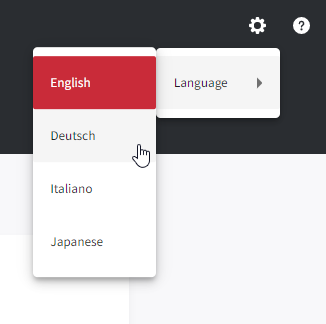
Go to Settings (in the top corner) >Language and select one of the available languages.
Import connectors using the iFurn Catalog Assistant
Note: Before starting the installation, back up the master and order data and carry out a database backup using the Organizer. We cannot assume any liability for data loss that occurs in connection with the installation.
Note: Disable the virus scanner and firewalls before installation. They can negatively affect the installation.
- Go to Start page> iFurn Catalog Assistant .
-
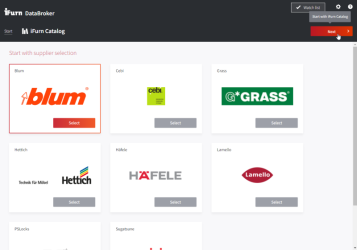
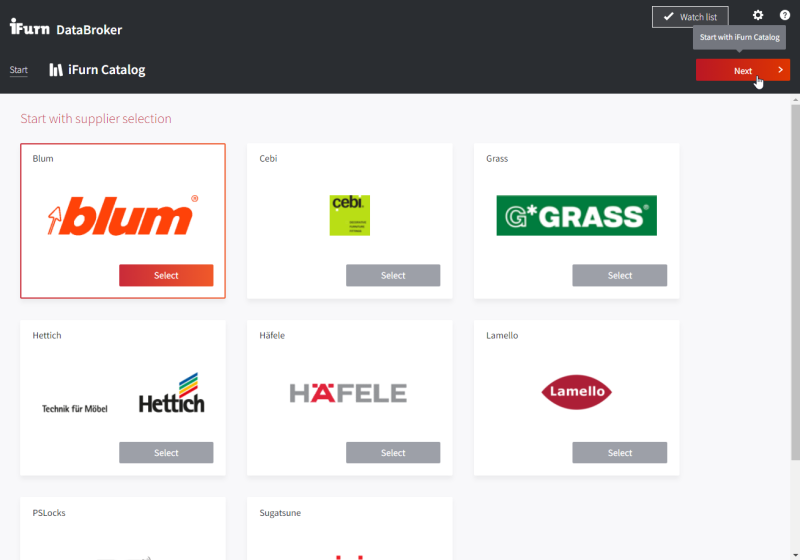
In the manufacturer overview, select a manufacturer tile by clicking on Select .
-
Continue by clicking Next .
iFurn will redirect you to the selected manufacturer's iFurn catalog.
-
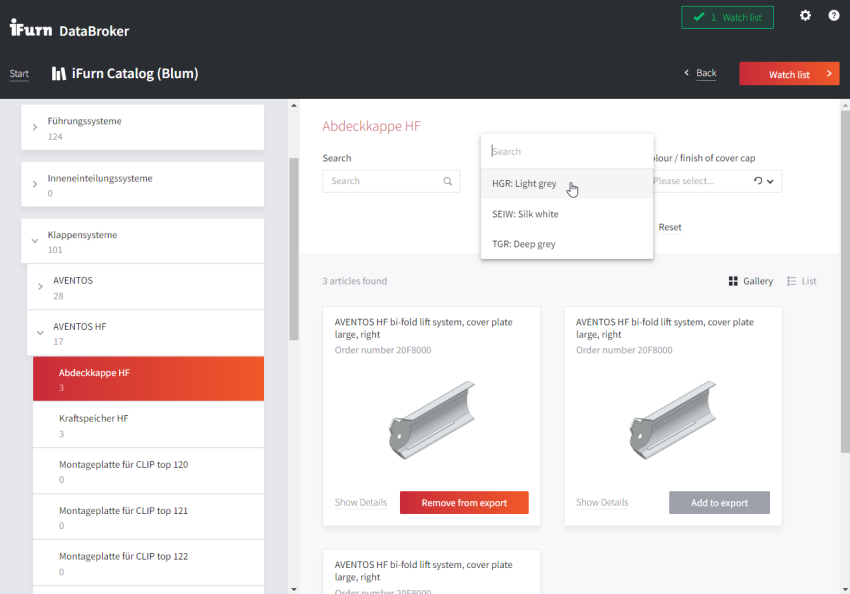
In the sidebar , navigate to the desired parent category.
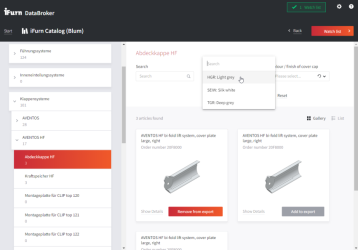
- In the Article list (main window), navigate to the desired sub-category.
- In the article list , click Add to export/ watch list for articles that you need.
Tips:
- The number of objects in the list can be reduced using the filters above.
- You can view connector details in a separate dialog by clicking Show details .
- The number of articles saved in the watch list is displayed in the Watch list button at the top.
- Open the Watch list. There are two possibilities:
- Click on Watch list above.
- Navigate back to the Start page via the breadcrumb at the top and click on the tile Watch list .
-
On the Watch List page, click the button Install to Database .
The system downloads the selected items, imports them and closes the DataBroker.
Import catalogs using the iFurn Design Catalog Assistant
Note: Before starting the installation, back up the master and order data and carry out a database backup using the Organizer. We cannot assume any liability for data loss that occurs in connection with the installation.
Note: Disable the virus scanner and firewalls before installation. They can negatively affect the installation.
- Go to Start page>iFurn Design Catalog Assistant .
-
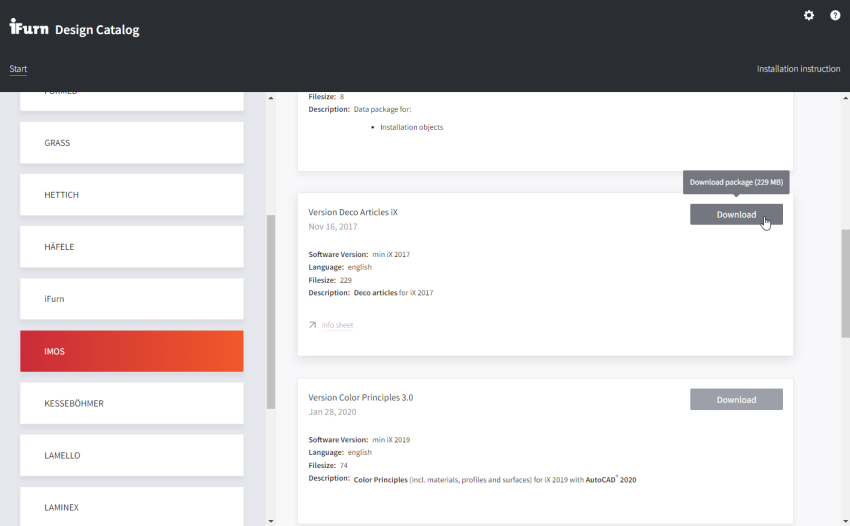
In the sidebar , navigate to the desired manufacturer.
-
Browse the catalog list for the catalog you want and click Download on the appropriate tile.
The system downloads the catalog, imports it and closes the DataBroker.
Update iFurn articles
Note: Before starting the installation, back up the master and order data and carry out a database backup using the Organizer. We cannot assume any liability for data loss that occurs in connection with the installation.
Note: Disable the virus scanner and firewalls before installation. They can negatively affect the installation.
-
Navigate to Start page>iFurn Update Assistant .
The system will redirect you to the Update page and automatically load available updates in the article list.
- In the article list , click Select for articles you need.
-
Click the button Install articles .
The system downloads and imports the new article version, overwriting the old record.
Key words: Data Broker
*) Not part of the iX basic installation.