
Optimizing barcode dimensions
Question
How can I adapt the size of the barcode in the report?
Answer
You can adapt the box in the RDL/report file and, starting with iX 2019, you can explicitly set the barcode image dimensions in the Barcode principle as well.
Adjust the barcode box to the barcode dimensions:
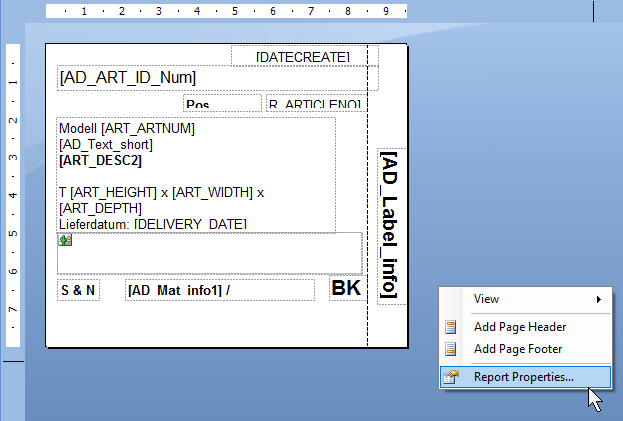
In the blue area of the reports, open the report properties via a right mouse click and select Report Properties.
Go to the Code section in the Report Properties.Here you find a long text that offers the possible settings for the barcode.
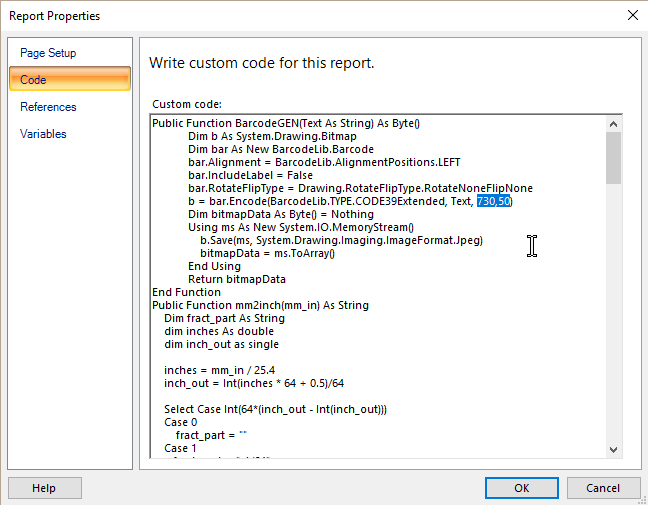
In this text, you will find a row that looks similar to this one:
b = bar.Encode(BarcodeLib.TYPE.CODE39Extended, Text, 730,50)
In this line, the second-to-last number controls the length of the barcode in mm and the last number controls the height of the barcode in mm.
The box that contains the barcode picture in the report has to be the same size minimum.
Adapting the barcode image size (in iX 2019 and upward):
The barcode image size depends on multiple factors, such as
- the chosen Barcode type (Code 128, QR-Code, ...) and the Barcode specific settings.
- the amount of data stored.
A QR code's legibility varies according to the amount of stored data and its error correction level; In general, dimensions of 183x183px including a 4px margin will suffice for this type.
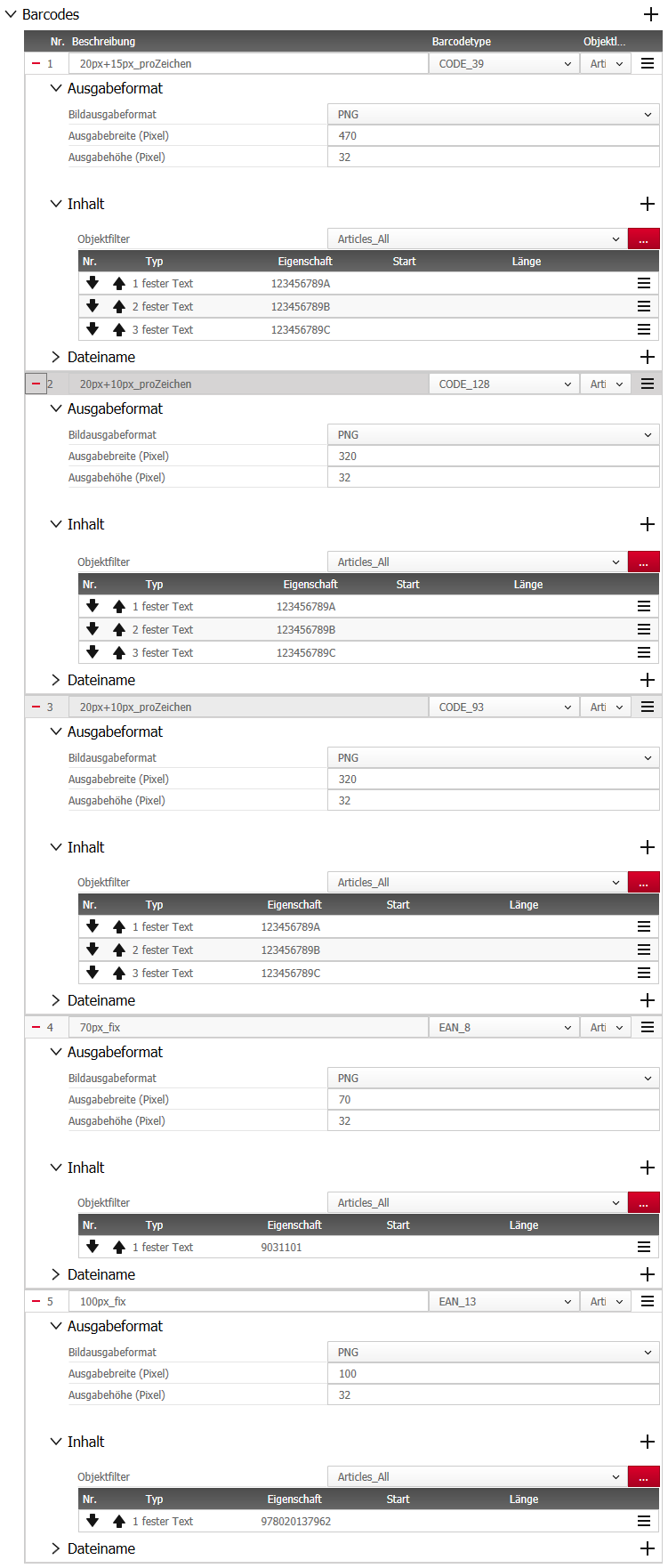
For all other types, you may refer the type specific dimensions in this collection:
Related topics
Key words: reports too small big do not fit fitting border overlap clash cut across
Jan 2017 | Version 12SR2
#00616